The Subtitle Burn-In filter was added in Shotcut 24.08
Renders subtitles permanently into the video image. Unlike subtitle tracks or external subtitle files, burned-in subtitles become part of the video itself and cannot be disabled by the viewer.
This filter reads subtitles from one of the project’s Subtitle tracks, allowing them to be styled, animated, positioned, and even attached to moving objects using the Motion Tracker.
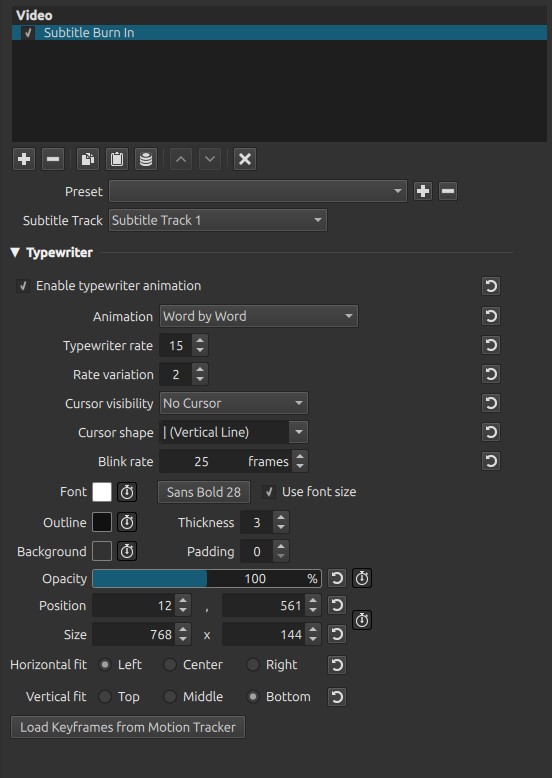
The Subtitle Burn-In filter can overlay subtitles that have been authored in the Subtitles Panel. The filter can only be added to the Timeline Output.
What “Burn In” means
There are two common ways to distribute subtitles:
-
Soft subtitles
- Stored separately (for example, as an SRT track/file) or embedded into the video file
- Can usually be enabled, disabled, or changed by the viewer
-
Burned-in subtitles
- Permanently rendered into every video frame
- Cannot be turned off
- Always appear exactly as designed
Burned-in subtitles are commonly used for social media, tutorials, translated videos, open captions, and platforms that do not support subtitle tracks.
Subtitle Track
Selects which Subtitle track is rendered by this filter.
Subtitle tracks are created and managed in the Subtitles panel.
The list is automatically populated with every subtitle track currently available in the project, including tracks created by:
- Importing subtitle files (such as SRT)
- Speech to Text
- Manually creating subtitles
Adding or removing subtitle tracks updates this list automatically.
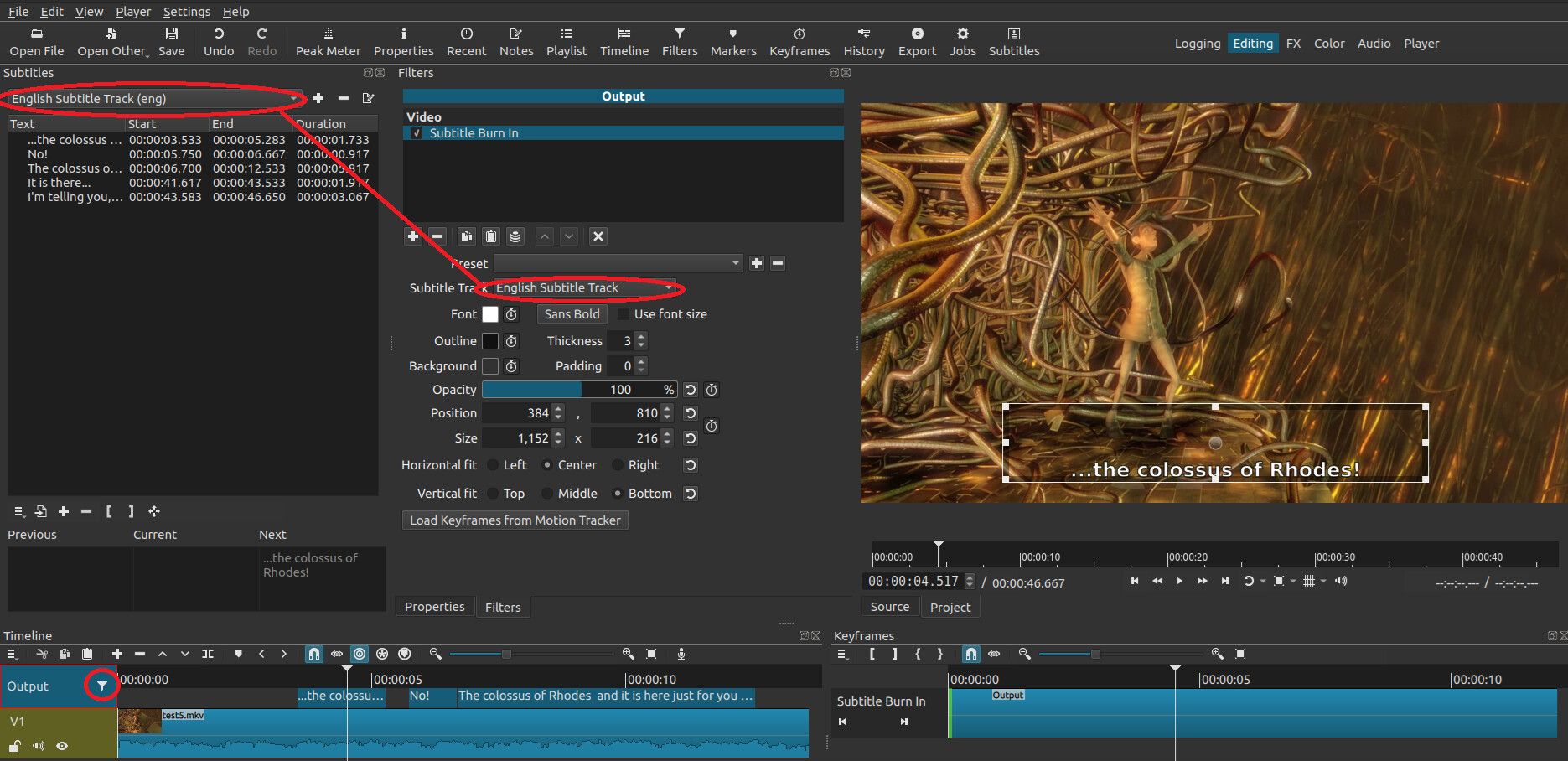
Typewriter
The Typewriter section adds animated subtitle appearance, making text appear progressively instead of all at once.
This effect is commonly used for:
- Computer terminals
- Chat messages
- Typing simulations
- Story narration
- Dramatic dialogue
Enable typewriter animation
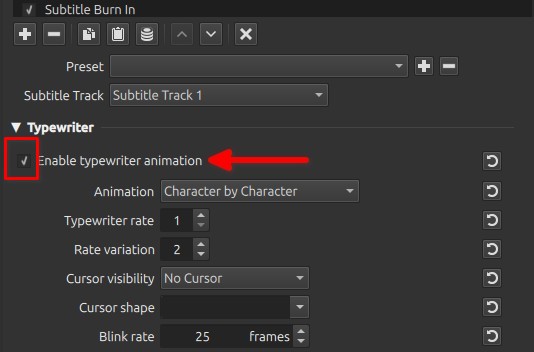
Enables or disables the typewriter effect.
When disabled, subtitles appear normally.
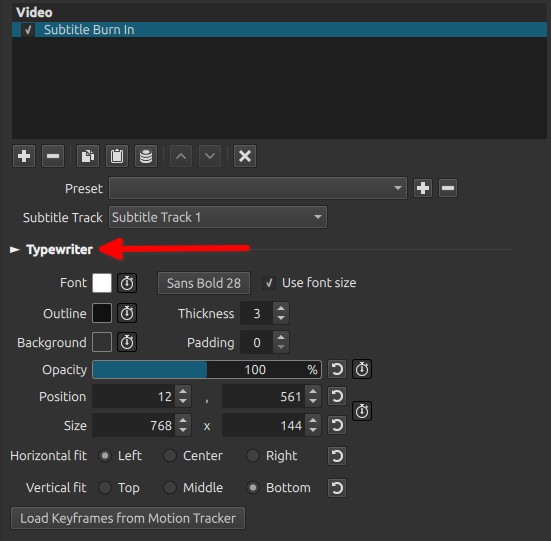
Animation
Determines how the subtitle is revealed.
Character by Character
Letters appear one at a time.
Produces the classic “typing” effect.
Word by Word
Entire words appear sequentially.
Often easier to read than character-by-character animation.
Line by Line
Each subtitle line appears at once.
Useful for long captions or karaoke-style presentations.
Typewriter rate (1 to 1000)
Determines the speed of the animation.
Important Note:
The value represents the number of frames between each character, word, or line appearance.
-
Low values
- Faster typing
-
High values
- Slower typing
Rate Variation (0 to 100)
Introduces small variations in typing speed.
-
0
- Constant speed
-
Higher values
- More natural, less mechanical typing
A higher value creates a more human-looking typing rhythm, less “mechanical.”
Cursor visibility
Controls when the typing cursor is displayed.
Options:
- No Cursor
- While Typing
- Always Visible
Cursor shape
Selects the cursor appearance.
Available shapes include:
| (Vertical Line)
_ (Underscore)
█ (Block)
▌ (Half Block)
▍ (Thick Line)
● (Bullet)
◆ (Diamond)
(Arrow)
The cursor has no effect once subtitles are burned into the exported video other than its visual appearance.
Blink Rate (0 to 200)
Controls how quickly the cursor blinks.
The value is expressed in frames.
-
0
- Cursor remains continuously visible.
-
Higher values
- Slower blinking.
Appearance
These controls define the visual style of the subtitles.
Font color (keyframable)
Sets the subtitle text color.
Font
A window will open
Selects the font family and the font size.
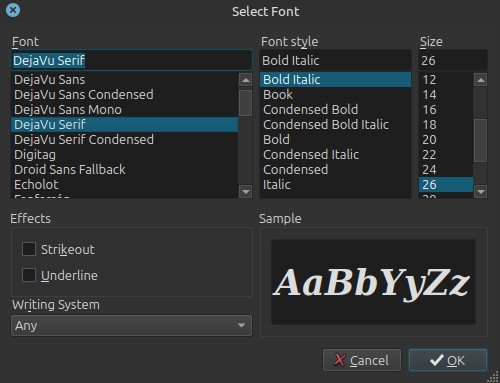
Use font size

When enabled, uses the specified font size instead of automatically determining one.
Useful for maintaining consistent subtitle size.
Outline (keyframable)
Sets the outline color surrounding the text.
An outline improves readability against bright or detailed backgrounds.
Thickness
Controls the outline width.
Higher values make subtitles easier to read but can obscure fine details.
Background (keyframable)
Sets the subtitle background color.
Useful when subtitles appear over busy scenes.
Padding
Controls the space between the subtitle text and its background.
Higher values produce a larger background box.
Opacity (keyframable)
Controls subtitle transparency.
-
0%
- Fully transparent
-
100%
- Fully opaque
Position
Position X / Position Y (keyframable)
Moves the subtitles horizontally and vertically.
Useful for:
- Avoiding important objects
- Positioning translated captions
- Following tracked subjects
Size X / Size Y (keyframable)
Controls the subtitle rendering area.
This affects how the subtitle box occupies the available space.
Horizontal Fit
Determines horizontal alignment.
Options:
- Left
- Center
- Right
Vertical Fit
Determines vertical alignment.
Options:
- Top
- Middle
- Bottom
Load Keyframes from Motion Tracker
Imports motion data previously generated by the Motion Tracker filter.
Once loaded, the subtitle automatically follows the tracked object without manually creating keyframes.
This is particularly useful for:
- Identifying people
- Following vehicles
- Labeling moving objects
- Speech bubbles
- Meme captions
Keyframes
The following parameters are keyframable:
- Font color
- Outline color
- Background color
- Opacity
- Position X
- Position Y
- Size X
- Size Y
Keyframes allow subtitles to:
- Move across the screen
- Change color
- Fade in or out
- Resize during playback
Motion Tracker keyframes can also be imported automatically.
Recommended use cases
- Burned-in translations
- Open captions
- Social media videos
- Tutorial subtitles
- Documentary captions
- Karaoke effects
- Computer terminal simulations
- Animated chat conversations
Tips
- Use an outline instead of a solid background whenever possible to preserve more of the video.
- Character-by-character animation works best with short subtitles.
- Word-by-word animation is generally easier to read.
- Use Motion Tracker to attach subtitles to moving subjects instead of manually keyframing every position.
- Keep subtitles within the safe viewing area to avoid clipping on different displays.
Limitations
- Burned-in subtitles cannot be disabled after export.
- Styling is fixed once exported.
- Motion tracking requires keyframes generated by the Motion Tracker filter.