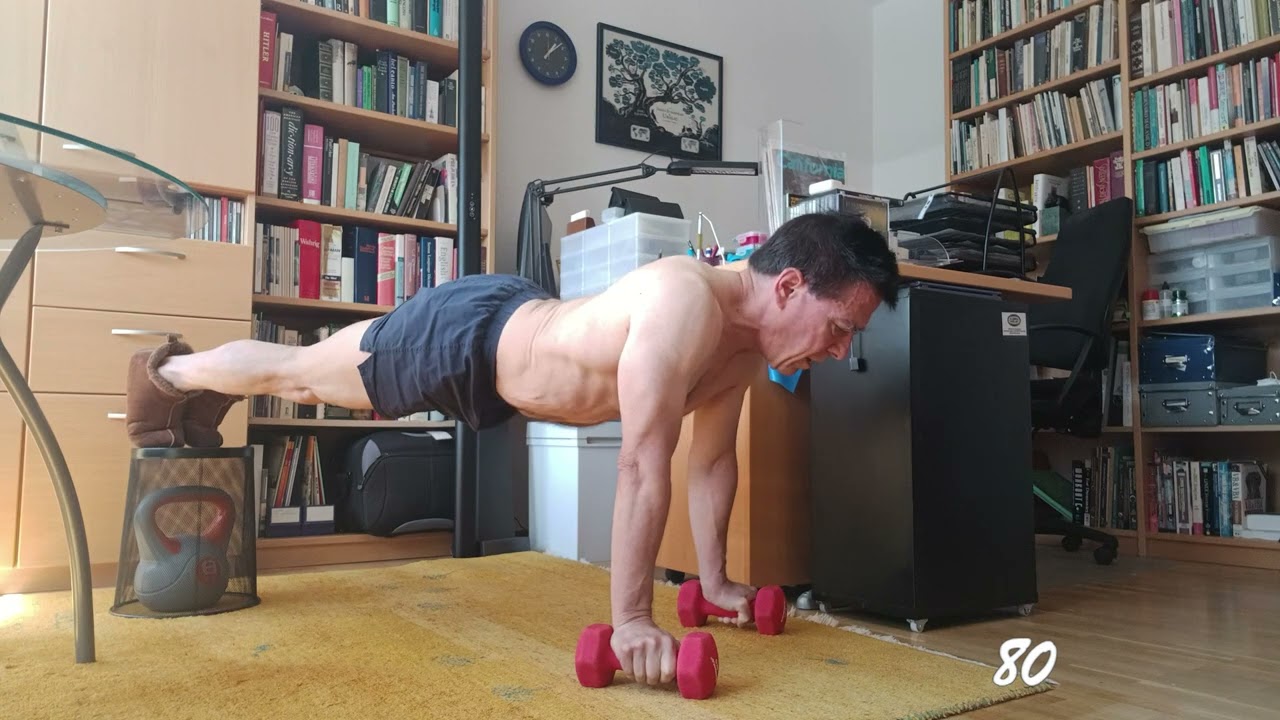
The awesome folks here helped me out with a flip transition I wanted close to three years ago, and I’m still using it on select videos I create. I mainly produce calisthenics videos for YouTube and Instagram. Here’s the main project from today, in which I happily used the transition once more. Another shoutout to @MusicalBox for going above and beyond the call of duty on this. The old thread with my question that led to a referral to the horizontal-flip transition is here: Flip transition
Also featured here is the fantastic html-based counter that @Elusien lovingly crafted after being called in to a different thread of mine from three years ago! I love both of these contributions and use them all the time. That thread is here:
101 at sixty nine — declines are fun, declines are fine!
In case you don’t know, I made a filter set for the flip transition.
It’s slightly different (and better looking in my opinion) from the one seen in the tutorial.
Great to see @musicalbox’s flip transition in action @spamless! I skimmed quickly through your video, though, and missed it … for anyone else wanting to see it, it happens at 0:58 in the video in the top post…
Thanks very much! Yeah, sorry I forgot to state where the transitions happen. Once at 58 seconds (one minute in minus two seconds for the transition splits) and one minute and a smidge from the end, so at 1:56. I sped up the middle section, between the transitions, to 8x speed to keep the whole thing under three minutes and to keep it entertaining and watchable. (Instagram has a three-minute cutoff on reels, for example.) The real-time set took nine minutes and a couple of seconds.
I had a chance to use this today! Great stuff. I had to take some time with the tutorial to figure it out, but now that I did, I’ll use it regularly. One of the less obvious things was figuring out where the Shotcut filter sets are kept so I could add the new set! (“C:\Program Files\Shotcut\share\shotcut\filter-sets” on my Windows computer.)
Questions: what does applying that “cut” (visible in the tutorial screenshot) actually do, and what does changing the setting from the default 20% to 50% do? I have two transitions in my new video, and I forgot to apply that “cut” to the second one, but when I played the transition in Shotcut it still looked fine. I retroactively applied “cut” and changed the value, though.
A transition is by default set to Dissolve
This means that clip B will gradually fade into clip A in the first half of the transition and that clip A will gradually fade out of clip B on the second half.
When the transition is set to Cut, there is no fading. Clip A will cut to clip B.
If Position is set to 20%, the cut will occur after 20% of the transition duration as passed.
If Position is set to 50%, the cut will occur exactly at the halfway point of the transition.
That’s what we need in the Flip Horizontal effect.
We don’t want any fading of the clips before and after the halfway point.
That’s because in your case, Clip A and Clip B are very similar. Same background, same colors, same light level and almost the same foreground (you). You simply don’t notice the fading occurring between the 2 clips
Using two very different clips, here’s the difference between a Cut transition and a Dissolve transition with the Flip Horizontal effect.