I need a counter for my badminton-training-tips like i found in this post.
Bad that is was closed.
In some badmintonstreams like this i wish to count correct strokes and skip missed strokes.
I wish to use only shotcut for showing a counter, that counts numbers when i maybe click left with the mouse.
The html-code of jonrayor Elusien seems to do it, but i don´t know how to use in shotcut.
The text-splitting of MusicalBox is is too time-consuming for me, because I want to count about 30-40 times per video, and that’s for dozens of videos.
Is there any way to use a click-counter in shotcut by not using externel workarounds?
Hi @thegrobi - I can’t see how this could be done directly in Shotcut, but today I amended @elusien’s and my HTML code (The main clever code was written by @elusien - I just added a few extras, with a bit of help from Gemini AI…)
Anyway, it’s now more user-friendly.
Here’s how it works in action. I used a badminton game as an example, in which the action was VERY fast, so I haven’t clicked the counter precisely enough in places…
Here’s the result in Shotcut. It was very quick to do.
You’ve put in so much work and helped me out a lot.
I think that’s extremely kind of you.
I managed to do it following your instructions and the modified code.
I used PicPick as a screen recorder.
Unfortunately, in my opinion, it’s relatively time-consuming to do this for several dozen of streams:
To record parallel to the video, I have to either start the video first or start recording. This leads to a pause, which later has to be cut precisely in Shotcut.
I only want to count the correct strokes. Not those that don’t fly over the net or out of the court, or where the player doesn’t even hit the ball.
This happens relatively often in my specific streams. That is the challenge of this exercises. Then I often make a click in the recording that I unfortunately have to undo. This happens often, if to count very fast. Increase/decrease is helpful, but in a recording not the perfekt solution.
A recording is relatively inflexible for this, compared to editable text.
For slow counting (1 in 5 seconds) it is easy to work with.
The perfect solution would be timer text (which already exists in Shotcut), but not showing the elapsed time or frames, but a manual counter.
Hi @thegrobi , it was no problem to amend the HTML, in fact, it will help me in future projects. (I make instructional music videos with the notation on screen, and it’s a handy tool for me to add counter numbers to bars (measures) of the music as it plays - so I will use it myself).
I understand that recording a screenshot is not the perfect solution and if mistakes are made with clicking while recording it’s hard to rectify, although it would be possible to edit the screenshot video by splitting and moving the numbers frame-by frame on the timeline if needed…
Until if and when a counter feature like this is added I guess the only other solution is to add numbers on a frame-by frame basis.
I had a go at myself - I made a folder of numbers 1-40 (PNGs with transparent backgrounds). This was very quick to do, with a combination of Shotcut keyboard shortcuts and a quick automated Auto Hotkey script I wrote - it took minutes.
Feel free to use them if you like. If you have lots of videos, though, yes, it’s going to be tedious! Here’s a short demo I just made. I put all the numbers on the (hidden) top track, advanced the video frame by frame, and pulled the numbers down when required.
Thank you again for this great new idea.
Placing the counter clips on two tracks can actually reduce the amount of work needed.
Why do you think it is advantageous to use PNGs instead of text clips 1-40?
Text clips could be edited retrospectively, for example:
1, 2, 3…
or:
1 Correct stroke, 2 Correct stroke, 3 Correct stroke…
or for you:
1 measure, 2 measure, 3 measure…
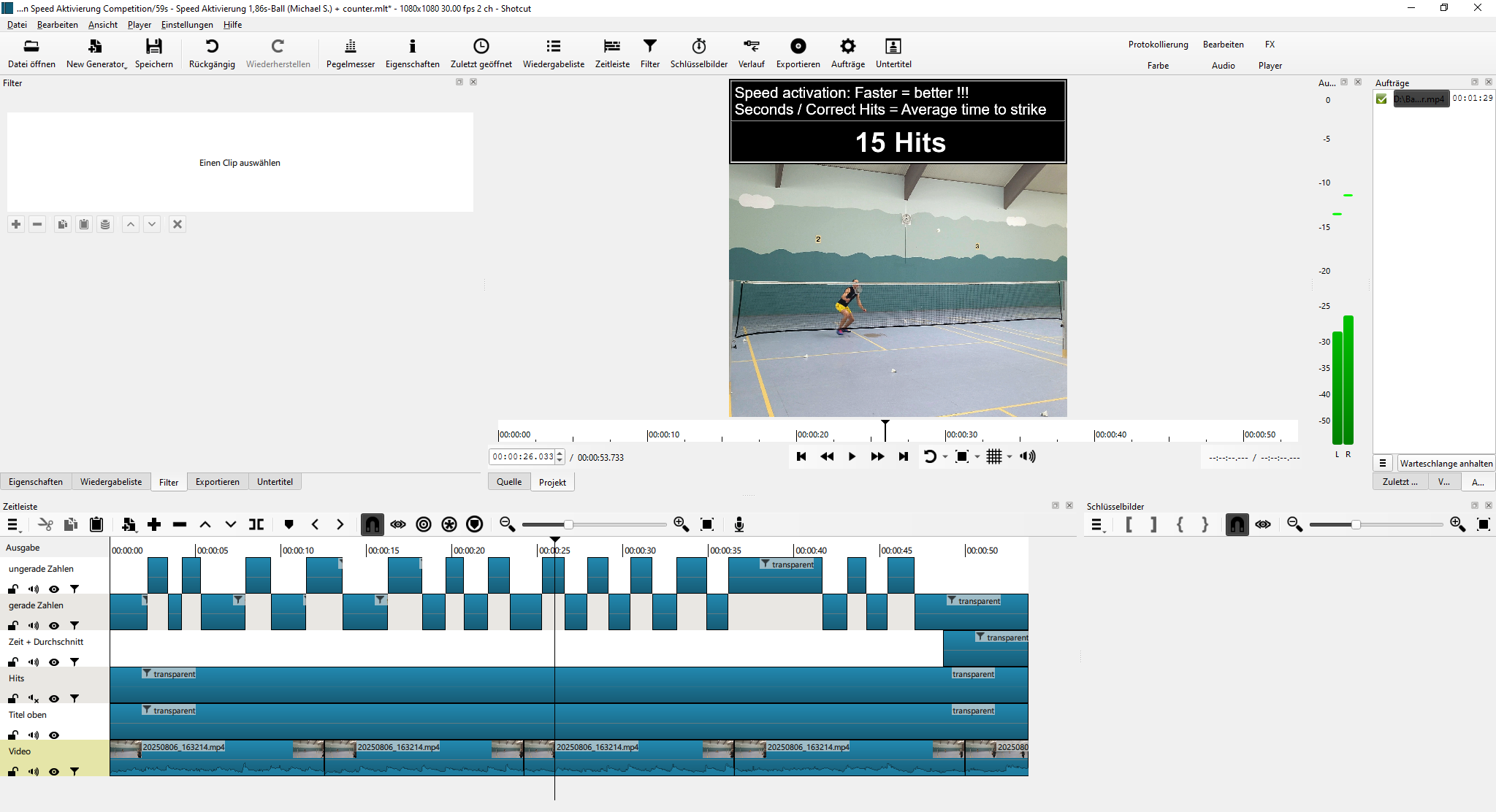
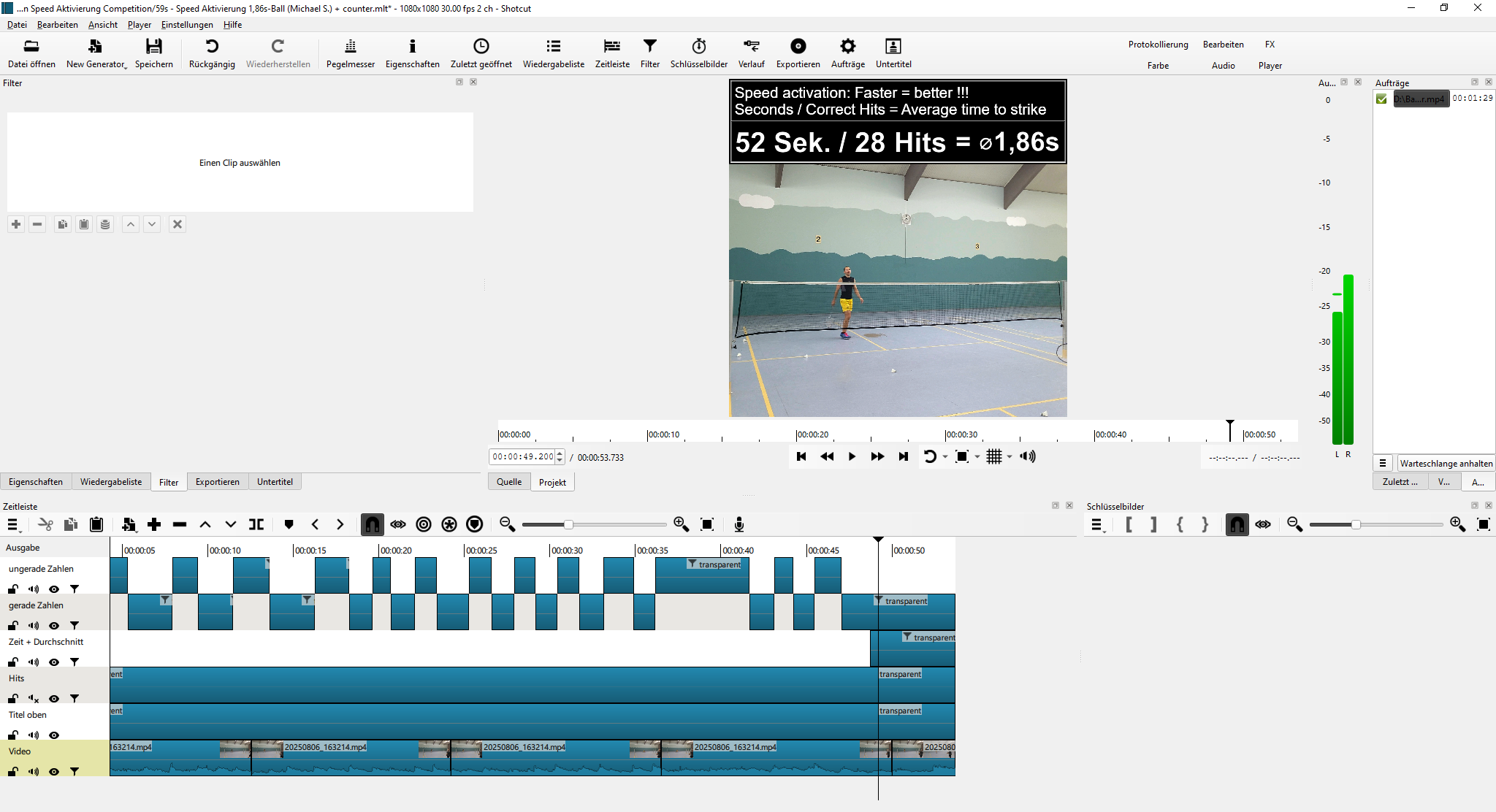
I have now implemented a stream with text clips (instead of PNG-clips) on two tracks:
Track V6: Text clips 1, 3, 5, 7, etc.
Track V5: Text clips 0, 1, 3, 5, etc.
I will copy and paste these tracks for the next similar practice streams. Then I will adjust the clip lengths to the correct badminton strokes.
The editing time required for 1 minute of video is approx. 10-15 minutes.
That is for now okay to me.
@jonray Thank you very much for the idea of 2 tracks instead of 1.
I will upload this example in a few days on youtube and show it then here.
This streams are only for Youtube-shorts and instagram-Reels. So i don´t wish to invest much worktime for it.
Good point! To be honest, shamefully I hadn’t watched @musicalbox’s great tutorial before I posted!. Text clips are fine!
Having said that, making your own PNGs might be advantageous because you can add a border, or other design, and maybe custom positioning, to your counter. Depends on how much time/effort you have available to put into it!
To go even further, you could also make a short animated MOV when the numbers maybe “bulge” (ie enlarge then contract) - like in this demo showing short examples of one of my recent music videos:
More will follow on YouTube and Instagram in the next few days.
It’s going to be a competition:
Anyone who manages to hit an average of under 1.55 seconds will get a free lesson from me.
I hope, the rules are not to complicated.
This is the second badminton competition I’ve organised using Shotcut.
Here you can see all the streams of the first competition.
Very nice, @jonray, thanks for continuing to work on this! As you may recall, I’m the one whose original plaint three years ago motivated you and @eliseurm to come up with that great counter html-code. I use it often to this day, and I certainly have not forgotten who came up with it! Very much obliged.
But what, exactly, have you changed now? I see the decrement and reset features via key combinations. Anything else?
I still wish someone could come up with an automated counter. I use the html counter almost exclusively to prepare my high-rep calisthenics videos. While it works a treat, it’s still time-intensive to work through 100 plus reps of push-ups, for example. I record the browser screen using Techsmith’s free Capture app, which continues to work well for me. But 100-plus push-ups takes up to ten minutes or more, and I have to hit the spacebar for each of those reps and try not to get distracted or slip up halfway through. Then I import the video into Shotcut as V2, size, move, and colorize, and add transitions using @MusicalBox’s sweet horizontal-transition macro. I speed up the middle 80% about 8x so the entire video is on the order of two-and-a-half minutes long: reasonable for Instagram or YouTube, for example. The whole operation takes me a half-hour if I’m lucky, often more.
Ideally, somebody one day might come up with an automated counter that uses motion detection. Set the parameters for the target area in the video and for the incrementing choices, and let ‘er rip! That would be superb.
Thanks for all the help here on this and over the years! And Happy New Year.
Thanks @Elusien,
I had actually already thought about the fact that it should be possible with markers.
However, I had never worked much with markers in my previous videos. I will try out the markers. Either exactly as you describe, or at least to make it easier to find positions and then complete it with the previous 2-track text solution.
This is a good idea. How about instead of pausing, run the video, and press M continually each time a hit is made (in other words, creating markers “on the fly”)?
An advantage of this is that if you make an error, the markers can be moved later to fine-tune it. I tried it, of course, making lots of mistakes. Practising it a few times would reduce the errors :
This is almost the solution I was originally aiming for:
I wish to use only shotcut for showing a counter, that counts numbers when i maybe click left with the mouse.
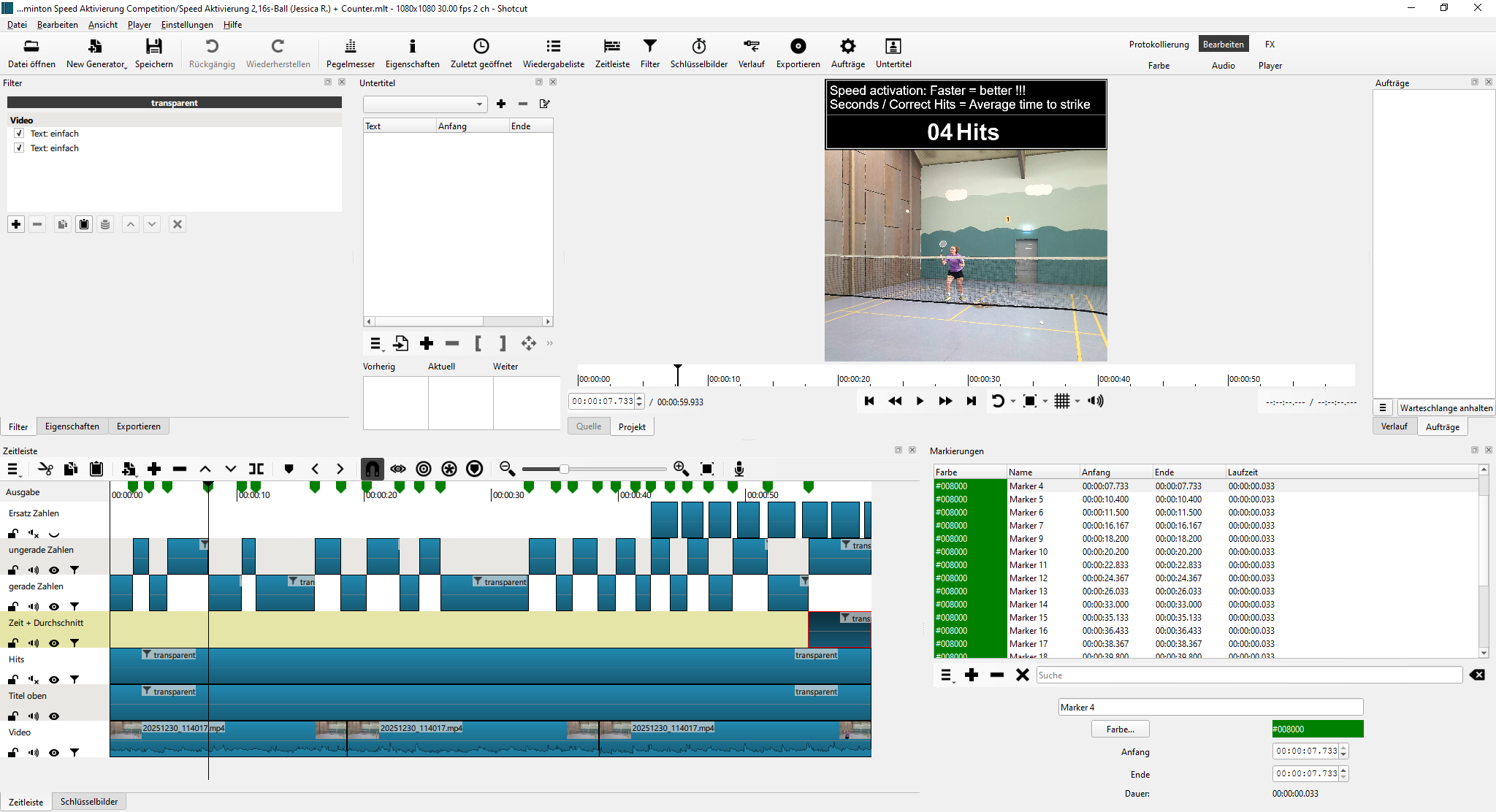
I set the markers by pressing the M key while playing the video in Shotcut.
I deleted incorrect markers (shuttle not hit) using the Strg+Shift+M keys.
I adjusted the text (1 hit, 2 hits, etc.), which was already spread across two tracks from a previous Shotcut session, to the markers.
I checked the video several times in between to make sure that only the hits were counted.
Conclusion:
The editing did not work (for me) significantly faster than without markers (due to multiple checks), but it still comes very close to my original wish.
Hi @spamless, I remember your energetic workout videos! I got exhausted just watching them! No problem to help! It was @elusien (master coder ) who provided the working code. I just changed the layout a little.
I added an embedded video player which appears on screen so you can run the video within the HTML file and click to increase the counter. Actually that idea came about from an idea by another forum member, @musicalbox, in a previous HTML project, so it was another Shotcut forum collaboration.
I also added SPACE as an alternate to clicking, CTRL + SPACE (or CTRL + Click) to decrease the counter, and BACKSPACE to reset the counter.




 No problem to help! It was