The Subtitles Panel was added in Shotcut 24.08
Subtitles display spoken dialogue, translations, descriptions, or other text synchronized with a video. They improve accessibility, make videos easier to understand in noisy environments, and allow viewers to watch content in other languages.
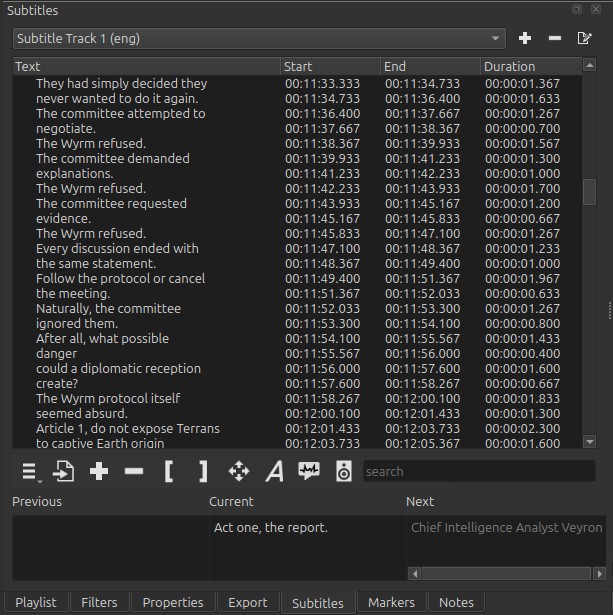
Shotcut provides a complete subtitle workflow, allowing you to:
- Create subtitles manually.
- Import existing subtitle files.
- Generate subtitles automatically using Speech to Text.
- Generate narration using Text to Speech.
- Permanently render subtitles into the video using the Subtitle: Burn In filter.
Subtitle workflow
A typical subtitle workflow consists of the following steps:
- Create or import subtitles.
- Edit and proofread the subtitle text.
- Adjust subtitle timing if necessary.
- Preview the subtitles.
- Optionally burn the subtitles into the video.
- Export the project.
Depending on your needs, some of these steps may not be required.
Choosing the right subtitle workflow
| If you want to… | Use… |
|---|---|
| Create subtitles manually | Subtitle panel |
| Import an existing subtitle file | Subtitle panel |
| Convert speech into subtitles | Speech to Text |
| Create spoken narration from subtitles | Text to Speech |
| Permanently display subtitles | Subtitle: Burn In |
| Keep subtitles editable | Export subtitles separately |
Creating subtitles
Manually
Open the Subtitle panel to create and edit subtitles Ctrl+Shift+9 for Windows / Linux, Shift+Command+9 for macOS.
From there you can:
- Add subtitle items.
- Remove subtitle items.
- Edit subtitle text.
- Set subtitle start and end times.
- Move subtitles along the timeline.
This method provides complete control over both timing and wording.
Importing subtitles
Existing subtitle files can be imported directly into the project.

This is useful when:
- subtitles were created in another application,
- translated subtitles already exist,
- captions are downloaded from another source.
Imported subtitles appear in the Subtitle panel and can be edited like manually created subtitles.
Speech to Text
The Speech to Text feature automatically converts spoken dialogue into subtitle items.

Typical workflow:
- Select the clip.
- Open Speech to Text.
- Choose the desired language.
- Generate subtitles.
- Review and correct the results.
Note:
Speech recognition can save a considerable amount of time compared to typing subtitles manually.
Tips
- Review the generated text before exporting.
- Proper names and technical terms may require manual correction.
- Clear recordings usually produce better recognition results.
Editing subtitles
Once subtitle items have been created or imported, they can be edited at any time.
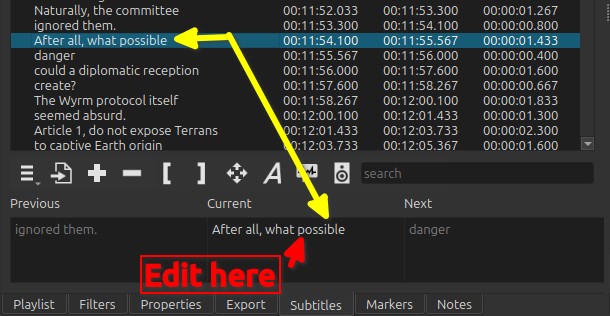
Common editing tasks include:
- Correcting spelling.
- Improving wording.
- Adjusting subtitle timing.
- Changing subtitle duration.
- Moving subtitles forward or backward in time.
Keyboard shortcuts are also available for many subtitle editing operations.
Previewing subtitles
The Subtitle panel displays all subtitle items in the current Output track.
During playback, the subtitle corresponding to the current playhead position is automatically highlighted, making it easy to review and adjust subtitle timing.
Subtitles are not displayed in the Player unless the Subtitle: Burn In filter is added. This filter renders the selected subtitle track using the chosen style and layout, allowing you to preview exactly how the subtitles will appear in the exported video.
Subtitle: Burn In
The Subtitle: Burn In filter permanently renders subtitles into the video image.

Unlike subtitle tracks, burned-in subtitles:
- always appear exactly as designed,
- become part of every exported video frame.
The filter supports:
- selecting a Subtitle Track,
- custom fonts,
- colors,
- outlines,
- backgrounds,
- positioning,
- keyframable animation,
- typewriter effects,
- Motion Tracker integration.
See Subtitle: Burn In for a complete description of every option.
Text to Speech
The Text to Speech feature generates spoken audio from subtitle text.

This can be useful for:
- temporary narration,
- accessibility,
- creating voice-overs,
- producing videos without recording a microphone.
Typical workflow:
- Create or import subtitles.
- Open Text to Speech.
- Select a voice.
- Generate the narration.
- Review the generated audio.
The generated audio can then be edited like any other audio clip.
Exporting subtitles
Shotcut can export subtitles as a separate SubRip Subtitle (.srt) file.
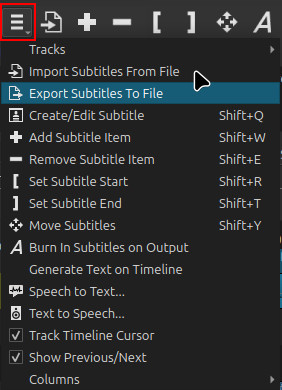
Notes:
An SRT file contains only the subtitle text and its timing information. It does not contain fonts, colors, positioning, or other visual formatting.
Exporting subtitles as an SRT file offers several advantages:
- The subtitle file can be edited later without modifying the video.
- Timing and text can be corrected or translated using Shotcut or another text or subtitle editor.
- The same subtitle file can be reused with different versions of a video.
- The SRT file can be translated and then imported as a second subtitle track.
- Many media players and video platforms support SRT subtitle files.
Because the subtitles remain separate from the video, viewers can often enable or disable them when the playback software or platform supports external subtitle files.
Below is an example of an SRT file opened in a text editor for editing purposes. Since an SRT file is a plain text file, it can be edited with almost any text editor.
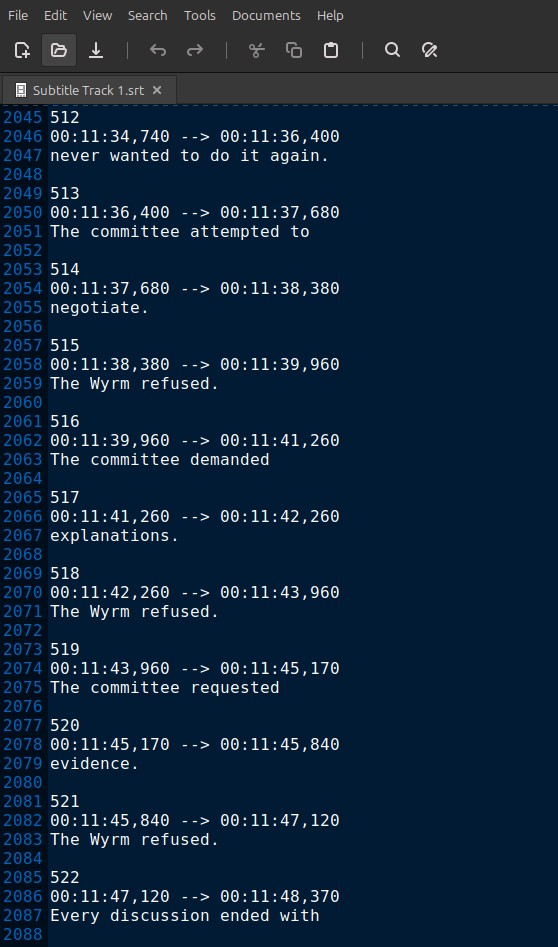
Note:
For example, if a person’s name was misspelled throughout the subtitles, the Find/Search and Replace feature can correct every occurrence in just a few seconds.
Embedding Subtitles
When exporting a Shotcut project, subtitles will be embedded in the output file if the file format supports it. Formats that commonly support subtitles include MKV, MOV and MP4.
Tips
- Keep subtitles short and easy to read.
- Allow enough reading time before changing to the next subtitle.
- Avoid covering important parts of the image.
- Proofread subtitles generated by Speech to Text.
Limitations
- Burned-in subtitles cannot be disabled after export.
- Speech recognition is not perfect and may require manual correction.
- Text-to-Speech quality depends on the selected voice and language.


