Silences audio by setting its level to absolute zero.
Unlike the track header mute button, which affects an entire track, this filter operates at the clip level and can target individual channels.
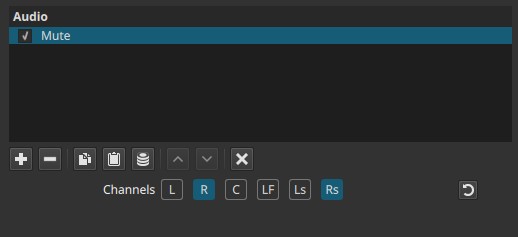
Mute applies absolute silence to selected audio channels at the clip level.
Parameters
This filter has no sliders or numeric controls.
Channel selection
Determines which audio channels are muted.
Buttons are toggle switches.

Available buttons depend on the project’s audio channel configuration: Settings > Audio Channels
- L — Front Left
- R — Front Right
- C — Center
- LF — Low-Frequency Effects (LFE)
- Ls — Surround Left
- Rs — Surround Right
Only the selected channels are silenced; unselected channels remain unaffected.
What this filter does
- Completely mutes selected channels for the duration of the clip
- Leaves timing, sync, and other channels unchanged
- Does not alter audio data permanently
- Applies only where the filter is present
How this differs from track mute
-
Track header mute
- Mutes all clips on the track
- Affects all channels
- Cannot target individual clips or channels
-
Mute filter
- Applies to a specific clip
- Can mute one or multiple channels
- Leaves other channels audible
Auditory characteristics
- Selected channels produce no sound
- No fade or attenuation; muting is absolute
- No effect on remaining channels
Recommended use cases
- Muting a specific clip without affecting the rest of the track
- Removing unwanted channels from imported multi-channel audio
- Silencing LF (Low Frequency) or surround channels selectively
- Creating intentional channel dropouts
- Cleaning up recordings with unused or noisy channels
Usage notes and tips
- Use Mute instead of Gain / Volume when silence is required.
- Combine with channel selection to surgically remove problem channels.
- For fades or gradual silencing, use Gain / Volume instead.
Limitations
- No fades or transitions
- No keyframe support
- No partial attenuation
- Must be combined with other filters for dynamic behavior