Most shortcuts listed above are also available when the Preview Window has focus, except F.
Action
Windows / Linux
macOS
Open/Raise
Ctrl+`
Control+`
Toggle Fullscreen
F
F
Exit Fullscreen and Restore
Esc
Esc
Other Notes
Player
Press and hold Shift+Alt to skim (scrub/seek) using the horizontal position of the mouse pointer without clicking and dragging.
When a filter has a rectangular visual control
Hold Shift to move it (change its position).
Important: First click inside the rectangle to give it focus.
Hold Ctrl (Command on macOS) to constrain movement to either the horizontal or vertical direction.
Hold Alt (Option on macOS) to temporarily disable snapping when the grid or guides are enabled.
These modifier keys can be combined.
Timeline
While dragging a clip or trimming, hold Alt (Option on macOS) to temporarily suspend snapping.
Linux: Press Altafter you begin dragging. Pressing it beforehand usually moves the application window.
Press and hold Shift+Alt to skim (scrub/seek) using the horizontal position of the mouse pointer without clicking and dragging.
Double-click a fade-in or fade-out handle (circle) to toggle its duration between 1 second and none.
Hold Ctrl (Command on macOS) while dragging one side of a marker to change its duration.
Hold Ctrl (Command on macOS) while trimming a clip to also trim the adjacent clip (a roll edit).
Hold Shift while trimming to perform a ripple trim when Ripple mode is disabled.
Hold Alt (Option on macOS) while clicking Mute or Hide in a track header to toggle all other tracks.
Multiple Selection in Playlist and Timeline
To select a range of consecutive clips:
Click the first (or last) clip.
Hold Shift.
Click the last (or first) clip.
To select or deselect individual clips:
Hold Ctrl (Command on macOS) while clicking each clip.
Keyframes
Hold Ctrl (Command on macOS) while dragging a keyframe to lock its time and change only its value.
Hold Alt while dragging a keyframe to lock its value and change only its time.
Double-click a regular keyframe curve to add or remove a keyframe.
Not all parameters support curve-based keyframes.
Double-click a simple keyframe to toggle its duration between 1 second and none.
Mouse Wheel
Player
Hold Shift while using the mouse wheel to zoom the Player.
Press and hold the mouse wheel, then drag to pan the view when zoomed in.
When a filter has a rectangular visual control
Rotate the mouse wheel to zoom in or out.
Hold Ctrl (Command on macOS) while using the wheel to rotate.
Hold Alt (Option on macOS) while rotating to temporarily disable snapping to 0°, 90°, 180°, 270°, and 360°.
Playlist
Rotate the mouse wheel to scroll vertically.
Hold Alt to scroll horizontally.
Timeline and Keyframes
Rotate the mouse wheel to scroll horizontally.*
Hold Alt to scroll vertically.
Press and hold the mouse wheel, then drag to pan the view.
Hold Shift while using the wheel to change track height.
Hold Ctrl (Command on macOS) while using the wheel to zoom in or out.
Note (macOS): When using a standard mouse (not a Magic Mouse or trackpad), horizontal scrolling in the Timeline or Keyframes also requires one of the following modifier combinations:
Control
Control+Option
Control+Command
Option+Command
Numeric Fields
Numeric fields can be increased or decreased using the mouse wheel while the mouse pointer is over the field.
On some systems, holding Ctrl (Command on macOS) changes the value by a larger amount (typically 10× the normal increment, depending on the number of decimal places).
Entering Time Values
Timecode fields—such as the one displayed below the Player—accept several shorthand formats.
Frame number
A number without any colons is interpreted as a frame number.
Example:
100 = frame 100 (the 101st frame, since frame numbering starts at 0)
Time values
Including a colon (:) interprets the value as a time.
Examples:
Entry
Meaning
::1.0
1 second
1:
1 second
:1.
1 second
:1.5
1.5 seconds
1::
1 minute
1:30:
1 minute 30 seconds
1:::
1 hour
Note: Time values are interpreted from right to left. A value such as 1.0 is not interpreted as one second because it does not contain a colon.
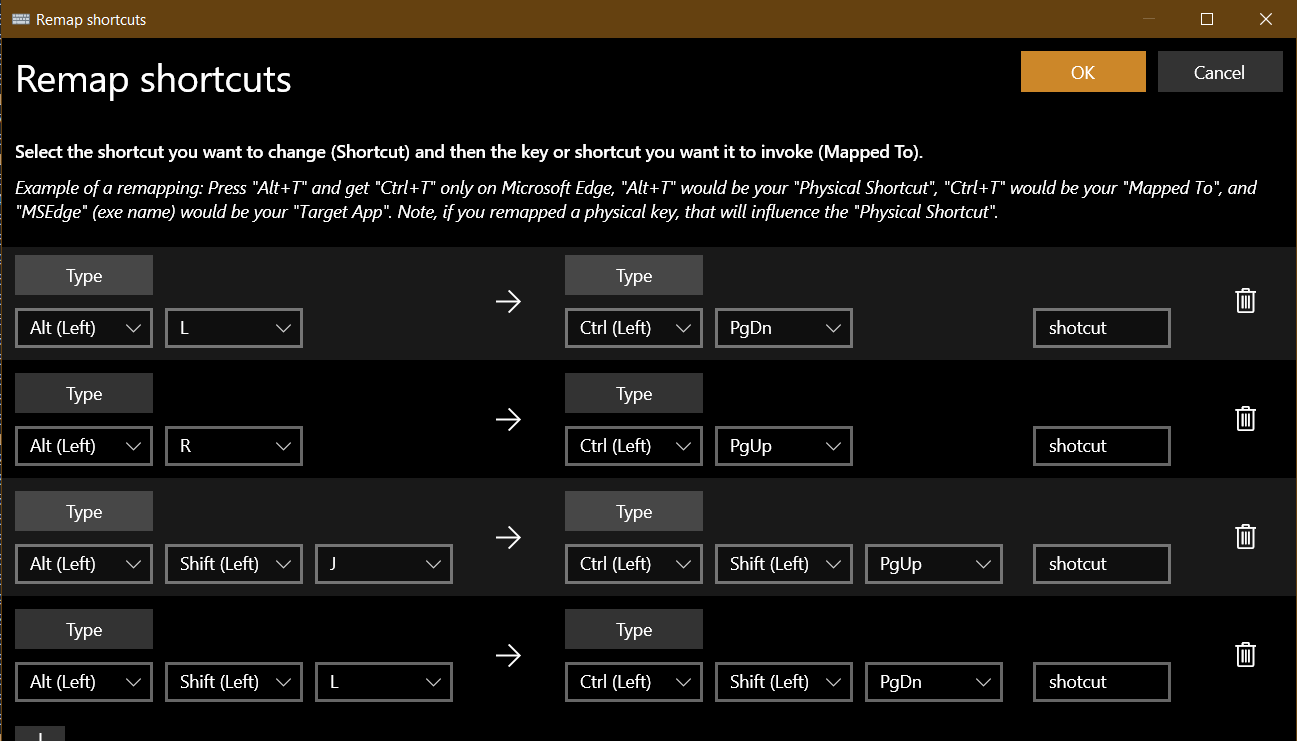
I’d love to change the back and forward keys to something more natural (i.e. easier to my eye-hand coordination) like alt, shift, ctrl-J and L on mine.
Eureka! For those looking for a workaround to this, I found a (somewhat obvious) one using MS PowerToys’ Keyboard Manager (pretty sure there are key remappers for Linux and MacOS too, as well as others for Windows if one would prefer):