Gradually removes a clip at its end by transitioning from the full image to black or to transparency over a specified duration.
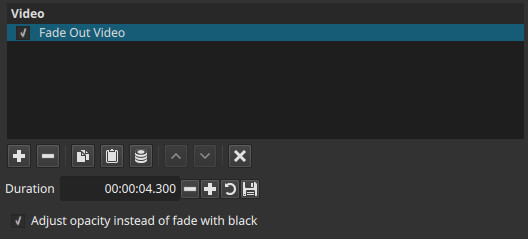
This filter is used to create smooth visual exits and to avoid abrupt cuts at the end of a clip.
Access methods
- From the Filters list as Fade Out Video
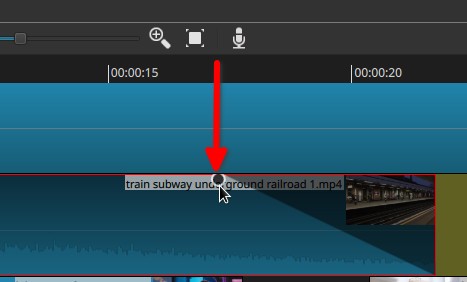
- Directly from the timeline by hovering near the top-right corner of a clip’s end and dragging inward
- This action automatically adds the filter to the clip with the chosen duration
- Double-click the fade control’s circle handle to either add a one second fade or remove the fade.
General behavior (important)
- The fade is applied to the end of the clip only.
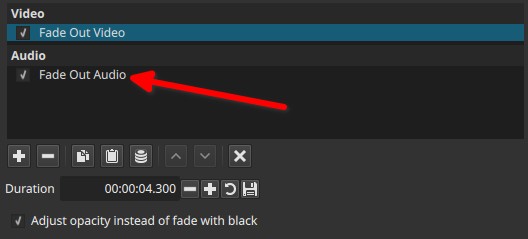
- If the clip contains audio, audio is faded out as well, and a corresponding Fade Out Audio filter is automatically added.
- The fade affects only the selected clip and does not modify following clips.
Parameters
Duration (time value)
Sets how long the fade-out lasts.
-
Format: HH:MM:SS.SSS
- Example:
00:00:03.000= 3 seconds
- Example:
-
Defines the interval from full visibility to complete fade at the clip’s end.
Behavior notes
- Short durations create quick, subtle exits.
- Longer durations produce slow, deliberate fades.
- The adjacent Save as default button stores the current duration as the default for newly added fade-outs.
Adjust opacity instead of fade with black (checkbox)
Controls how the fade-out is performed.
-
Disabled (default when added from Filters list)
The clip fades to black. -
Enabled (default when added from the timeline handle)
The clip fades by reducing opacity:- The clip becomes gradually transparent
- Underlying tracks show through during the fade
Note:
Use opacity fades when compositing over other video; use black fades for standalone endings.
How the filter is added (important note)
The default fade mode depends on how the filter is created:
-
Added from the Filters list
→ Defaults to fade to black
→ “Adjust opacity instead of fade with black” checkbox is disabled -
Added from the timeline clip handle
→ Defaults to opacity fade
→ “Adjust opacity instead of fade with black” checkbox is enabled if the clip is NOT on the bottom video track (V1). Otherwise, on V1, it fades with black.
The mode can always be changed manually after creation.
Audio behavior
When the clip includes audio:
- A Fade Out Audio filter is added automatically
- Audio fades out over the same Duration
- Audio and video remain synchronized
Visual characteristics
- Smooth transition from image to black or transparency
- No geometry or color changes
- Timing is locked to the clip’s end
- Identical behavior whether added via the filter list or timeline handle
Recommended use cases
- Ending scenes cleanly
- Avoiding abrupt visual and audio cutoffs
- Transitioning between sequences
- Compositing overlays using opacity fades
Limitations
- Applies only at the end of a clip
- Duration is time-based, not frame-based
- No easing or curve control
- Not keyframeable