after putting a lot of effort in a half-hour-video I wanted to export it. However, I always get the same message, translated from German: “Your project has several missing data. Please save the project, close it and re-open it. Shotcut will try to repair your project.” Unfortunately this doesn´t work. And if I ignore the message, which is possible, the download doesn´t work.
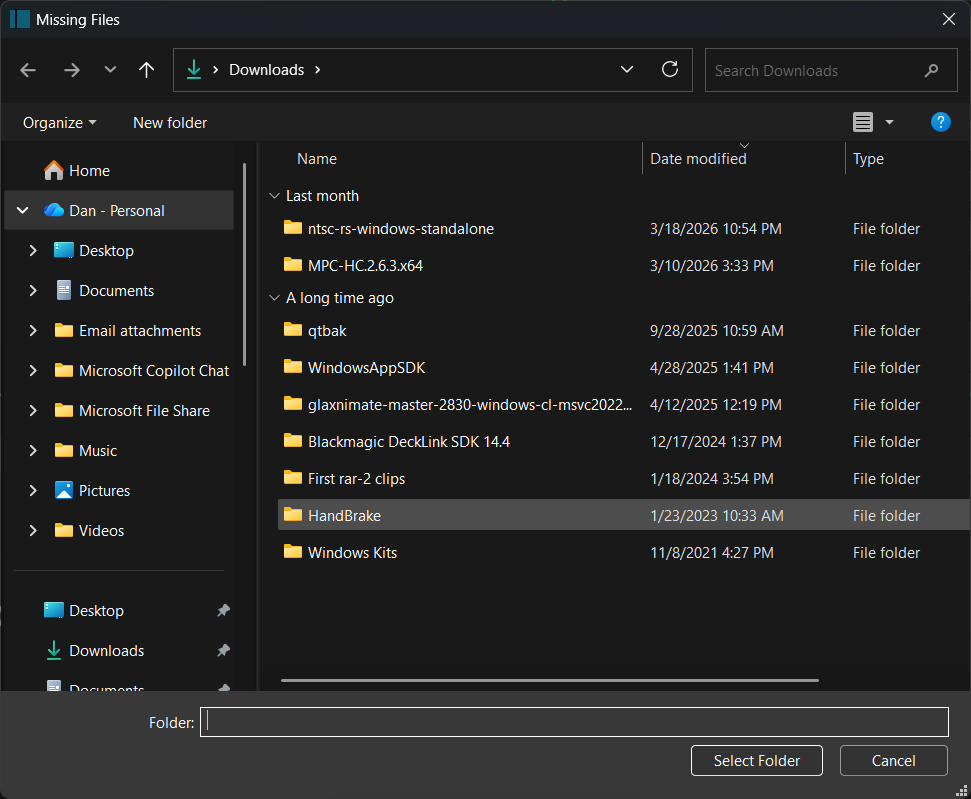
I want to add that while starting the project, I already get a warning, that some data are missing. I even get offered a list of mistakes, but if I click on them a window opens which shows data from the Download-folder. It doesn´t help because the missing data apparently cannot be found this way. At least I can open the project and can work with it. But the export problem remains.
It cannot magically know about every file on your computer. You must navigate to a directory that might have it. You can go row-by-row to choose a replacement for each, but you must find and pick the file yourself. It does not need to be the exact same file, but it is usually better if it is. Otherwise, this dialog has a search button where you can choose a folder, but you need to at least navigate to a likely folder. It does not magically know which folder to search, and you can try more than one folder.
Thanks a lot, however this doesn´t help yet. If I click on the files offered row by row each time the Download-file opens up with the recent downloads on top. There is no hint how to find the missing files. There is also an option “Searching in folder” as you mention. If I use this instead of clicking the files directly again the Download-file shows up this time with certain files on top that indeed I have used for the film. However, there is again no hint in which way a file is missing, i.e. what I am supposed to do. So I end up without any information and clue about the missing files which is frustrating. In the meantime I have been able to save two files: an .mlt and an mp4.-file while both cannot be started. Can anybody please help? If not concerning the video export and the allegedly missing files: Can these files be transferred into a suitable format?
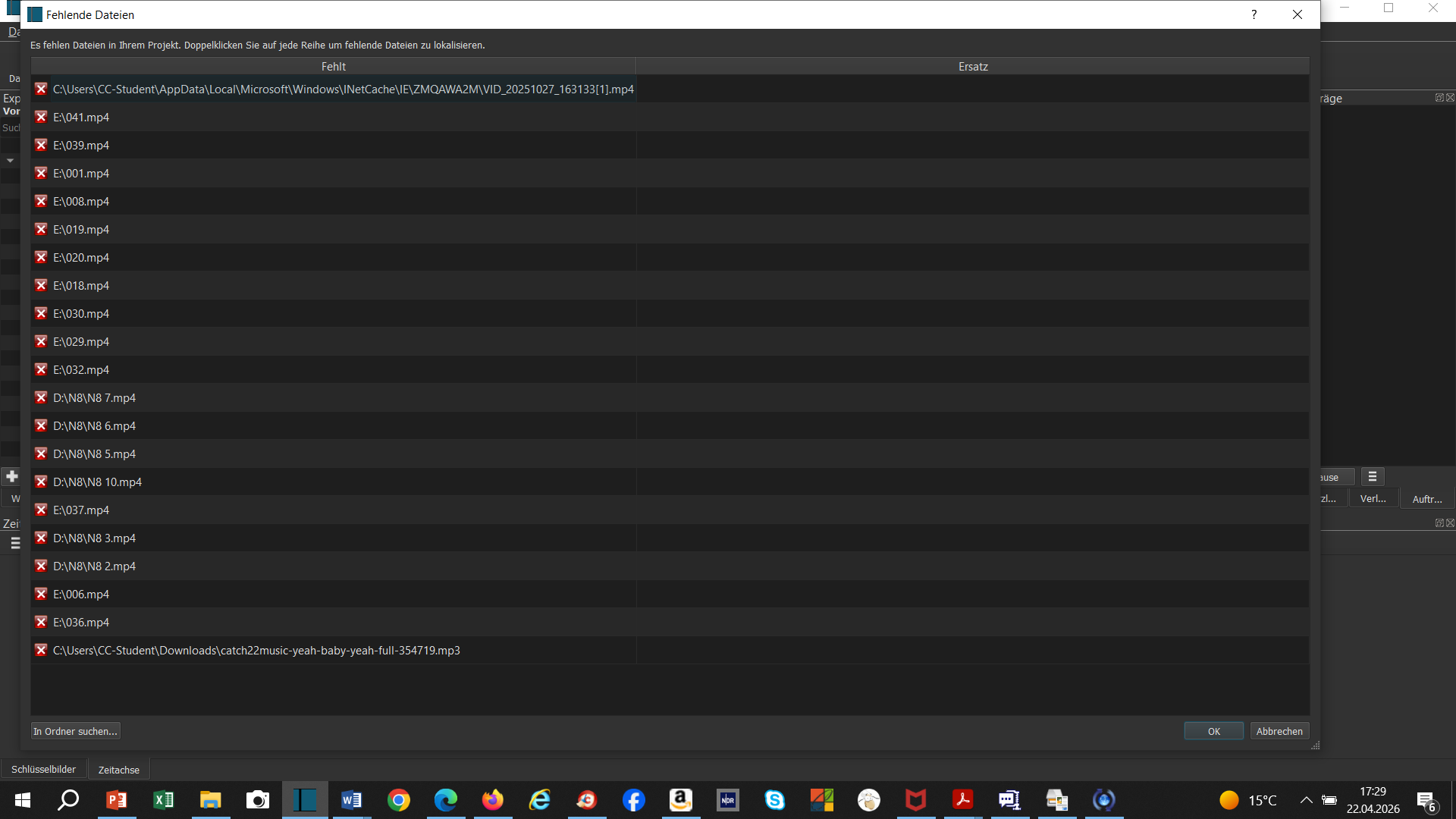
This window should have all the info you need: the full path to each file that is missing. You can resize the window to be bigger and look at the path and filename.
Keep in mind you might have missing files that are not used in timeline (for example a video you dragged into playlist but decided not to use). You can just ignore them in this case and click on export anyway. If you are ignoring videos that are needed for the final export (in the timeline for example), these will be replaced by a big INVALID text in the final video.
This happened to me recently, and it was my proxy files that had disappeared (I don’t know if I deleted them by mistake). So I turned off the proxy option in settings and was able to export the project.
If I doubleclick as told the Download-file opens up, starting with the recent download files which have nothing to do with the film. So it is impossible to understand where the mistakes are.
If I move to the E:path (external USB-stick) you get to see all the files on it which include original material for my film. But I still don´t get any idea what I can do.
Ok, so you need to find a bunch of files in "E:", in "D:\N8", one in Downloads and one in AppData.
Reopen your project and when that window appears, Click on the “Search in folder” button on the bottom-left side and navigate to E: (you don’t need to select any files) then click ok. Wait for it to think a bit and all of the files in the list that Start with E:\ should turn to green (instead of the red X). Then click again on “Search in folder” and navigate to D:\N8\ click ok again. Then do the same for Downloads and then do the same for the first path which is a very long one and considering it has “cache” in name it might have been deleted already.
In the end you should have all lines in the window with green checkmarks instead of the red X.
Ok, it seems as if we are getting a little bit closer. However, if I go to E: I don´t get the option to click “ok”. Should it be an “ok” inside Downloads or rather the “ok” offered inside Shotcut? As I said I cannot access the ok in Shotcut from the Download-file.
After you click “Search in folder” there’s a new window opening up, that’s where you go to E:.
That window should have a “cancel” and a “select/ok/confirm” whatever the name is.
It has the button in English Select Folder . You are telling Shotcut where to search because it cannot search your entire system. You must give it a starting point.
Noticing that you have McAfee antivirus activated.
Have you tried to turn this off or at least white-list Shotcut? To help identify the red arrow icon:
Also, which version of Windows do you have?
Windows 10/11 Home/Education?
If this is a school computer, there might be permissions blocked in accessing the app data folder.
Thank you everybody, this goes to my limits. But I am very grateful that you try to help me. I was able now to get the green crosses. The steps were a bit different than described. As Shotcut always breaks down whenever I try to save the changes I still have problems. Whenever I think I have erased the red items in D: or E: they show up again when I restart Shotcut. One of them is always gone, but the other still there. I have Windows 10 and this is not the first time for me to export a long Shotcut file. I am not a professional computer wizard and have never learned about computers in school, but I am - as a TV author - generally able to follow instructions and as you can see I have managed to create long films. So there should be enough capabilities. But right now I am moving in a sphere that is not mine and needs clear steps.
Do not add files into Shotcut by dragging them from your web browser. I can see it in your screenshot–the first file. It is a temporary file that the browser downloaded. To use files from the web you need to download them manually. Then, add the downloaded file to the project.
Also, after Shotcut re-links files it creates a new “repaired” project file. You need to open that. Otherwise, if you open the un-repaired one, it will still have missing files. Shotcut does not assume it is safe to fix your existing project because it might not work correctly, and you might not have a backup. So, it creates a new version.
Ok to the downloading from the web, thank you. I haven´t even thought about the import as it has always worked the way I did it. Interesting that you can see the mistake. This file is from Canva. All the rest is from external or computer files, not from the web.
The big issue still remains. I always open the repaired file which has already become a repaired-repaired-repaired-repaired file as I try again and again to repair the newly repaired file. The problem is that, as I said, the E: and D: seem to have been erased, but they show up again and again while switching from E: to D: Both never show, it is always only one of the two and they switch.
It is nervewrecking, but the film is important, so I don´t give up. However for today I have to call it quits as we have a different time zone here. I am absolutely thankful for your support and patience and hope to continue during the coming days.
I think more screenshots would help here. Are you saying the E: and D: drives are usb sticks or some other removable media and they switch between themselves from time to time?
I think you could try to copy all files to one folder and just put Shotcut to search for missing files there.
I won´t edit everything again or what do you suggest?
The E: and D: problem goes like this: Once you have repaired (green checkmarks) the E:- and D:files I have a new repair-file. When I open this for some odd reason the E:-files are back. If I then repair the E:-files and reopen the repaired-repaired file the E:-files are gone, however the D:-files are back. So I erase them and the repaired-repaired-repaired file then is without the D:-files, but the E:-files are back. This is what I mean …
Yes, the D:- and E:-files are USB-sticks. So far I have taken out the E:- for the D:-stick and vice versa. Should perhaps both be stuck to the laptop?
I can send more screenshots. Do you want to suggest any?
Hope to get in touch later about this. Thanx a lot!
I am confused about this sentence, do you mean you are taking out the USB sticks during editing?
The USB drives should be inserted during the entire project.
Shotcut does not copy them into the computer, it just reads them from the USB stick so if the stick is removed the program is asking you “where is my video?”.
I didn´t have time yet to continue fixing my video, which is quite frustrating, but have tried again today. In my view the problem apparently is, that - as you said - I imported material directly from USB-sticks which I later removed. Indeed if I change the USB-sticks in the laptop sequences show up or vanish. Judging from my experience so far I don´t think that I will be successful with the same efforts over and over. Instead I will now try to import the material into Shotcut, this time into the list, and will exchange the clips from there in the project. It is a lot of work. Does this make sense to you? Any hints are very welcome. Due to time shortage I will probably start doing this on the next weekend, perhaps during the week.
Secondly, for some reason I have a new problem: The whole project, i.e. every picture, has been zoomed in to a certain degree and the pictures have also moved a bit to the right. I haven´t changed anything before. Also according to the details in the filter the position allegedly is the standard one (0,0) and the size should also be standard (1.920, 1.080) which however isn´t true. I wonder what has happened and especially would love to know what I can do. Does anybody have suggestions?
Thirdly I want to take the chance to ask this: What do you suggest as the best way to record a voice over on a separate audio track in Shotcut? What do you need?