Shotcut includes several built-in layout presets designed to optimize the interface for specific stages of the video production process. These presets automatically open the most relevant panels and arrange them into logical groups, saving you the time of manually opening and docking individual views.
Accessing Layouts
You can switch between layouts at any time by going to View > Layout. The current layout is also indicated by the specialized buttons often found at the top right of the Shotcut window.
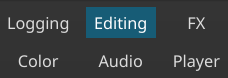
or

Standard Layout Presets
Logging
- Focus: Organizing and reviewing raw footage.
- Key Panels: Large Playlist and Properties panels.
- Usage: Best used at the start of a project to inspect clips, set in/out points, and categorize media before moving them to the timeline.
Editing (Default)
- Focus: General purpose post-production.
- Key Panels: Timeline, Filters, and Recent files.
- Usage: The balanced, standard view for most trimming, splitting, and arrangement tasks.
FX (Effects)
- Focus: Heavy filter work and keyframing.
- Key Panels: Large Filters panel and the Keyframes timeline.
- Usage: Provides the detailed view necessary for precise timing of animated effects and complex filter stacks.
Color
- Focus: Color correction and grading.
- Key Panels: Video Scopes (Waveform, Parade, Vectorscope) and the Filters panel.
- Usage: Specifically arranged to give you maximum visual feedback while using color grading filters.
Audio
- Focus: Sound mixing and leveling.
- Key Panels: Audio Scopes (Peak Meter, Loudness, Spectrum Analyzer) and the Timeline.
- Usage: Optimized for adjusting track volume, applying audio filters, and ensuring your project hits target loudness levels.
Player
- Focus: Minimalist screening.
- Key Panels: Maximized Project Player; hides almost all other panels.
- Usage: Used for reviewing your final edit without the distraction of technical tools.
Managing Custom Layouts
Beyond the presets, Shotcut allows you to save your own favorite workspace configurations.
- Add…: After arranging your panels exactly how you like them, select View > Layout > Add… to give your configuration a name. It will now appear in your Layout menu.
- Remove…: To delete a custom layout you no longer need, select it from the menu and choose Remove. (Note: You cannot remove the built-in system presets).
- Restore Default Layout: If your interface becomes cluttered or a panel goes missing, use this option to reset the current preset to its original “factory” state.
Pro Tip: Layouts are “Snapshots”
When you select a layout, Shotcut applies it as a snapshot. If you move a panel after selecting “Color,” Shotcut remembers that change for the remainder of your session. If you want to return to the original “Color” look, simply select the “Color” layout again from the menu.
See also: Adjusting Panels in the User Interface