Controls how interlaced video is presented in the Shotcut player.
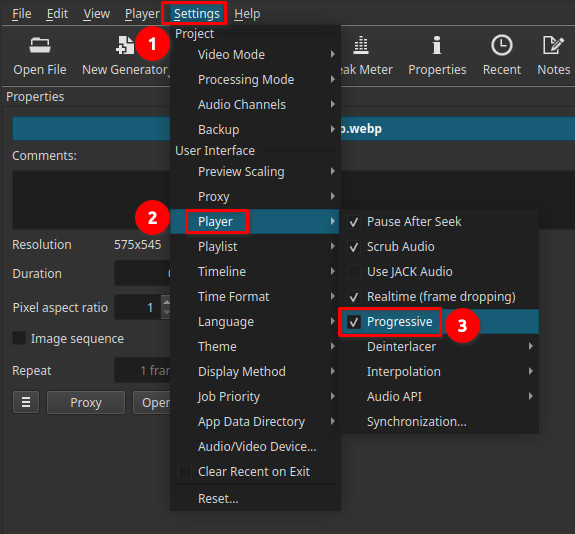
This option affects preview display only. It does not modify clips, timeline data, or export output.
The default is ON.
What “Progressive” means
Progressive video displays each frame as a complete image drawn in a single pass.
This contrasts with interlaced video, where each frame is composed of two alternating fields captured at different times. Interlacing was historically used in analog television systems to reduce bandwidth and improve perceived motion on CRT displays.
Common interlaced formats included:
- 480i (NTSC)
- 576i (PAL / SECAM)
- 1080i (HD broadcast)
Modern displays are progressive by nature and must convert interlaced material before showing it.
What the Progressive option does
When Progressive is enabled:
- Interlaced footage is shown as full progressive frames
- Field separation and combing artifacts are reduced or removed
- Motion appears cleaner and easier to evaluate
Note:
When Progressive is enabled, the Deinterlacer setting determines how interlaced video is converted to progressive frames for preview.
When Progressive is disabled:
- Interlaced footage may be displayed closer to its raw field-based structure
- Field artifacts (combing, line flicker) can be visible on motion
- Preview reflects the interlaced nature of the source more directly
Important scope clarification
This setting affects player preview only.
It does not:
- Change source media
- Alter clip or timeline properties
- Force progressive export
- Apply deinterlacing to the final output
Export behavior is controlled separately.
Visual characteristics
Progressive enabled
- Cleaner motion
- No visible field separation
- More readable preview on modern displays
Progressive disabled
- Possible combing on motion
- Visible interlacing artifacts
- Closer representation of raw interlaced fields
Recommended usage
-
Enable Progressive for most modern workflows
-
Especially useful when working with:
- Interlaced broadcast recordings
- PAL / SECAM / NTSC archival footage
- Legacy television material
-
If you disable Progressive to more directly view the interlacing, then you might also want to set the player zoom to 100% to prevent fields from mixing when scaling.
Limitations and notes
- This is a preview-only setting
- It does not replace proper deinterlacing during export
- It does not convert interlaced footage to progressive media
- Final output quality depends on export configuration