Operating system: Windows 10 Home x64 22H2, Core i5 1137G7, 32Gb ram
Shotcut version: 25.05.11
Can you repeat the problem? No, I don’t want it to, it does it all by itself.
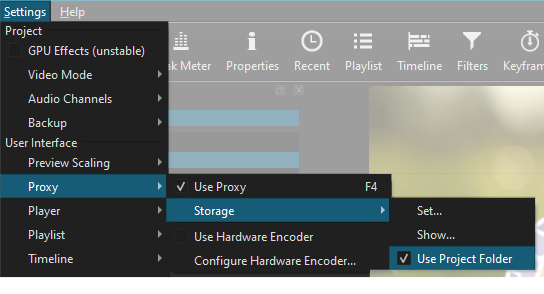
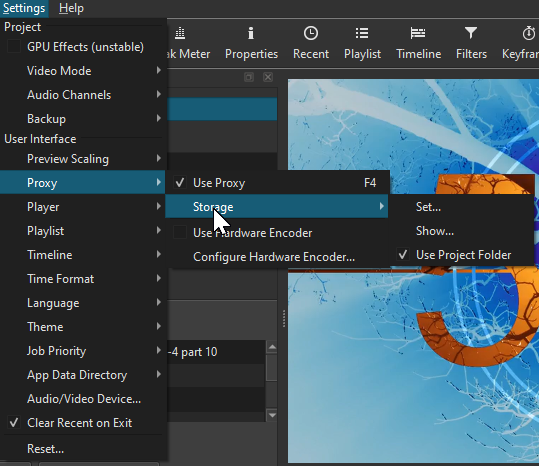
Because I have a small 240Gb NVME C drive, all of my project folders are on my ginormous D drive, and I have Shotcut configured as follows, with reference to proxies:
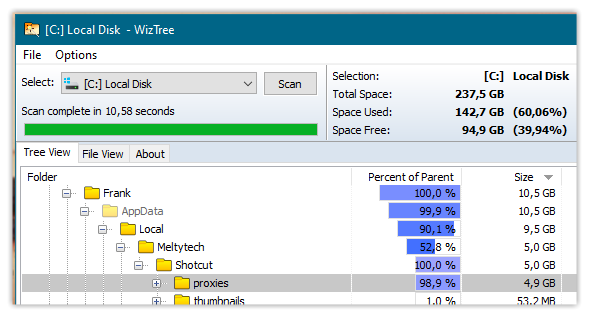
For a long time, this seemed to work, but the last “proxies” folder I can find date back to June of this year (2025). When I see my drive is filling up and I check my disk usage using WizTree (wonderful little program), I tend to discover that the Shotcut proxies folder is often one of the culprits (in the below case, to the tune of 4.9Gb):
Shotcut continually reverts to using the AppData folder to store its proxies. It is set to NOT do so. Please can somebody explain what I have to do to force Shotcut to use the project’s folder, which is always on the other drive, drive D.
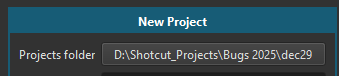
There is only a project folder when you use New Project > Start. A “project folder” is not the folder that contains a .mlt file. I do not reproduce the problem.
What do you expect it to use if you choose SetafterUseProject Folder is checked? There is no unanimous answer, but I might expect Set for the majority (use what I chose!!). So, then, should the behavior be different if you do it before? Would that be considered inconsistent?
Yes, because there is no easy way to un-Set the proxy storage folder unless you choose to reset all settings. Otherwise, you need to locate the configuration key manually and remove it.
After some deliberation, I answered my own questions and decided that Use Project Folder should always take a higher priority and to accept this bug. If you have that checked and choose Set.. it will not use what you chose (for a proper project folder) until you turn off the check box. Set is only an override for the default of App Data Directory.
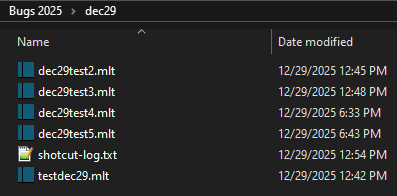
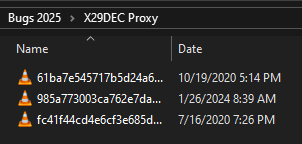
I’m not sure what the above means because of my misunderstanding of how proxies work, but what I can say is that, for no appreciable reason (certainly no intervention on my part) the proxy folder now seems to be created once again in the folder I have saved my current project! That’s “project” with a small P, because I almost never “create” a Shotcut Project from scratch per sé. I simply open Shotcut using a previous *.mlt file that matches the output type I require for the project I’m working on. I then:
click ‘Save As…’
right-click, create a new folder, name it
enter that folder
type the new Filename and ‘Save’.
But I’m assuming that Shotcut then assumes it as a Project because it then appears in the “Projects” list on the right the next time I open Shotcut.
Anyway, it seems we’re all making progress in our own way, which is a great way to start 2026! Happy New Year to all!
I started to work on this, but when analyzing the code, I found it already prioritizes a project folder and this does not reproduce. Again, Shotcut’s definition of a “Project Folder” is ONLY when you use New Project > Start. It is not simply the directory where a .mlt file is. When you use a proper project folder the log shows this:
I had thought I had clicked Start. After testing the 12.30 portable version multiple times, I’m now convinced that you are correct, that I never hit Start. Thanks for correcting me.