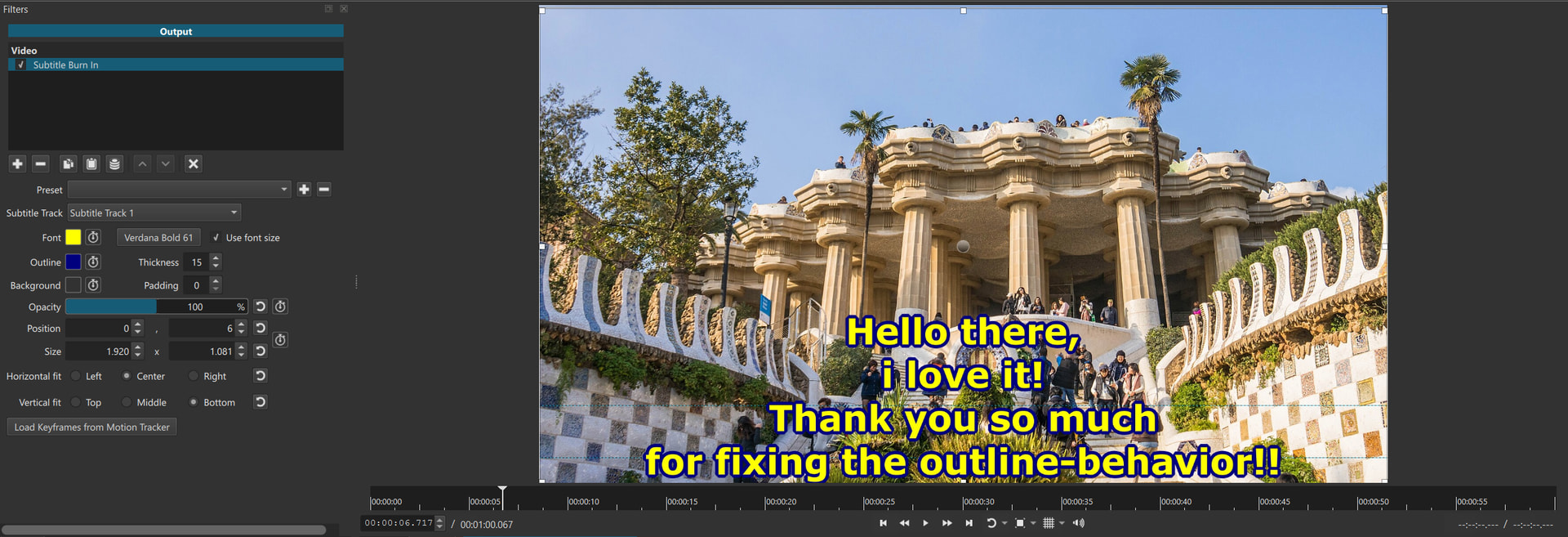
Hello dear Forum,
sorry to write here, maybe i’am to dumb to use or topic is already somewhere else, search didn’t bring anythink similar, so i try.
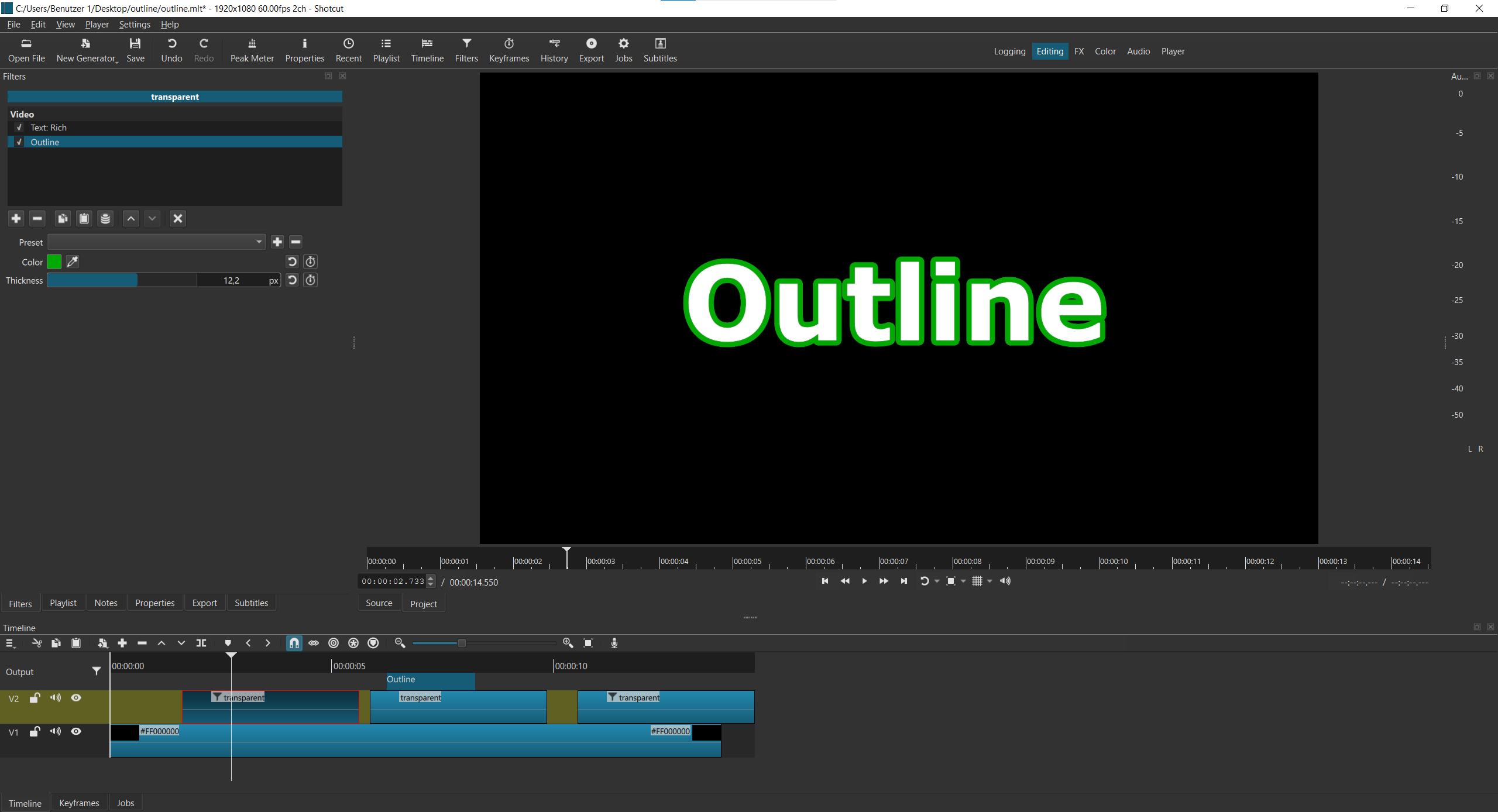
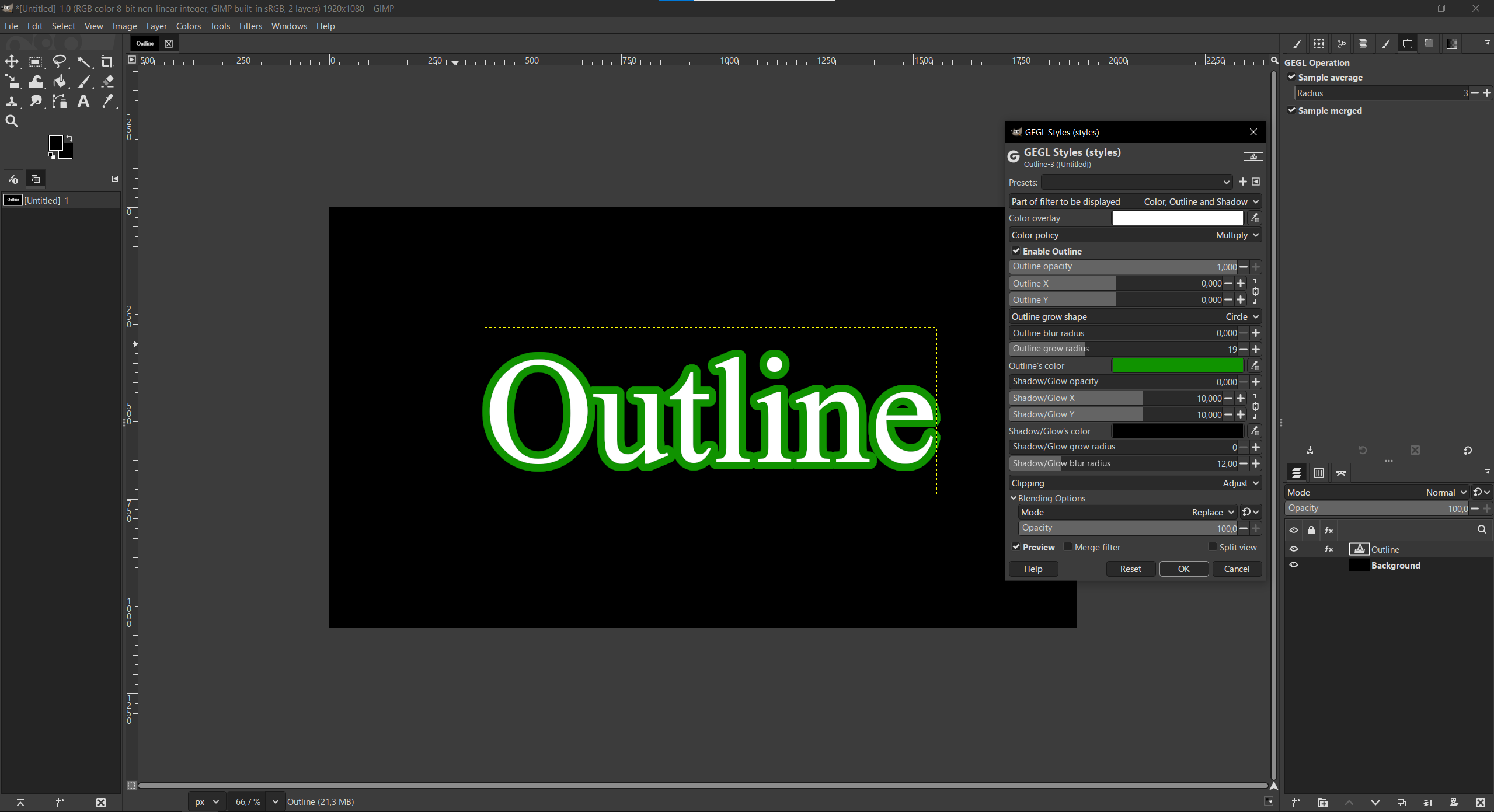
I like to outline text to make better readability in front of backgrounds. It works properly with Filter “Outline”. Text is becoming a clear and good outline. Like in GIMP/PS/etc.
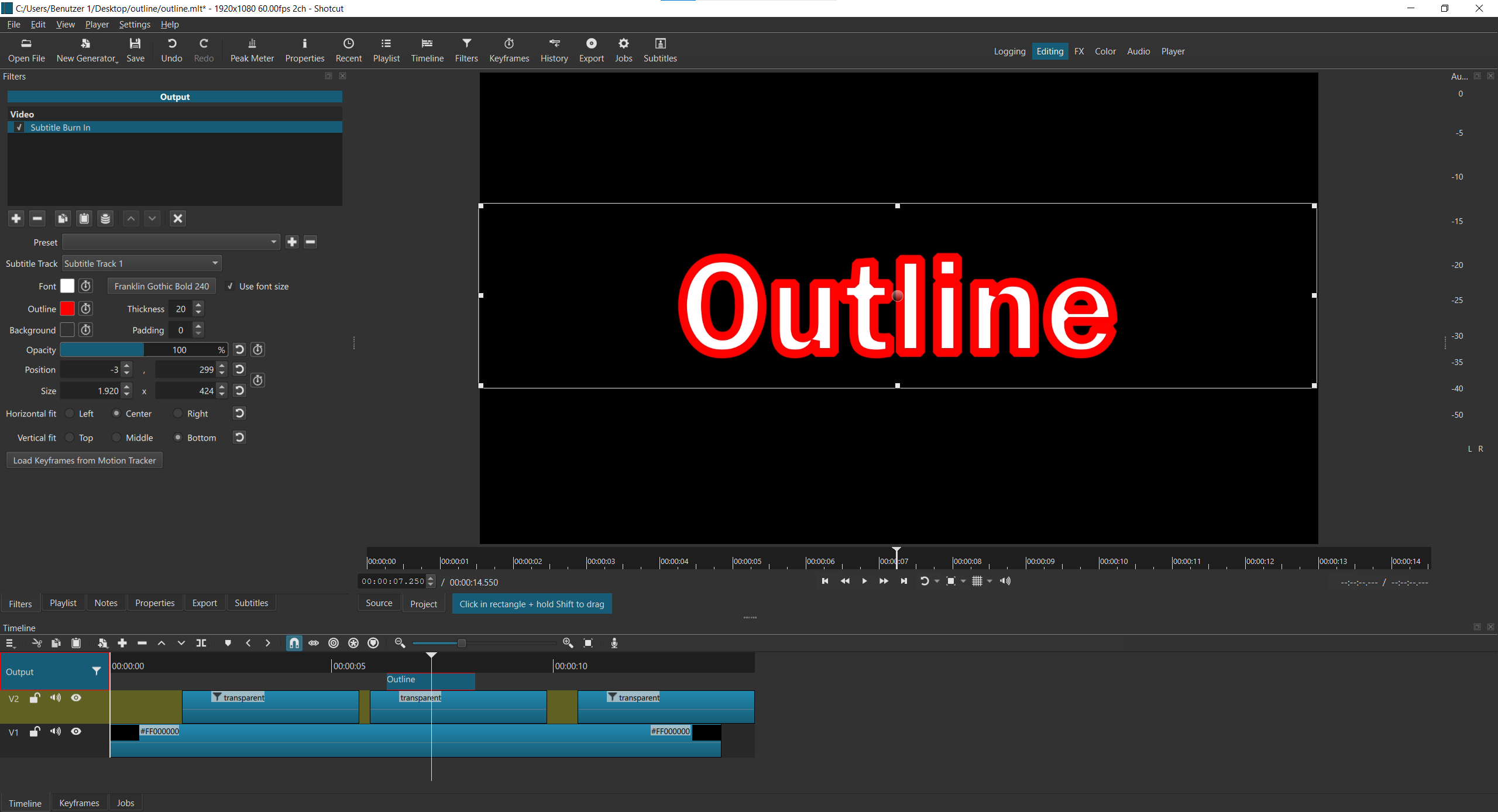
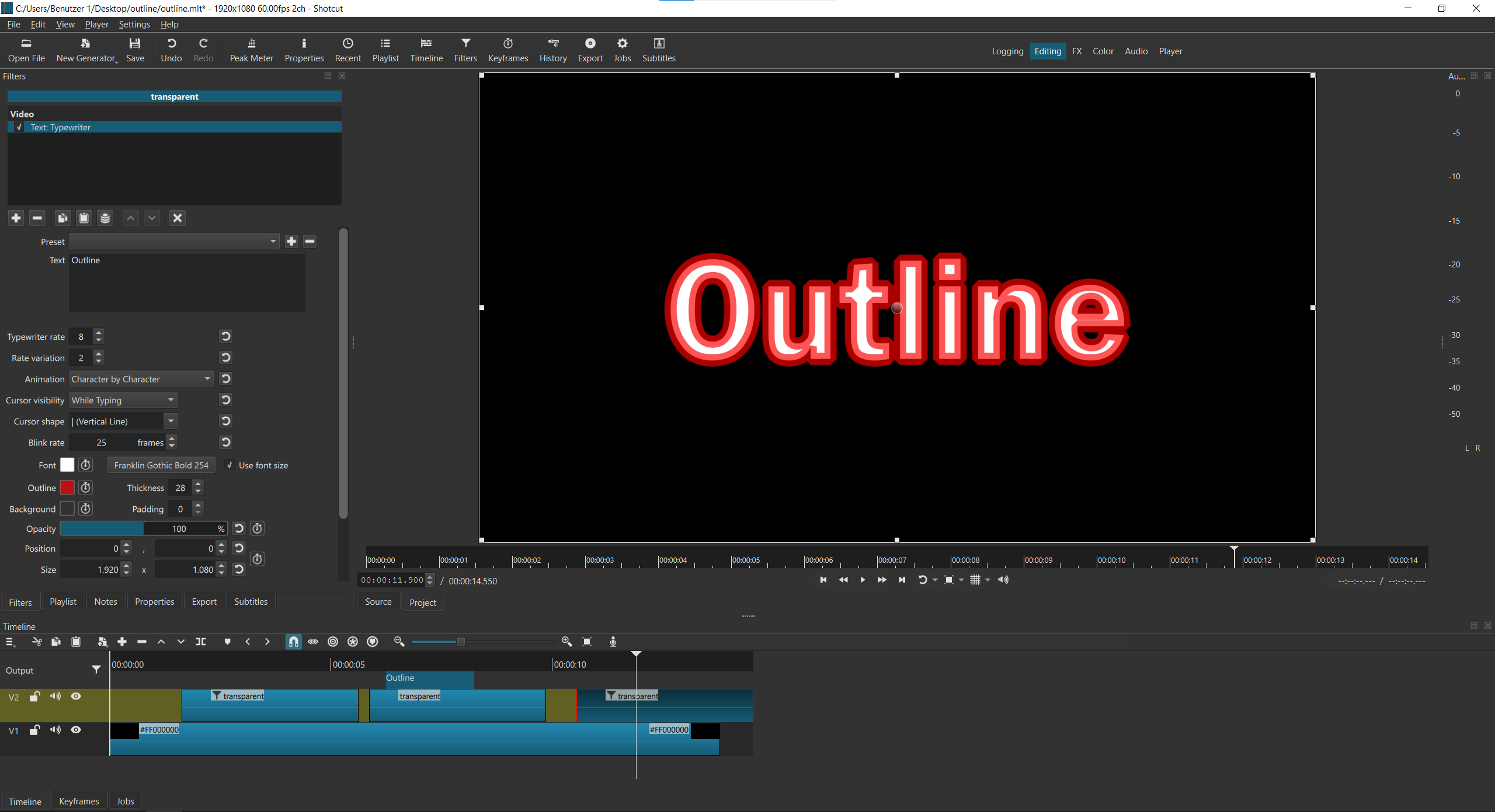
Filter “Subtitle Burn-In” and “Typewriter” have both an Outline-Option for Text. I’d like to use them, but they make text ugly. Because somehow text is getting an unwanted inline. Text is eaten up by the inline.
Would it be possible to change behaviour of Subtitlte-Burn-In and Typrewriter, so that there is just a normal outline “outside” the text? This would be great.
Please find attached some pictures. Thank you in advance - and thank you very very much for making such an enormous Software
That is the way it is when using Qt API to stroke text and will not be addressed. Use the Outline filter if you do not like the Qt text outline. It is heavier while text outline is much faster; take your pick.
Unless I’m missing something, the Outline filter doesn’t work on burned in subtitles.
Because (I suppose) on the Output of the Timeline, the Outline filter is applied to the entire screen instead of just the text.
A workaround:
Step 1: Create a Text: Simple preset (you only need to do this once)
Select anything in the Timeline (that could be a clip, a track head or the output)
Add a Text: Simple filter.
Edit the Font, Size, Color, Position parameters of the text.
Make sure you set the Outline Thickness to 0.
Delete the text from the Text field.
Click on the + button next to the Preset dropdown list.
Give a name to your new Preset, for example “0- Subtitle No Outline” (the zero is to make sure the preset name will be on top of the list)
Click OK to save the new preset.
Delete the Text: Simple filter.
Step 2
With all your subtitles created, reviewed and burned on the Output:
Select the Timeline Output
Disable or delete the Subtitle Burn In filter.
In the Subtitles panel > Open the Subtitles Menu.
Click on Generate Text on Timeline
You’ll be asked to choose a “Text style preset” > Choose the one you just created.
Select the head of the new subtitles track.
Add a Outline filter and edit the Color and Thickness parameter.
Correct, but a much simpler workaround is to use a thin amount of outline and do not worry so much that it is not exactly the same as some other things. A is not the same as B is not a bug!!
@MusicalBox Thanks for your workaround. Yes, it’s the long way, but i think i’ll have to go it. Seems suitable for me
@shotcut I’am really trying to agree with you, because i get your point. But after a week of pondering i’d like to claim the opposite. It’s not a bug, okay. But it’s not accessible, either. Subtitles shall give access to disabled people (also those who don’t speak my language). Outlines make subtitles on visually disrupted background more accessible. This is why it’s important for me.
So thank you for your replys and best greetings
For visual explanation i made different versions of the same subtitle (it tried to match them)
If you are concerned about accessibility, you should not burn the subtitles text into the video. They should be embedded, which is the default. If you want to universally improve the appearance of text burned into video for any busy background as in your example, you need to put a background for the text. That could be opaque, translucent, or you can do something fancy (more steps) like make it blurred and reduce saturation ala frosted glass.