Applies a luminance- or alpha-based mask to a clip using built-in static mask presets or an external image or video file.
The mask determines which areas of the clip are affected, based on brightness or transparency values.
All built-in mask presets are static. Animation requires keyframing, clip motion, or a video file used as the mask.
NOTE:
This filter operates is not available in GPU processing mode.
Mask source behavior
The mask source can be:
- A built-in static mask preset
- Any external media image, video, drawing, or animation media file supported by Shotcut
Mask interpretation rules:
-
Brightness mode
Dark areas of the mask make the current clip visible.
Bright areas make the underlying clip visible.
Gray values produce a gradual transition between the two. -
Alpha mode
Transparent areas of the mask make the current clip visible.
Opaque areas make the underlying clip visible.
When a video file is used as the mask, its values are evaluated per frame.
Parameters
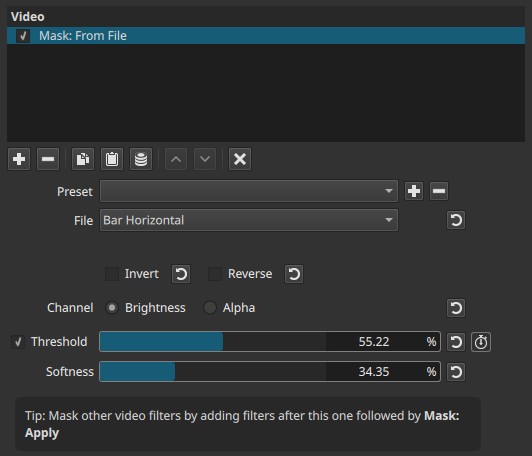
File (preset / file selector)
Selects the mask source.
The dropdown includes:
Built-in geometric masks
-
Bar Horizontal / Bar Vertical
A single rectangular band across the frame. -
Barn Door Horizontal / Vertical / Diagonal SW–NE / Diagonal NW–SE
Four-panel shapes opening from the center, similar to camera barn doors. -
Diagonal Top Left / Diagonal Top Right
Half-frame diagonal masks. -
Barn V Up
V-shaped opening expanding upward from the bottom. -
Iris Circle
Circular opening centered in the frame. -
Double Iris
Two mirrored circular openings. -
Iris Box
Rectangular opening expanding from the center. -
Box Bottom Right / Box Bottom Left / Box Right Center
Rectangular masks anchored to specific edges or corners. -
Clock Top
Radial, clock-style sector opening from the top.
Pattern-style masks
-
Matrix Waterfall Horizontal / Vertical
Repeating rectangular segments arranged in rows or columns. -
Matrix Snake Horizontal / Vertical
Sequential block patterns arranged in a snake-like order. -
Matrix Snake Parallel Horizontal / Vertical
Multiple parallel snake patterns.
These masks are not animated. Any motion must be created via keyframes or by using a video mask.
Custom…
Opens a file browser to select an external image or video file.
- Supports common image formats and video files.
- When a custom file is selected, its filename is displayed below the dropdown list.

Invert (checkbox)
Inverts the mask interpretation.
- Revealed areas become blocked
- Blocked areas become revealed
Applies after Channel selection.
Reverse (checkbox)
Reverses the directional orientation of the mask.
- Affects directional presets (bars, doors, diagonals)
- Example: a right-side mask becomes a left-side mask
This does not invert luminance or alpha values.
Channel (radio buttons)
Defines how the mask source is interpreted.
-
Brightness
Uses the luminance of the mask source.
Bright areas reveal the effect; dark areas block it. -
Alpha
Uses the alpha channel of the mask source.
Opaque areas reveal the effect; transparent areas block it.
Important notes:
- Alpha mode requires the mask file to contain an alpha channel.
- In Alpha mode, RGB color information in the mask is ignored.
- Most video files do not contain an alpha channel unless explicitly encoded.
Threshold (checkbox + slider, 0.00–100.00%, keyframeable)
Converts the mask into a binary (hard) mask.
-
Unchecked
Continuous grayscale or alpha values are used. -
Checked
Values are clipped to fully on or fully off.
Slider behavior:
-
Lower values
More of the mask becomes active. -
Higher values
Only the brightest or most opaque areas remain active.
Softness (0.00–100.00%)
Controls edge feathering after thresholding.
- Only active when Threshold is enabled.
- Low values produce hard edges.
- Higher values produce smoother transitions.
Softness does not blur the mask image itself.
Keyframes
Only the Threshold slider can be keyframed.
This enables:
- Animated reveals and wipes using static masks
- Time-based control when using video masks
Parameter interaction
- File defines the mask shape or pattern.
- Channel defines whether luminance or alpha drives the mask.
- Invert swaps masked and unmasked regions.
- Reverse flips directional orientation.
- Threshold forces hard masking.
- Softness smooths threshold edges.
All operations are applied per frame.
Visual characteristics
- Clean geometric masking with presets
- Arbitrary shapes with custom images
- Animated masking only when using video files or keyframes
- Mask edge quality depends on source resolution and Softness
Recommended use cases
- Custom wipes and transitions
- Layer compositing and selective effects
- Masks drawn in external image editors
- Video-driven animated masks
- Precise, repeatable masking workflows
Limitations
- CPU-only filter
- Built-in masks are static
- No built-in mask animation controls
- Mask quality depends on source resolution
- Video masks can increase processing load
Built-in mask presets: quick reference
Linear / band masks
- Bar Horizontal — Horizontal rectangular band across the frame
- Bar Vertical — Vertical rectangular band across the frame
Barn door masks
- Barn Door Horizontal — Four panels opening left and right from the center
- Barn Door Vertical — Four panels opening up and down from the center
- Barn Door Diagonal SW–NE — Diagonal barn-door opening from southwest to northeast
- Barn Door Diagonal NW–SE — Diagonal barn-door opening from northwest to southeast
- Barn V Up — V-shaped opening expanding upward from the bottom
Diagonal masks
- Diagonal Top Left — Diagonal half-frame mask anchored to the top-left
- Diagonal Top Right — Diagonal half-frame mask anchored to the top-right
Iris / aperture masks
- Iris Circle — Circular opening centered in the frame
- Double Iris — Two mirrored circular openings
- Iris Box — Rectangular opening expanding from the center
Box / edge-anchored masks
- Box Bottom Left — Rectangular mask anchored to the bottom-left
- Box Bottom Right — Rectangular mask anchored to the bottom-right
- Box Right Center — Rectangular mask centered vertically on the right edge
Radial masks
- Clock Top — Radial, clock-style sector opening from the top
Matrix / pattern masks
- Matrix Waterfall Horizontal — Repeating horizontal rectangular segments
- Matrix Waterfall Vertical — Repeating vertical rectangular segments
- Matrix Snake Horizontal — Sequential horizontal block pattern
- Matrix Snake Vertical — Sequential vertical block pattern
- Matrix Snake Parallel Horizontal — Multiple parallel horizontal snake patterns
- Matrix Snake Parallel Vertical — Multiple parallel vertical snake patterns
Notes
- All built-in presets are static.
- Directional behavior can be modified using Reverse.
- Edge hardness is controlled using Threshold and Softness.
- Animation requires keyframes or a video file used as the mask.
See also: Mask: Draw (Glaxnimate) Video Filter