The Mask: Draw (Glaxnimate) filter allows you to create complex, hand-drawn, and animated masks using vector tools. It integrates Shotcut with Glaxnimate, an open-source vector animation program that is integrated with Shotcut. This filter is ideal for custom shapes, rotoscoping, and advanced transitions that go beyond the simple shapes provided by the Mask: Simple Shape filter. It is basically the same as Mask: From File Video Filter plus special integration with Glaxnimate.
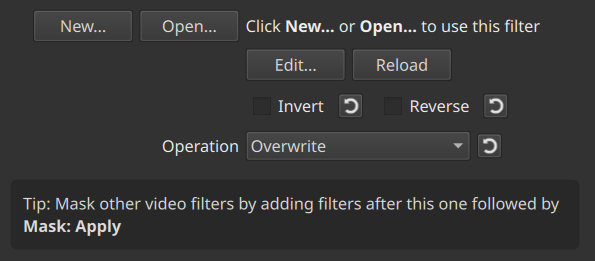
Parameters
| Parameter | Description |
|---|---|
| Filename | Displays the file path of the current vector drawing (.rawr, .svg, .aep, .lot, .lotte, .json, .riv). |
| New | Creates a new vector file and opens it in Glaxnimate. |
| Edit | Opens the currently linked file in Glaxnimate for modifications. |
| Invert | Reverses the mask; areas that were transparent become opaque and vice versa. |
| Operation | Determines how this mask interacts with the alpha channel (Overwrite, Add, Subtract, Maximum, Minimum). |
The Workflow
Using this filter involves a “round-trip” process between Shotcut and Glaxnimate:
- Select a Clip: Select the clip on the Timeline where you want the mask applied.
- Add Filter: Go to the Filters panel, click +, and search for Mask: Draw (Glaxnimate).
- Create a New Drawing: Click the New button. You will be prompted to save a file unless you are using a project folder made using New Project > Start.
- Draw in Glaxnimate: Glaxnimate will open automatically. Use the Path tool (Bezier) or shape tools to draw your mask.
- Fill: Ensure your shape has a “Fill” applied; otherwise, the mask will only be a thin outline.
- Alpha: The alpha values of the colored areas of your drawing will become the maks; the empty background becomes transparent.
- Canvas: Video on Shotcut’s timeline appears as the background canvas within Glaxnimate so you can draw upon and around the things in the video. Seeking is synchronized automatically between the two applications.
- Save and Return: In Glaxnimate, go to File > Save.
- Update in Shotcut: Return to Shotcut. The preview player will automatically update to reflect the drawing you just saved.
Rotoscoping and Animation
One of the most powerful features of this filter is the ability to animate the mask over time.
- In Glaxnimate, enable the Record mode (the red circle) to create keyframes.
- As you move the playhead in Glaxnimate and adjust the vector points, the mask will morph accordingly.
- Shotcut will sync the timing of the Glaxnimate animation with the clip on your timeline.
Mask Operations
The Operation setting is crucial when using multiple masks on the same clip:
- Minimum: For each pixel, chooses the lesser the alpha value, more translucent or transparent, between the existing alpha channel and the new mask.
- Maximum: For each pixel, chooses the lesser the alpha value, more translucent or transparent, between the existing alpha channel and the new mask.
- Overwrite: This mask replaces all previous alpha channel data.
- Add: Adds the shape of this mask to any existing masks.
- Subtract: Uses this shape to “cut a hole” out of previous masks.
Important Notes
- Bundled Software: You do not need to install Glaxnimate separately; it is included with the Shotcut if you are using one of our builds.
- Preview Resolution: If you find the drawing doesn’t align perfectly, ensure your Shotcut Preview Scaling is set to “None” for the most accurate alignment during the drawing process.
- Performance: Complex vector paths with many points may slow down preview playback. Use Proxy mode to improve performance while editing.
See also: Mask: From File Video Filter