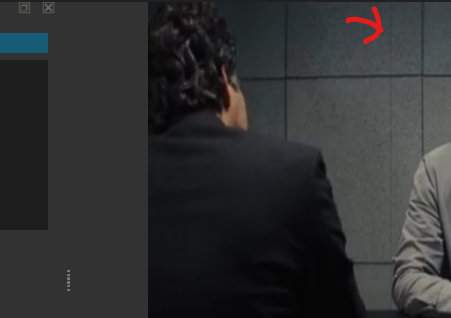
I was editing another video for days with same crop edits as above thinking I’ll be removing it later on, but after several tries I am not able to remove it. I did a similar crop edit months back but had fixed it somehow, unfortunately I don’t remember at all what I had done that time,
I can reproduce it, but you have other filters applied that we don’t see. Maybe those cause this grey line problem.
Anyways, I suspect that this grey line might just appear in the preview window. Not in the exported video.
Did you to export your video? And if so, do you still see the grey line?
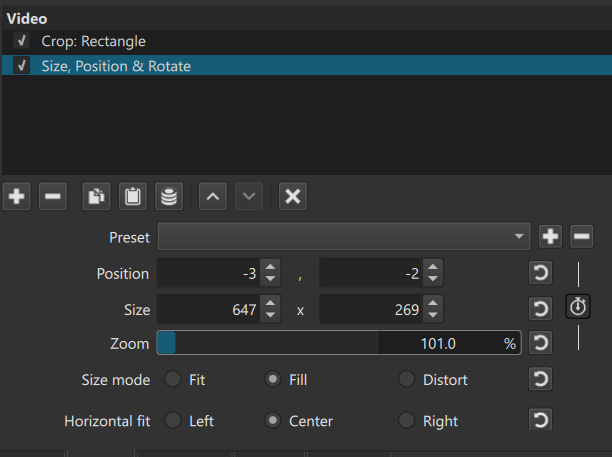
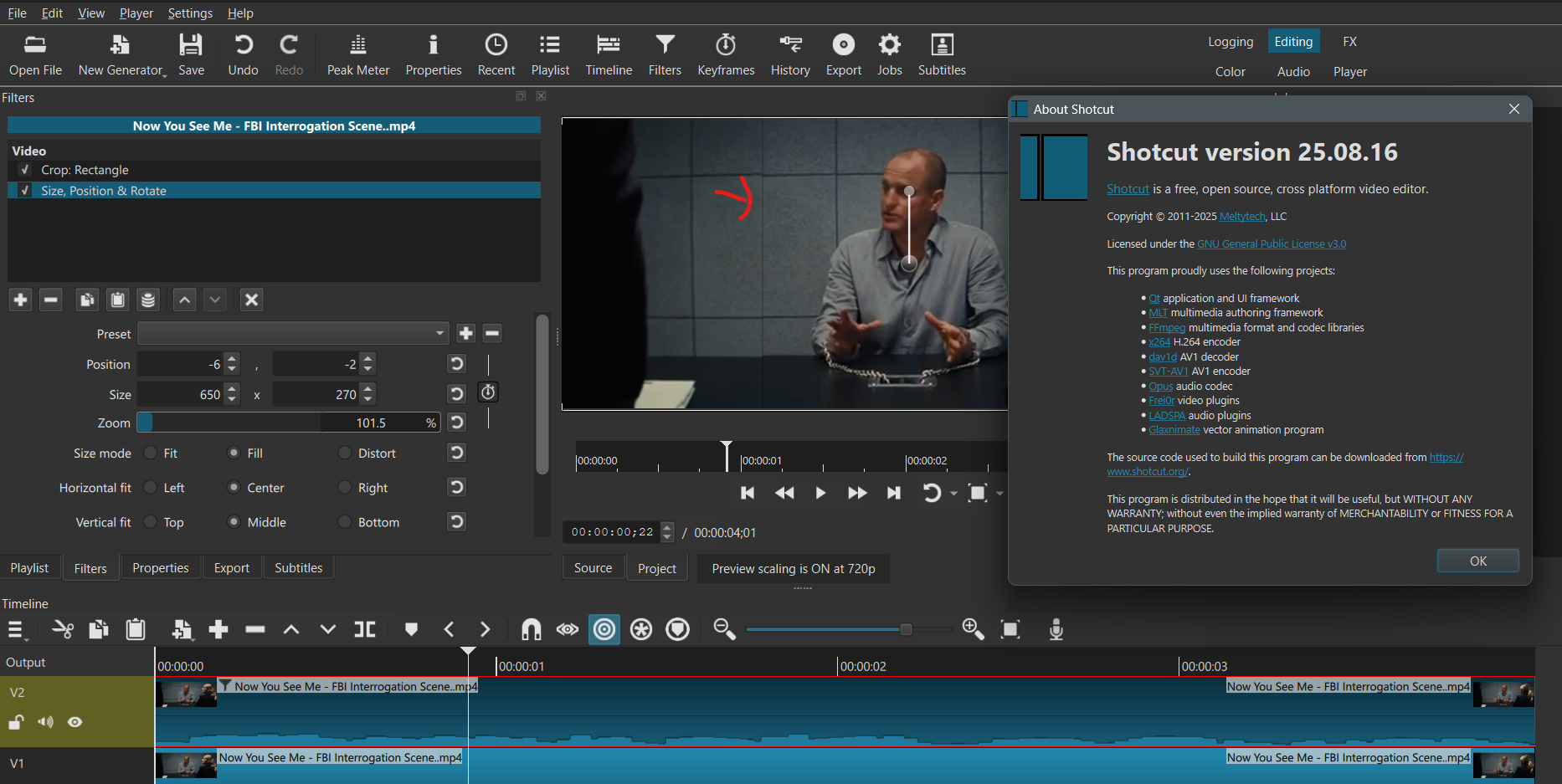
I forgot to post the image of filter section, it has Crop: Rectangle and Size, Position & Rotate for which I use the SP&R filter to zoom and change position of the cropped video.
I didn’t export my original video I am editing as its gonna take a lot of time. So I used this movie scene as an example, it generates the same outline.
Video with timestamp : https://www.youtube.com/watch?v=_cPEN_xMdOs&t=158s
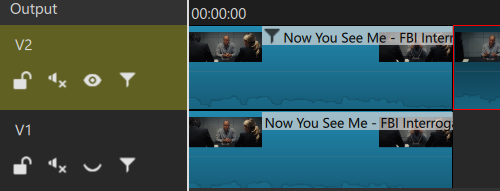
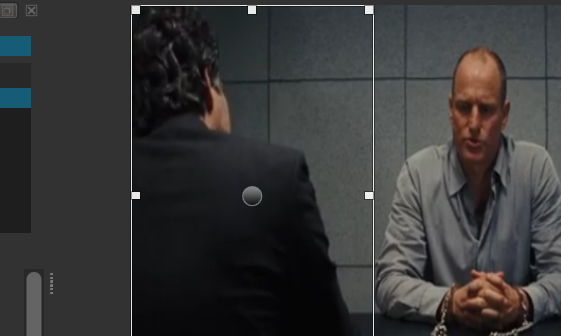
In the original video I am working, one moment is where a baby is doing something on the left bottom corner and the aunt is “awwing” on the right, like the above example I am trying to crop the right side with aunt and have her little zoomed in, since the background is the same, the current crop and SP&R filters together create a visible outline on the cropped section just like in the post example screenshot.
Appreciate your time given, thank you.
Edit: I exported this example video and it does come with the grey outline of the cropped part .
I still can’t reproduce it, even after adding a SP&R filter.
What is your Shotcut version?
Maybe be it’s an issue present in older versions that is fixed now?
The issue should come up after adding a SP&R filter, did you change the zoom, thats what I used in my original edit and this video as well, once that is done the outline appears, if I reset all in SP&R filter then outline disappears.
I am using Shotcut version 25.05.11, this is because I have issue with the newer ones as shared by me in the following post.
I will try once with newer version to see if the problem is due to that or not, will share the result once I test it.
I installed latest version, I encountered same issue as before regarding hanging, app not responding, unable to close ultimately shutting it down from task manager. But still somehow ran test with the movie file.
This time though I tried moving the cropped portion around alot, so what I got is that most of the time there is outline but very few occasions at rare to none specific spots, the outline disappears and works as it should.
If the video you used is not too heavy, you could put it and the project file (.MTL) in a ZIP file and upload it here on the forum so we can check it. The maximum file size allowed is 8 megs.
Did you try the current Beta version? On my computer it runs a bit smoother than version 25.08.16
You can try using an Alpha Channel: Adjust filter. Also when diving into detailed issues like this you should turn off preview scaling temporarily as that feature is a major step removed from the real thing.
I used your project file in a version of Shotcut a bit older than yours and also in the latest version.
No grey bar visible, even with Preview Scaling set at 360p.
So it’s a mystery for me. Maybe someone else will be able to find a solution
@MusicalBox Thanks for your time as well trying to sort my issue out . Although I am not able to fix(stop) the grey outline from appearing after SP&R filter in my Shotcut, but with the Alpha Channel: Adjust filter mentioned in above comment, I am able sort it out.
I checked in my original edit as well in all the places where I had left this effect, Alpha Channel: Adjust filter does the trick.**
**
Thank you once again to all
Cheers
 .
.
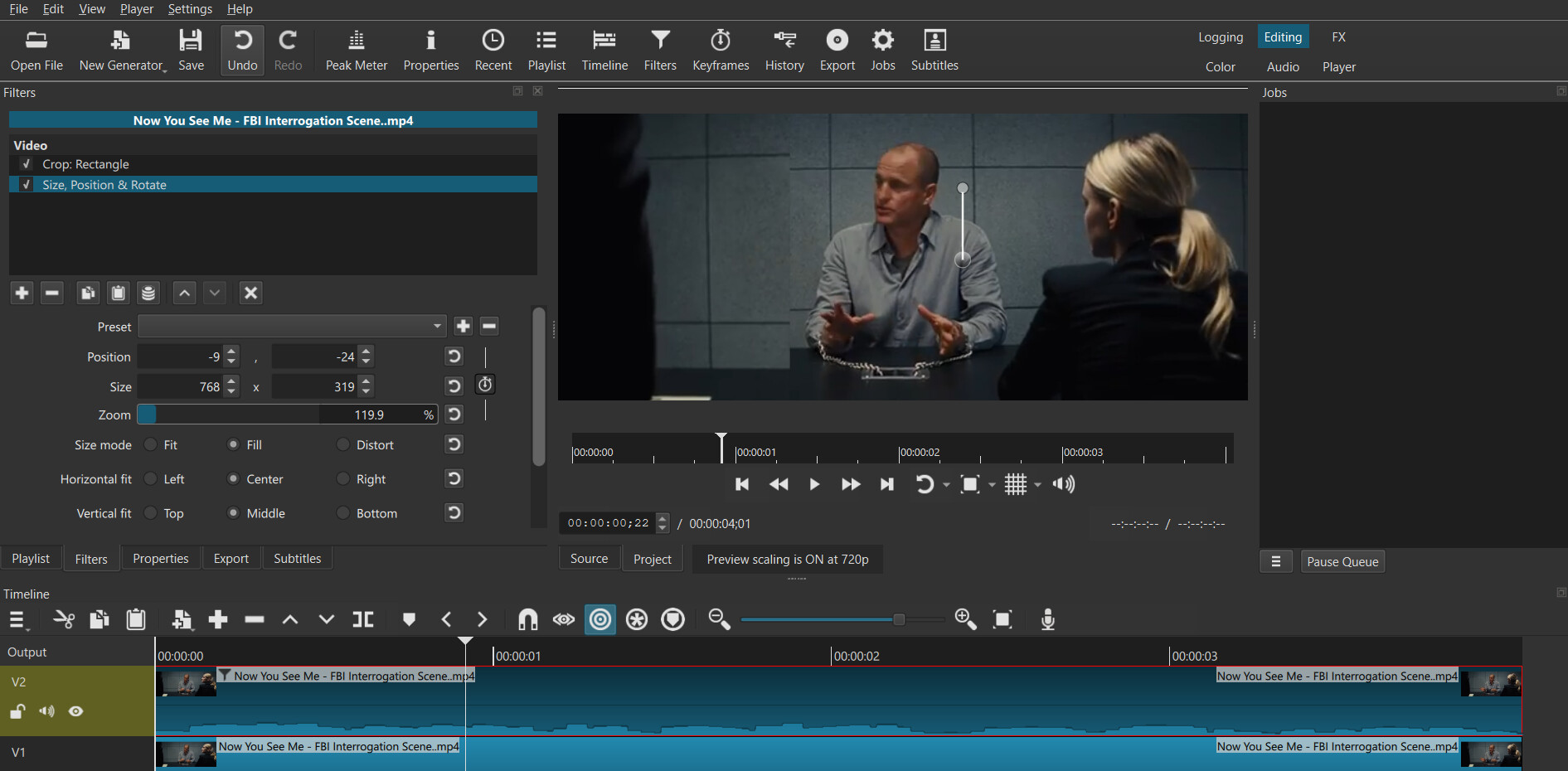
 . Although I am not able to fix(stop) the grey outline from appearing after SP&R filter in my Shotcut, but with the Alpha Channel: Adjust filter mentioned in above comment, I am able sort it out.