The Blur Box filter applies a box blur to the entire frame.
The blur strength is controlled independently in the horizontal and vertical directions, allowing directional blur effects.
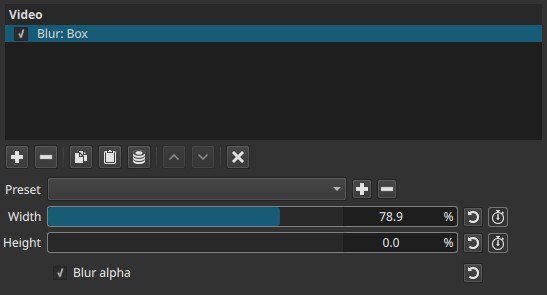
This filter operates spatially and affects the whole image, not a selected region.
Parameters
Width (0.0–100.0)
Controls the amount of horizontal blurring.
-
Lower values
Little or no horizontal blur -
Higher values
Stronger blur along the X axis
This parameter blurs pixels left to right across the frame.
Height (0.0–100.0)
Controls the amount of vertical blurring.
-
Lower values
Little or no vertical blur -
Higher values
Stronger blur along the Y axis
This parameter blurs pixels top to bottom across the frame.
Keyframes
Both Width and Height parameters can be keyframed, allowing blur strength to change over time.
This enables:
- Progressive blur or unblur effects
- Directional motion-style blurring
- Animated emphasis or abstraction
Blur alpha
When enabled, the blur is also applied to the alpha channel.
-
Disabled
Only RGB color data is blurred; transparency remains unchanged -
Enabled
Alpha values are blurred as well, softening transparency edges
This is useful when blurring images or overlays that contain semi-transparent areas.
Parameter interaction
- Width controls blur strength horizontally
- Height controls blur strength vertically
Using both together produces a uniform box blur, while using only one produces a directional blur.
Visual characteristics
Typical effects include:
- Uniform blur applied across the entire frame
- Directional blur when only one axis is used
- Softening of detail and texture
- Transparency smoothing when Blur alpha is enabled
Recommended use cases
- General-purpose blur
- Directional blur effects
- Stylized abstraction
- Blurring overlays or graphics with transparency
- Animated blur transitions using keyframes
Creative uses
Because Blur Box applies independent horizontal and vertical blurring across the entire frame, it can be used for several stylized effects beyond simple softening:
-
Directional motion blur
Using only Width or only Height creates horizontal or vertical motion blur. -
Defocus or dream effects
Moderate values on both axes soften the image uniformly. -
Animated blur transitions
Keyframing Width and/or Height allows blur to ramp in or out for transitions or emphasis. -
Glow and highlight enhancement
When combined with blending modes on a duplicated layer/track, Blur Box can be used to create glow or bloom effects. -
Smear or analog-style distortion
Strong directional blur can simulate smear or degraded analog visuals.
These effects rely on keyframing and filter order rather than masking.
Minimalist cheat-sheet
| Effect | Width | Height | Keyframes |
|---|---|---|---|
| Motion blur | High | 0 | Optional |
| Defocus | Medium | Medium | Optional |
| Speed ramp | 0 → High → 0 | 0 | Yes |
| Glow | Medium | Medium | No |
| Smear | High | 0 | Optional |
Limitations
- No region or mask control
- No feathering or falloff control
- Blur strength only, no quality or radius options
- Blur alpha cannot be keyframed