Fixed Brightness filter with a reduced level is different when there is clip with transparency above it (broke in v25.12).
Fixed a crash in the scrub-bar on a very long playlist.
Fixed app not responding while enqueuing very many proxy jobs.
Fixed Previous/Next in Subtitles may be unreadable on some themes and OS.
Changed bulk proxy generation (when you switch Settings > Proxy > Use Proxy ON) to update clips.
(Previously, you had to turn proxy mode off and back on again to start using the proxies. That requires reloading the project each time, which was a real drag.)
Changed Timeline > Add Generator and New Generator > Add To Timeline to not seek.
This leaves the playhead over the clip it just added to facilitate preview and reduce steps.
Added converting a project between GPU & CPU.
Improved the appearance of outline on many of the text filters.
Increased the maximum resolution in Video Mode and Export to 8640 for 8K VR180 video.
Added the Blend Mode filter and track option for the Linear 10-bit GPU/CPU processing mode.
Added Settings > Preview Scaling > Use Hardware Decoder.
It defaults ON.
Obviously, it only supports codecs that your hardware supports, but it automatically falls back to software decoding.
It requires VA-API on Linux, uses Media Foundation on Windows, and uses Video Toolbox on macOS.
Do not expect to be blown away by speediness unless perhaps you are using Linear 10-bit CPU processing mode.
It does not seem to help much with seeking and scrubbing; proxies are still key for that.
It does reduce CPU usage, which is important to reduce battery usage or keep the system cooler, for example, if it is on your lap.
It is not integrated with the GPU processing mode by using so-called 0-copy.
There is still considerable overhead to transfer uncompressed video between CPU & GPU RAM, which is why this feature is coupled with preview scaling or 1080p-60fps or less video sources. Things higher than that are actually slower to transfer than software decode for most systems.
Added Export > Codec > Use hardware decoder.
It defaults OFF because it often increases the export time.
Like preview, it too can reduce CPU usage, and that may be a benefit.
(9 out of 10 software engineers recommend that you do not export your video on your lap!)
Feel free to test it and make your own conclusion about what works best for you on your system.
The option is sticky, meaning it is remembered between sessions and projects.
Added Help > What’s This? to the menu and toolbar for contextual help.
I just found and fixed a bug that the Hardware Decoder does not work with interlace video. So, do not test and report on that problem please. Either turn off the hardware decoder or preview scaling if you are working with interlace video in this beta. In the release version, with interlace video (implicit or forced), you can have hardware decoder turned on along with preview scaling, but it will not use the hardware scaler to resample to the preview scale.
Does not work for me.
Shotcut asks to convert gpu to cpu. Me=Yes.
Shotcut converts and restarts the file. An other problem to fix. Me=Yes.
Shotcut restarts 2 times and than stops working.
Can you please share the project file? What is “an other problem”? missing/unlinked files or unknown?
I did some more testing based on this report, and I only ran into 1 little problem that I fixed today: Shotcut opens a file-save dialog to save the converted file to the same folder as the original project file. If you chose a different folder but did not save the converted project, then any relative paths in the converted project were not be updated.
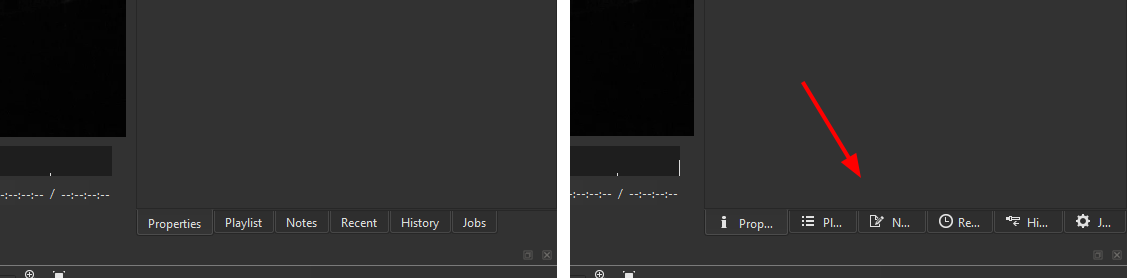
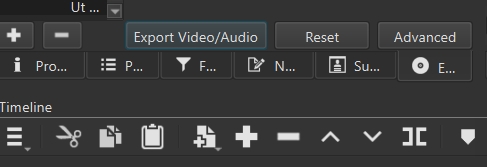
The new panel icons are a nice touch.
But I wonder if you could add a checkbox in the View menu to Show/Hide them.
Depending on the layout of the user, the space they take crops the names of the panels.
Thank you for your feedback! It’s important to note that Shotcut is designed to have one of the most streamlined and flexible interfaces available in professional-grade video editing.
Since you posted this in the Beta Testing of Shotcut 26, please keep in mind that this section is specifically for reporting bugs and providing feedback on upcoming versions. For general UI improvement ideas, it is best to share your thoughts in the Suggestions category so the developers can track them properly.
If you are finding the layout confusing, I highly recommend checking out the Tutorials category on this forum for tips and tutorials. For a quick breakdown of how the interface works, you can watch this 2-minute video which explains the core sections:
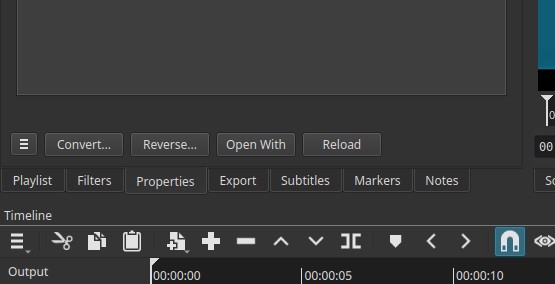
This was an automatic “gift” from the new version of Qt that requires override. I was skeptical about them and waited for feedback. Thanks. I know @TLR_Pictures suggested this, but It is too intrusive at this time to provide an icon-only option. I am just going to remove them.
I’m afraid I can’t help for testing/debugging now, but this is an occasion to give all my esteem, gratefulness and acknowledgements to all the people who contribute to Shotcut.
Other problem is:
After shotcut opens the converted and renamed to: “…Converted for CPU” (in the same folder as original project).
Shutcut automaticly starts this file and shows directly, that shotcut finds a problem in this file and askes to repair it in a file with the name: “…Converted for CPU - Repariert”.
I see you opened a very old project file (Shotcut v18.10) that used commas for the decimal point in numeric values. That was changed years ago to use periods since there were problems and period is the more common, generic numeric format in code languages and data. It is also uses the old WebVfx/HTML-based filters that are no longer available and which are attempted to be converted. That is why it was needing repair as well.
Thanks, I made a fix for the problem preventing opening the repaired file. But if you try it again, you need to start with the GPU-based project; the repaired file it created is not usable and will cause crash.
I want to properly test this feature.
I added any video files, with any bitrate, any codec, and any frame rate. I looked at the CPU load graphs, but I didn’t see any difference between enabled and disabled.
How can I verify that the app has activated the hardware codec? I have an Intel Core I9-13900h processor and an integrated Intel Iris XE graphics card. The operating system is Linux Mint 22.3. I’m sure hardware acceleration should be enabled on my system. Any 4K files at 60 fps don’t impact the processor at all, it’s barely loaded. However, when playing videos in Shotcut, the processor load is higher, and it makes no difference whether I enabled the hardware codec or not. Please help me figure this out. Thank you.
Any modern, powerful system is unlikely to notice a difference in the user experience except how I mentioned it in the release notes. You need a GPU monitor. On Linux there is no universal one like Windows and macOS has. I use radeontop, and Google search says there is an intel_gpu_top in the intel-gpu-tools package.
The main test you completed and it passed: did it break, even if not active? Apparently, not. Did you test it with preview scaling and a video with a compatible codec, for example H.264 or HEVC? In my testing, I have only found NVIDIA on Linux to be problematic. That is not a big surprise because the nvidia driver is not inherently compatible with VA-API, but there is a compatibility shim. However, in my testing, that does not work in Shotcut, and I made a change since the beta to disable Use Hardware Decoder by default for that combination: NVIDIA on Linux.
OK, how to tell for real. You need to use View > Application Log. Look for a line containing hwaccel vaapi av_hwdevice_ctx_create() success. The word vaapi changes based on your operating system: d3d11 for Windows, videotoolbox_vld for macOS. Next, it usually uses a hardware scaler unless preview scaling is off and the source is <= 1080p60. There is a line in the log for that like scale_vaapi filter initialized: 3840x2160 -> 1920x1080 (scale_d3d11 on Windows and scale_vt on macOS).
You cannot because it gets compiled to binary. If you have a GitHub login you can download a daily build from Workflow runs · mltframework/shotcut · GitHub by clicking on the most recent “workflow run” for your OS and download from its “Artifacts”. If you do not have a GitHub login I can publish a download URL, which is not automated but not too bad.
1. First it converts gpu to cpu and saves the mlt to xxx.converted
2. After opening it repairs (maybe for old filters) and saves the mlt to xxx.repaired
3. This mlt opens without error, but the video (with old filters) lookes not ok.
4. I deaktivate the old filters. Now i can work with the project.
Maybe it would be a nice idea, if the repaired project would deactivate every filter, wich is old and without funktion?!
I only had to deactivate filters in 3 clips inside the project. So no problem to do.
But if someone has a big old project with tons of clips.
 I just found and fixed a bug that the Hardware Decoder does not work with interlace video. So, do not test and report on that problem please. Either turn off the hardware decoder or preview scaling if you are working with interlace video in this beta. In the release version, with interlace video (implicit or forced), you can have hardware decoder turned on along with preview scaling, but it will not use the hardware scaler to resample to the preview scale.
 .
.