In video editing, trimming is the process of adjusting the start (in-point) or end (out-point) of a video or audio clip to shorten or lengthen its duration. This is different from moving the clip on the timeline; it’s about changing the content and duration of the clip itself.
While some software uses a dedicated trim tool, in Shotcut you perform trimming directly within the Timeline or Source player using controls and keyboard shortcuts.
A good workflow involves using the Source player to prepare clips before adding them to the timeline. This helps you select and trim the best parts of your footage first, which saves time and makes the editing process on the timeline more efficient and less disruptive.
Source Player
You can open a clip into the Source player a number of ways:
- File > Open (menu, main toolbar, shortcut)
- drag from a file manager & drop onto the player
- double-click in:
- Recent
- Playlist
- Files
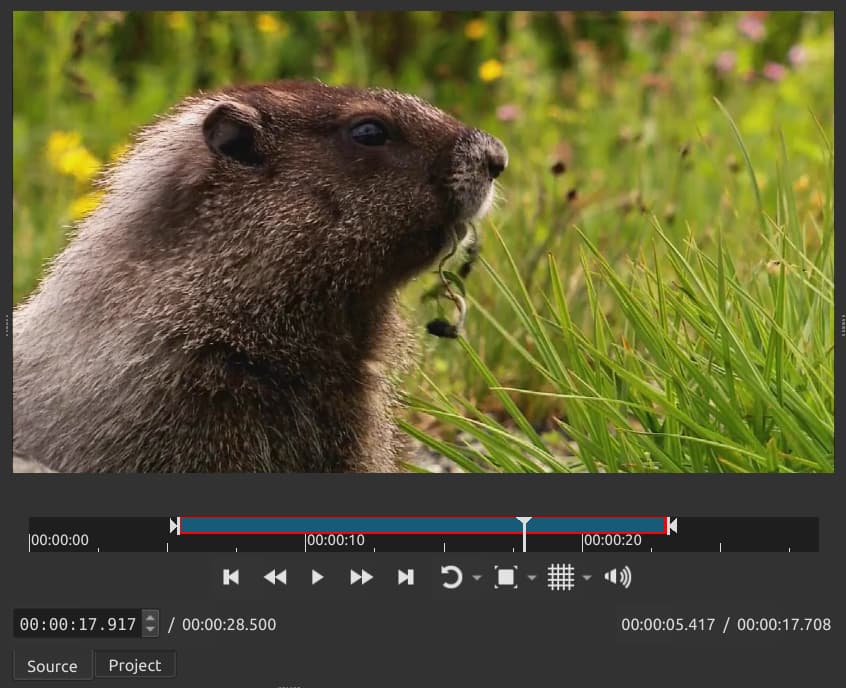
Drag  to change the in-point.
Drag  to change the out-point.
Alternatively, play and seek within the clip to position the playhead: 
Then, press I to set the in point and/or O (letter O, not the number 0) to set the out point.
As you are trimming the bottom, right corner of the player shows some time values. Remember, there are tool tips through the application. Hold the mouse a couple of seconds over one of the time values to reveal its purpose: In Point / Selected Duration. Note that, technically, duration is not the out point. If you actually move the playhead to the out-point, the time field in the bottom, left corner shows the out point. However, more often the duration of this sub-clip is more interesting than the out point.
Sub-Clip and Playlist
A sub-clip is a new, shorter clip created from the larger, original media file. Instead of keeping the entire clip, you create a sub-clip that contains only the specific, trimmed segment you want to use. This is a common practice in the Source player, where you set the in-point and out-point of a desired section and then add it to the Playlist. Sub-clips are useful for organization, as they allow you to work with manageable, focused pieces of a long recording without affecting the original footage. You can have multiple sub-clips from the same source in the playlist or timeline. You can also add Filters to the sub-clips while preparing it in the Source player.
Timeline
Clips on the timeline also have interactive controls for trimming. Move the mouse cursor to the left edge of a clip, and you see a green bar appear:

Drag it to trim the in point.
Move the mouse cursor to the right edge of a clip, and a red bar appears:

Drag it to trim the out point.
You can also use the I and O keys to on the timeline.
Regardless of the approach, in the timeline the behavior also depends on something called Ripple, which is a fundamental concept in video editing and especially in Shotcut. For the interactive mouse control, ripple is used when this timeline toolbar button is active:

When the button is not active, you can hold Shift while trimming to do a ripple trim.
There are ripple variants of the keyboard shortcuts:
- Shift+I for Ripple Trim Clip In
- Shift+O for Ripple Trim Clip Out
Another thing to note about using the timeline keyboard shortcuts is that you do not need to first select the clip. It operates on the topmost clip under the playhead. But an important consideration is that shortcuts on the timeline cannot increase the duration. It can only decrease by removing more from the beginning or end.
Roll Edit
A roll edit is a specific type of trim that adjusts the cut point between two adjacent clips on the timeline simultaneously. The defining feature of a roll edit is that it shortens the end of the first clip and lengthens the beginning of the second clip by the exact same amount. This means the total duration of the two clips—and your entire video sequence—remains unchanged.
You use a roll edit to refine the timing and rhythm of a transition without affecting the rest of your timeline. It allows you to shift the “moment of the cut” to a more effective point, such as aligning a visual cut with a beat in music or a specific word in dialogue.
In Shotcut, hold Ctrl when trimming to perform a roll edit.
Scrub While Dragging
“Scrubbing” is essentially another word for seeking, but it is a bit more about playback than simply going to a point in time. Think of it as rapidly seeking short distances while updating the video preview. This can be useful when trimming or doing a roll edit. In Shotcut, this is on when the timeline toolbar button is active:

Otherwise, when it is off, you can still kind of see where you are inside the clip by viewing the thumbnail on the timeline.