The Replace action is a powerful timeline utility designed to swap an existing clip with a new one while maintaining the structural integrity of your edit—specifically preserving filters and track positioning.
Replace first appeared in version 20.04.12
Here is a comprehensive breakdown of how it works, its behavior regarding clip length, and best practices for managing keyframes during the process.
Overview
The Replace action allows you to swap a clip on the Timeline with whatever is currently loaded into the Source player, starting from its In point. Unlike a “Lift and Paste” operation, Replace is non-destructive to your filter stack; it swaps the underlying media while keeping any applied effects or corrections intact.
How to Execute a Replace
- Prepare the Source: Load your new clip into the Source player. You can do this by:
- Opening a file directly from your computer.
- Dragging a clip from the Playlist.
- Copying a clip from elsewhere in the Timeline.
- Set the In point (starting time).
- Target the Timeline: Right-click the clip you wish to swap out on the Timeline.
- Apply: Select Replace from the context menu.
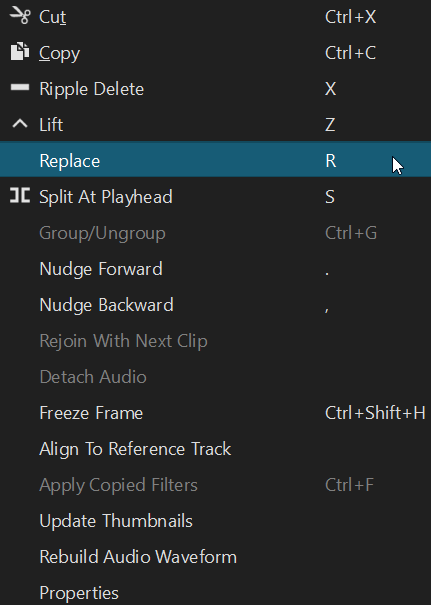
The Replace command is not limited to existing media; it can also be used to fill empty spaces on a track without disturbing the rest of your edit.
- How it works: Right-click any empty (blank) area between two clips and select Replace.
- Duration Constraint: The blank space acts as a strict boundary. If the gap is 2 seconds long, Shotcut will take the first 2 seconds of the Source clip (starting from its current In point) and drop it perfectly into that slot.
- Layout Integrity: Crucially, this operation does not trigger a “ripple” effect, even if Ripple and/or Ripple All Tracks are enabled. The clips to the right of the gap will stay exactly where they are, ensuring your timeline synchronization remains intact.
Clip Length & Ripple Behavior
The behavior of the Timeline after a replacement depends entirely on the duration of the Source clip relative to the original Timeline clip.
Case A: Source Clip is Shorter
If the incoming clip is shorter than the original:
- The timeline clip’s duration will shrink to match the source clip.
- Warning: If the original clip had keyframes (e.g., a size/position/rotate movement), they may be cut off or misaligned because the clip’s tail has been truncated.
Case B: Source Clip is Longer
If the incoming clip is longer than the original:
- The timeline clip will initially maintain its original duration.
- Expansion: You can manually extend the clip by dragging the right trim handle to reveal the extra footage from the source clip, up to its maximum length.
Key Features to Remember
| Feature | Behavior |
|---|---|
| Filters & Effects | All filters on the original clip are preserved and applied to the new footage automatically. |
| Transitions | Replace may affect existing transitions if the new clip length is shorter than the transition point. |
| Keyframes | Filters are kept, but if the clip length changes significantly, you should check your keyframe timings to ensure they still align with the new footage. |