This feature automatically reduces the audio volume of a track based on the tracks above it. You do not need to manually keyframe gain envelopes or split clips. However, you might need to think more about how you organize tracks and which clips you place on them. Any track on the timeline except the top track shows this in the Properties panel.
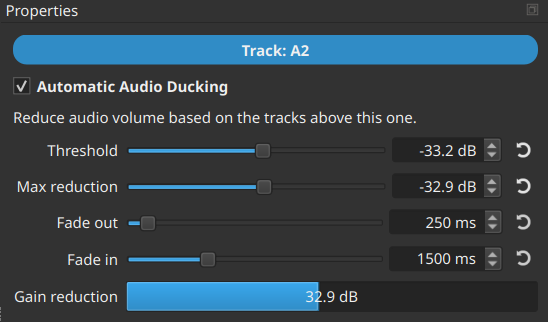
This was added in version 26.9.27.
Check the checkbox to turn it on. It has some sensible defaults.
Threshold is the level when the sum (mix) of the tracks above this one causes any reduction. As you lower this, ducking becomes more sensitive.
Max Reduction is the maximum amount the gain can be reduced. In the screenshot above, you can see that it is currently reducing to the maximum. Use it to protect the audio bed or music from dropping too low and causing too large a dynamic range.
Fade out controls how quickly the gain reduces when the other tracks exceed the threshold.
Fade in controls how quickly the gain returns to normal (no reduction) when the other tracks fall below the threshold.