Use this to add text to your Playlist or Timeline as a standalone clip object with its own duration and effects (filters) that affect only the text. Otherwise, when using a text filter on a video or image clip, any additional filters you add also affect the image and not only the text!
This exists in several places:
- The main menu at File > New > Text
- The main menu at File > Open Other…
- The 2nd icon in the main toolbar

- The 5th icon in the Timeline toolbar with the same icon
-
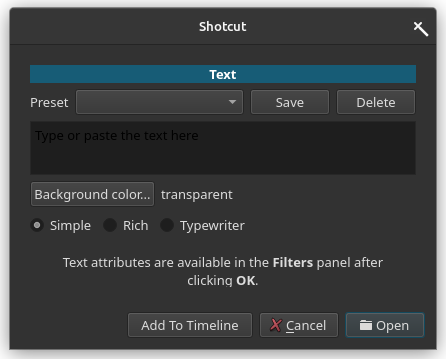
Enter the text you want to display in the main, big, empty text box. Change the Background color only if you want to simply display the text on top of a solid color.
-
Use Preset only if you want to save your text snippet along with its Background color to use again at a later time.
-
Choose a particular text generator:
- Simple is probably the most common and obvious choice. It can display metadata from variables, but all of the text must have the same font, size, and color, including outline.
- Rich lets you change the fonts, colors, and do other formatting within a single text clip; however, outline requires the addition of the separate Outline filter.
- Typewriter animates the text character-by-character or word-by-word.
- Click Add To Timeline to immediately add the text to the Timeline at the current playhead. If there is already a clip on the current track at this position it adds a new track holding the new text object. Otherwise, click Open to open the text clip in the Source player where you can preview it before adding it to the Playlist or Timeline.
NOTE: The Add to Timeline does not show when you choose to trigger this from the Timeline toolbar. Instead, OK appears and clicking it adds it to the Timeline.