Hi,
I want to implement slow motion in the middle of a video. I tried splitting the clip at the desired start and end points, then adjusting the speed of the middle section in the properties panel. However, when I reduce the speed, it seems like frames are being lost, causing the slowed part to gradually vanish.
Could you please help me identify the problem?
I’m having trouble imagining what this means. Do you mean that the video is not continuous from the end of the slowed clip to the beginning of the 3rd clip? You could try to move the 3rd clip over on the timeline and then extend the slowed clip.
I tried your steps and they work for me (split a clip twice and slow down the middle clip).
Maybe you can share a screenshot to demonstrate the problem you have.
Also, can you share a screenshot of the properties panel for your clip? Maybe there will be a hint in there.
If you do it like this (split and use Properties > Speed) Shotcut does not automatically adjust the clip after the middle, slowed clip. You will need to trim to adjust it yourself. However, if you use the Speed: Forward Only time filter, you can use keyframes, and there will be continuity.
I used the “speed: Forward only” filter, but another problem has appeared: the clip is being cut off earlier than it should be.
Then, I tried to extend the video duration from the properties panel, but it didn’t apply to the video.
The program does not assume it can move or overwrite other clips on your track. After you increase the duration, you need to drag the right edge of the clip to extend it. The duration is a source property override; not a timeline clip duration. As you can see in Properties, there is a read only Timeline duration field. Why read only? Again, because it depends.
If you need to push other clips following this clip you need to use Ripple. If you need to keep clips on other tracks from this clip and beyond in synchronization; you need to turn on Ripple All Tracks. If there is a track you need to exclude from that you need to lock it. And so on. There are many functions that work together you need to learn. Of course, if this is the last clip in the timeline and there are no other tracks, then it is much simpler.
Hi Brian,
Thanks for your help. I extended the video duration and applied the “Speed: Forward Only” filter, but when I exported the video, the audio became unsynchronized due to the speed change. Do you have any suggestions on how I can fix this?
Unsynchronized from what? Does the clip that you are exporting also contain the audio? If it does, the audio in the clip is sped up with the video. If the audio is in a different clip on another track, the you will have to also speed up that clip.
It is difficult to answer your questions because we do not know very much about your project and how you are trying to speed things up. Maybe you could share a screenshot of your project and an example of the export that is not synchronized.
I have a clip that contains both video and audio. I want to slow down the video in the middle portion without changing the audio speed. To do this, I first detach the audio from the video, then slow down the video using keyframes. However, after exporting the video, the audio becomes unsynchronized starting from the middle and finishes earlier than it should.
What are you expecting to happen here?
If two cars are driving next to each other at the same speed, and then one slows down, the other one will get ahead unless it also slows down at the same time.
You can’t slow down video without allowing the audio and keep them synchronized.
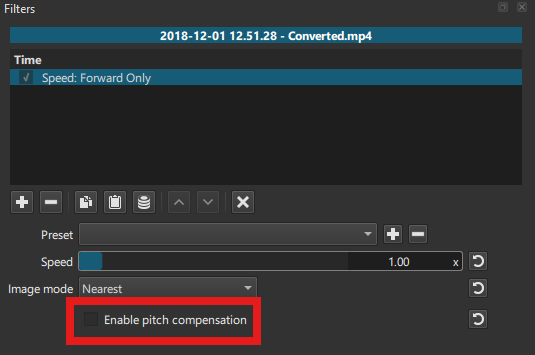
Maybe you DO want the audio to speed up, but you don’t want the pitch to increase? If that is the case, enable the “Pitch Compensation” option:
Yes, you’re right. I tried creating a copy from the audio file, then splitting and inserting it into the main audio from the middle to the end. It might be a good solution.
I think you are still misunderstanding. Do not detach the audio. If you keep it together, it stays together. You are causing the problem by detaching the audio! If you want to do something special with the audio in the middle that is different than the existing options (speed change or pitch correction) then deal with that separately. For example, maybe you want to mute it.
I have a video with both video and audio. I want to slow down the video in the middle, but I don’t want to alter the speed of the audio. Is it possible to do this without detaching the audio?
Do you I really need to tell you to look at the big red box in the screenshot above?! Or if that does not satisfy you, experiment with the options discussed here to see what best matches your expectation.
I enabled pitch compensation, but it didn’t help and caused both the audio and video to slow down, while I only want the video to slow down, not the audio.
This topic was automatically closed after 90 days. New replies are no longer allowed.