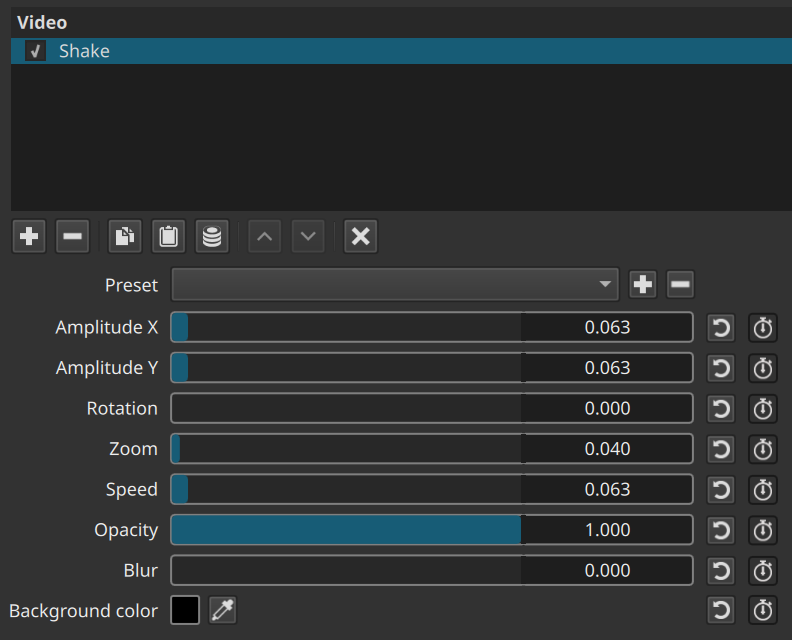
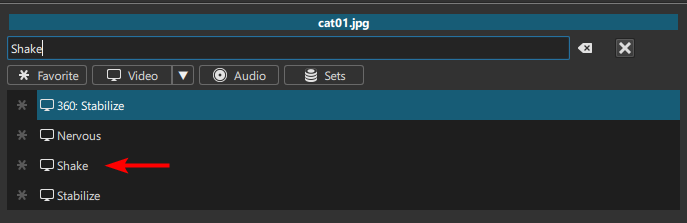
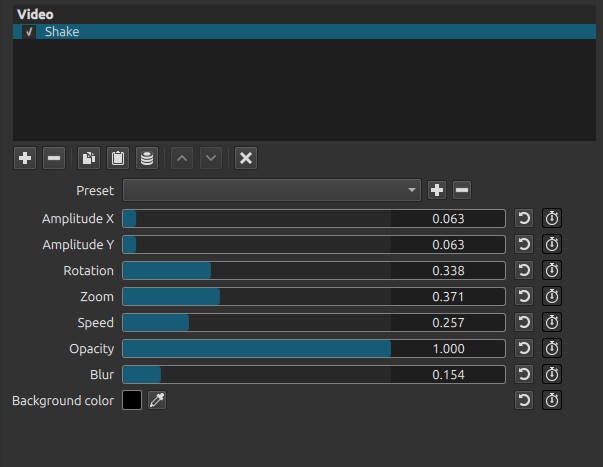
Shake Video Filter
Applies an animated shaking motion to a clip, simulating the appearance of camera shake, vibration, impacts, or unstable footage.
The filter can also add rotation, zoom, blur, and opacity variations to create anything from a subtle handheld effect to an intense earthquake or explosion.
Parameters
Amplitude X (0.000 - 1.000)
Controls the maximum horizontal movement of the image.
-
Low values
- Small side-to-side movement.
- Suitable for handheld camera simulation.
-
High values
- Strong horizontal shaking.
- Useful for impacts, explosions, or earthquakes.
Amplitude Y (0.000 - 1.000)
Controls the maximum vertical movement of the image.
-
Low values
- Gentle up-and-down movement.
-
High values
- Strong vertical shaking.
- Can simulate rough terrain, heavy footsteps, or severe impacts.
Rotation (0.000 - 1.000)
Adds rotational movement during the shake effect.
At its maximum value, the image can rotate approximately ±45° to the left and right, for a total rotation range of about 90°.
-
Low values
- Slight camera tilt.
- Natural handheld movement.
-
High values
- Dramatic rocking and twisting.
- Suitable for violent action scenes.
Zoom (0.000 - 1.000)
Controls how much the image is enlarged to compensate for movement.
Note:
Increasing the zoom helps keep the frame filled while the image moves, reducing visible borders around the edges.
-
Low values
- More of the original image is visible.
- Borders may become visible when using large shake amplitudes.
-
High values
- Image remains cropped to fill the frame.
- Reduces or eliminates exposed edges.
Speed (0.000 - 1.000)
Controls how quickly the shake moves.
-
Low values
- Slow, drifting movement.
- Suitable for vehicle motion or gentle instability.
-
High values
- Rapid vibration.
- Suitable for explosions, engines, or violent impacts.
Opacity (0.000 - 1.000)
Controls the overall opacity of the clip during the shake effect.
-
Low values
- The clip remains mostly opaque.
-
High values
- The clip becomes increasingly transparent, allowing tracks below to show through.
Note:
This parameter applies a constant opacity level while the filter is active; it does not create random or flickering transparency.
Blur (0.000 - 1.000)
Applies a directional motion blur to the shake effect.
The blur is applied both horizontally and vertically, increasing the impression of rapid movement and camera vibration.
-
Low values
- Little or no blur.
- The image remains sharp during the shake.
-
High values
- Strong horizontal and vertical motion blur.
- Movement appears faster and more intense, but fine image details become less distinct.
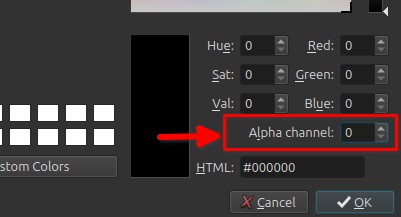
Background color
Selects the color displayed wherever the image moves outside the frame. The visibility of this color is also affected by the Opacity parameter.
The background color becomes visible when the image is displaced beyond its original boundaries, particularly when using low Zoom values or high Amplitude settings.
Tip:
Set the Alpha channel to 0 (fully transparent) to make the background transparent. This allows any clips on lower video tracks to remain visible instead of being replaced by a solid background color.
Keyframes
The following parameters are keyframable:
- Amplitude X
- Amplitude Y
- Rotation
- Zoom
- Speed
- Opacity
- Blur
Keyframes allow the shake effect to:
- Start or stop gradually.
- Increase during an explosion or impact.
- Follow the intensity of an action scene.
- Simulate a camera recovering after a shock.
Visual characteristics
Depending on the settings, the Shake filter can simulate:
- Handheld camera movement
- Vehicle vibration
- Earthquakes
- Explosions
- Running or heavy footsteps
- Camera impacts
- Glitch or horror effects
- Damaged film or unstable recordings
Tip: Preview the effect at full playback speed whenever possible, as the perceived intensity of the shake may differ when stepping through frames.
Recommended use cases
- Action sequences
- Explosion effects
- Horror and suspense scenes
- Earthquake simulations
- Vehicle or aircraft shots
- Handheld camera simulation
- Found-footage productions
- Music videos
- Glitch or digital distortion effects
Example settings
Subtle handheld camera
- Amplitude X: 0.05
- Amplitude Y: 0.03
- Rotation: 0.03
- Zoom: 0.10
- Speed: 0.20
- Blur: 0.05
Produces a gentle handheld look without distracting the viewer.
Explosion impact
- Amplitude X: 0.40
- Amplitude Y: 0.35
- Rotation: 0.20
- Zoom: 0.35
- Speed: 0.80
- Blur: 0.40
Creates a sudden, violent camera shake.
Earthquake
- Amplitude X: 0.20
- Amplitude Y: 0.30
- Rotation: 0.08
- Zoom: 0.20
- Speed: 0.45
Produces a sustained, shaking effect.
Glitch effect
- Amplitude X: 0.08
- Amplitude Y: 0.05
- Opacity: 0.40
- Blur: 0.15
- Speed: 0.90
Useful for damaged video, electronic interference, or supernatural effects.
Tips
- Increase Zoom when using large amplitudes to prevent empty borders from becoming visible.
- Combining a small amount of Blur with moderate shake often produces a more realistic result.
- Use Rotation sparingly for handheld effects; large values can quickly become disorienting and may cause discomfort for some viewers (e.g. motion sickness).
- Animate the effect with keyframes instead of keeping maximum shake throughout the clip. A sudden burst followed by a gradual reduction usually looks more natural.
- For explosions or impacts, combine this filter with sound effects and brief flashes for greater realism.
Limitations
- Large amplitudes may expose the background color if Zoom is too low.
- Very high Speed combined with strong Blur can reduce image detail.
- The effect simulates camera movement; it does not modify the motion of individual objects within the scene.