Controls how Shotcut resamples images during player preview when video is scaled, repositioned, or rotated.
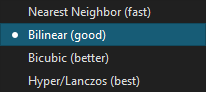
This setting affects preview quality only. It does not change clips, timeline data, or exported files.
What interpolation is
Interpolation is the computation of new pixel values based on neighboring pixels when an image does not align exactly with the pixel grid.
In practical terms, it affects:
- Scaling (zooming in or out)
- Sub-pixel positioning
- Rotation
- Motion that places pixels between pixel boundaries
Because pixels cannot be partially drawn, interpolation determines how smooth or sharp the result looks. This is sometimes described as sub-pixel rendering.
Scope and behavior
This setting applies only to the player preview.
It does not:
- Affect export quality
- Change render output
- Modify source media
- Apply to text, SVG, or HTML rendering
A separate interpolation setting exists in Export > Advanced > Video.
Interpolation options
Nearest Neighbor (fast)
No interpolation is performed.
- Uses the closest existing pixel
- No averaging or smoothing
- Fastest option
Visual result
- Sharp but blocky
- Visible pixel stepping
- Jagged edges when scaling or moving
Use when: performance is critical or when pixel-perfect preview is desired.
Bilinear (good)
This is the default. It interpolates using the four nearest pixels.
- Simple averaging
- Moderate smoothing
- Low computational cost
Visual result
- Softer than Nearest Neighbor
- Reduced jagged edges
- Slight blur
Use when: general editing with good performance.
Bicubic (better)
Interpolates using a larger neighborhood of pixels.
- More complex averaging
- Better edge preservation
- Higher processing cost
Visual result
- Sharper than Bilinear
- Fewer artifacts
- More natural scaling
Use when: preview quality matters more than speed.
Lanczos (best)
High-quality interpolation using a wider sampling window.
- Preserves fine detail
- Best edge reconstruction
- Highest processing cost
Visual result
- Very sharp
- Minimal blur
- Possible ringing on high-contrast edges
Use when: inspecting image quality or doing precision work.
Performance considerations
| Method | Quality | Performance |
|---|---|---|
| Nearest Neighbor | Low | Very fast |
| Bilinear | Medium | Fast |
| Bicubic | High | Slower |
| Lanczos | Highest | Slowest |
Usage notes
- Higher-quality interpolation improves visual clarity, not export quality.
- On slower systems, Lanczos may reduce playback responsiveness.
- This setting does not affect:
- Text anti-aliasing
- SVG rendering
- HTML content