The Outline video filter uses the image or video’s alpha channel (transparency) to draw a colored line also known as a stroke. Therefore, it works best with something that has a transparent background and hard edges (not large areas of translucency). Since it is common to put outline on text and Text: Rich does not have its outline feature, this is very useful for rich text.
WARNING: This filter uses the CPU very heavily! Therefore, if you are using a text filter that has its own outline option such as Text: Simple use that instead. Use it for short periods if possible. If the thing you are outlining is a still image that you will show for a long time such as a so-called watermark or superimposed logo; use this to apply the outline, export it as a new file, and then use that.
This filter was added in Shotcut version 25.07.
NOTE: Since this is based on the alpha channel of the filter’s input it will not work as expected when used after a text filter on a video or image clip. That is because a filter’s input is the output of a previous filter, and the output of the text filter does not create an alpha channel with transparency. Rather, you must use a text clip (New Generator > Text) on an upper track.
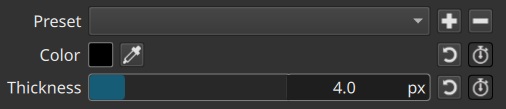
- Color is the obviously the color of the line to draw. Click the color block to open the color dialog to change it, or click the dropper icon to pick a color from your screen.
- Thickness is the width of the line. The greater the thickness the more it uses your CPU and slows preview or export. The resolution of your project’s Video Mode affects how much thickness you need. More resolution generally requires more thickness but also requires more pixels to process slowing everything.
 Proxy and Preview Scaling are your friends here, but expect long export times if you use this much.
 - Color and Thickness support Keyframes to change over time for cool effects!
- Preset is where you can save these parameters to use them again for other clips or projects.