Hi. I’m pretty new to Shotcut and only know some fairly basic stuff. I’ve used the spot remover, but I think I need to do something with a mask for what I want to do now.
I am creating a math video where I’ve typed the problem on a whiteboard and then use my pen tablet to work out the problem (Khan Academy style). I noticed on my video that I kept something underlined longer than I meant to (the underline was done with my pen tablet). What I’d like to do is do a grab of the problem text before I initially underline the text and then come in with that text when I’d like the underline to end. The text remains the same for the whole video, it’s just some marking I do on the problem that changes the appearance (as well as working out the problem, of course)
I would think this is a pretty easy thing to do, but after some searching and experimenting I couldn’t figure out how to do this.
Thanks for your help!
Jon
Is the area with the text static or is it moving throughout the video? If it’s static, you’re right, just screen grab the correction and place it on a track on top of the error. Use mask simple shape to focus only on the main area.
If it’s moving, you need to use motion tracking with the mask. The idea for motion tracking can vbe learned in this video: https://youtu.be/cUGB7vUE45M
It is static. I did do mask simple shape and set where I wanted the mask to begin and stop (green and red vertical bars). I see that on the keyframes tab. This was done on the main video track – is that right? Not sure how to select what I want to use for my mask and place it above the error on another video track. Also, don’t I need to include mask apply, too? Sorry, I have only scratched the surface in my knowledge of this editor.
Thanks for your help Ben.
Jon
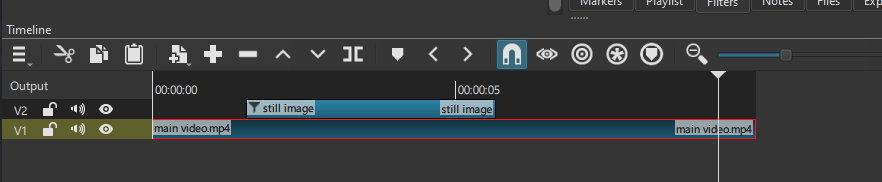
So the first step is to take a still image of that table and put it on a new video track above your main video.
Then on that new still image (so not on your main video) add mask:simple shape and you should already see the video below it come through. No need for Mask:apply in this simple use case.
There is also no need for keyframes here, you control the start and end by making the still image longer or shorter to cover your needed area.
You should end up with something like this:
Thanks for the response, Daniel. I was able to get it to work! I had no idea you could stretch a photo as long as you like in a video track.
Thanks again!
Jon