Bug Report: Locking Audio Track Incorrectly Locks Video Track
Description:
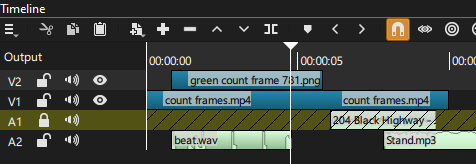
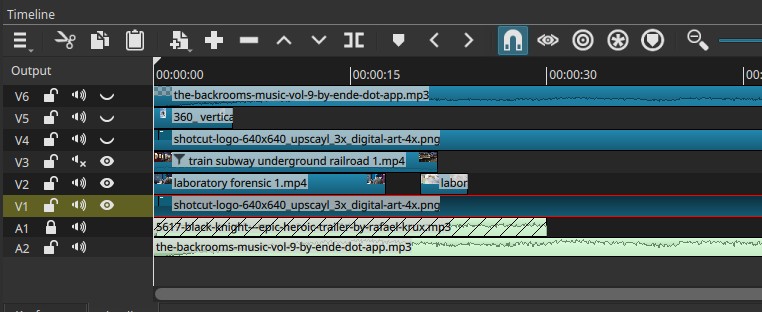
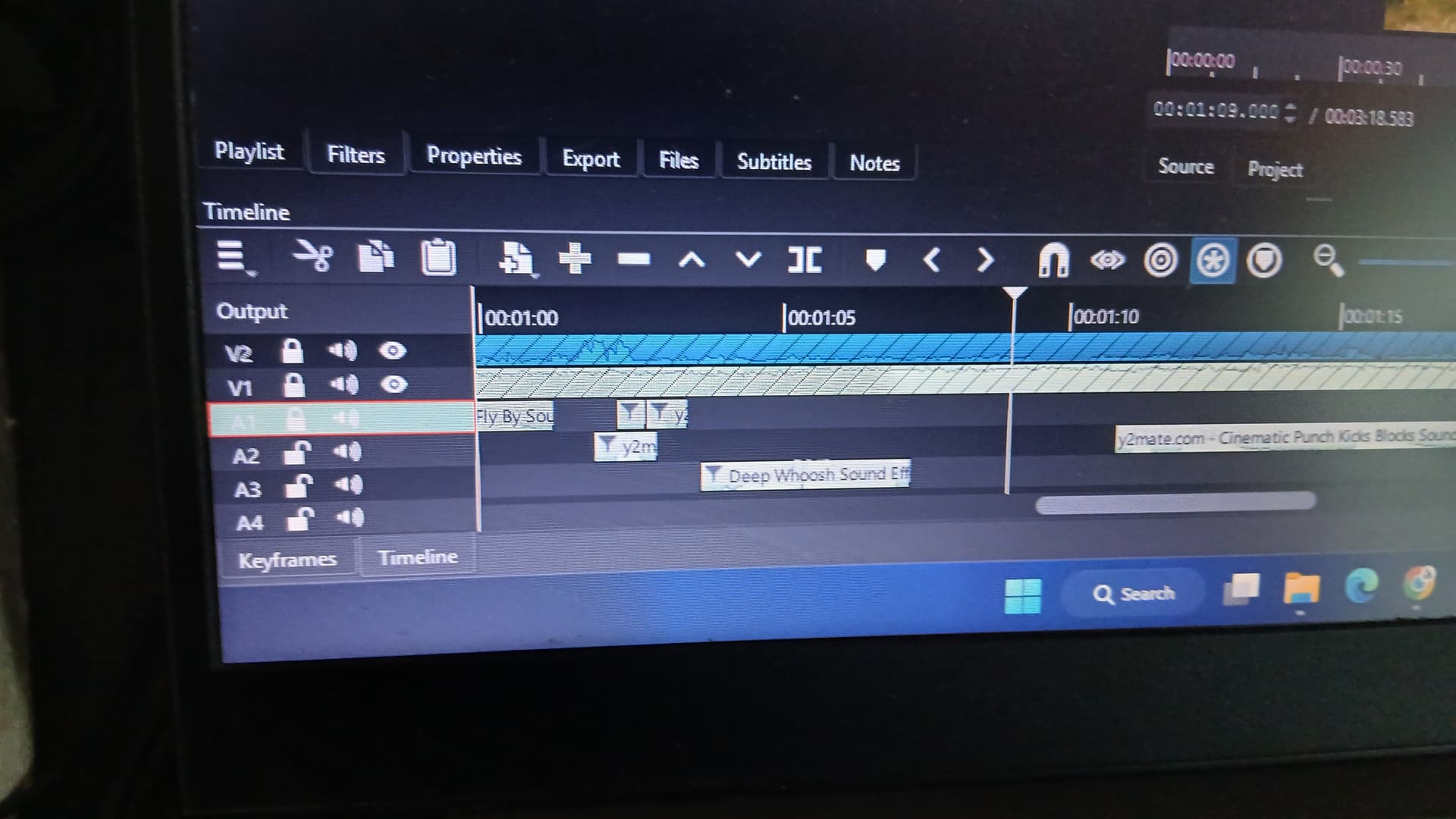
When editing a project with multiple audio and video tracks, attempting to lock Audio 1 does not lock it as expected. Instead, Video 1 becomes locked, while Audio 1 remains editable. The UI incorrectly shows Audio 1 as locked, but its clips can still be moved or edited freely.
Steps to Reproduce:
- Open a project with multiple audio and video tracks.
- Add clips to Audio 1 and Video 1.
- Click the lock icon on Audio 1.
- Observe that Audio 1 shows as locked, but you can still move its clips.
- Try to move clips on Video 1 — it’s locked instead.
Expected Behavior:
Locking Audio 1 should prevent any changes to its clips and should not affect other tracks (like Video 1).
Actual Behavior:
Locking Audio 1 visually shows as locked, but it’s not locked — instead, Video 1 gets locked.