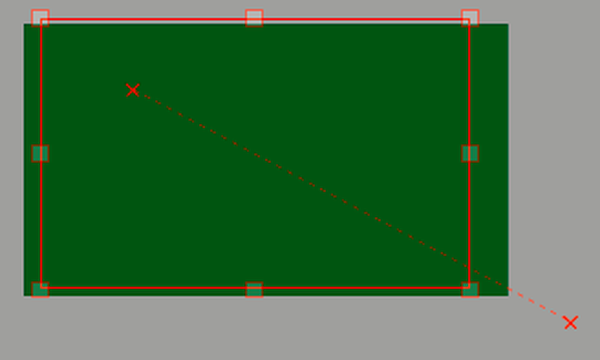
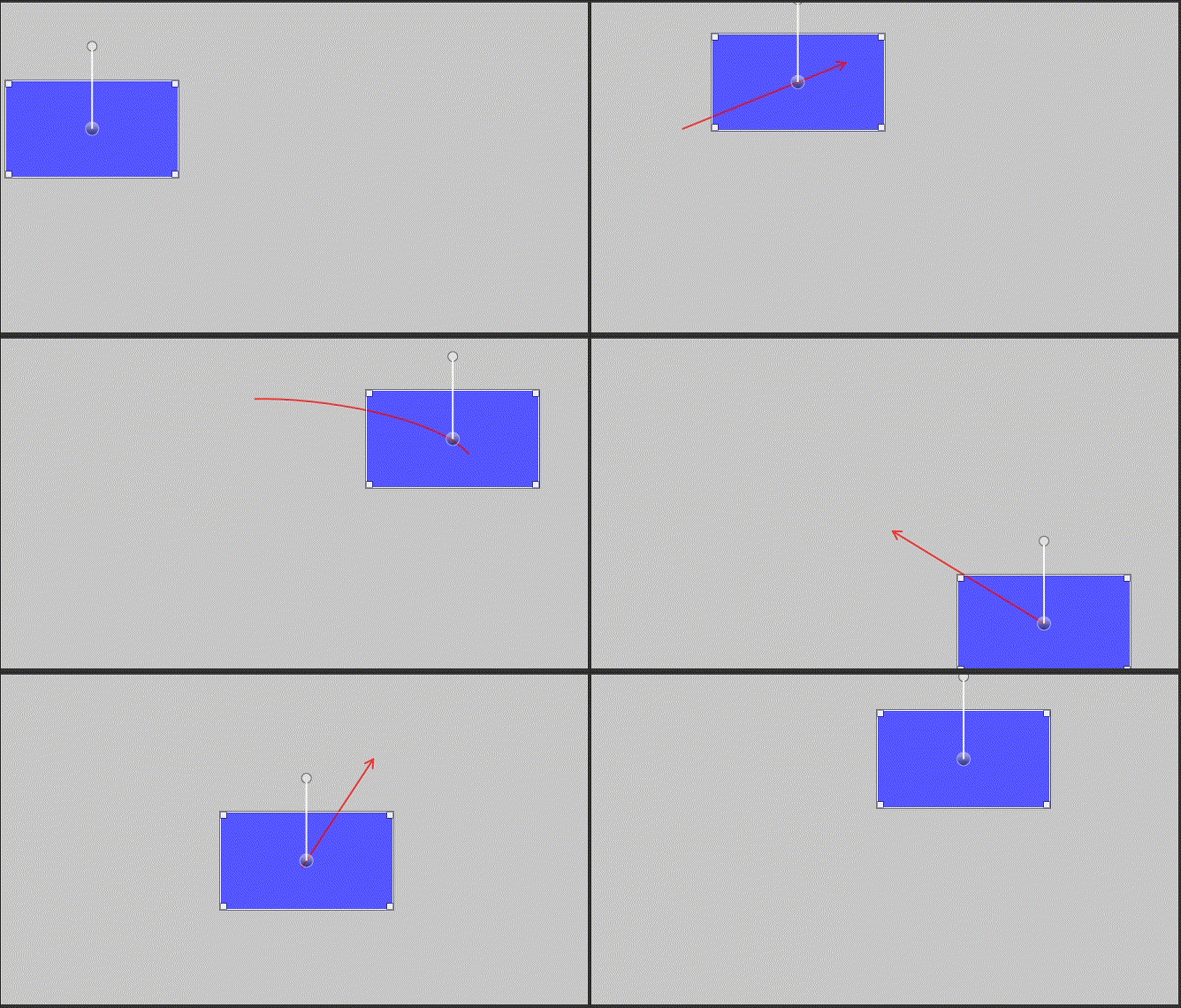
However, unlike Kdenlive, my implementation adds an arrow triangle shape at the end so that where a rectangle moves from and to is a lot clearer in Shotcut.
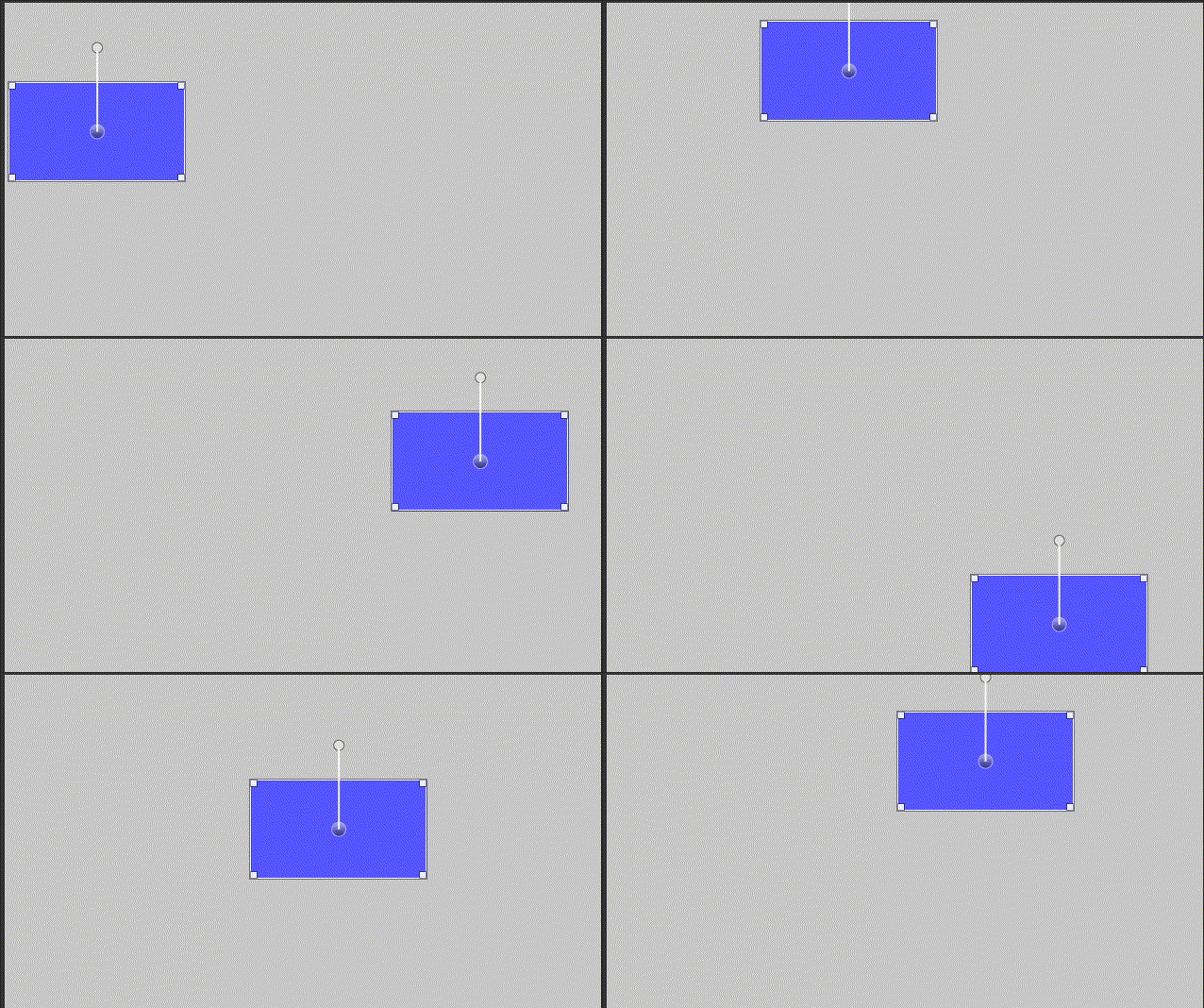
Currently, Version 25.10.31’s Size, Position & Rotate filter’s keyframed rectangle looks like this:
With this UI addition:
This UI should be expandable to all the filters that have the rectangle control, such as Text: Rich and Crop: Rectangle.
This is still in beta. There are some ideas as to how this can be expanded:
Change the line color depending on the keyframe type.
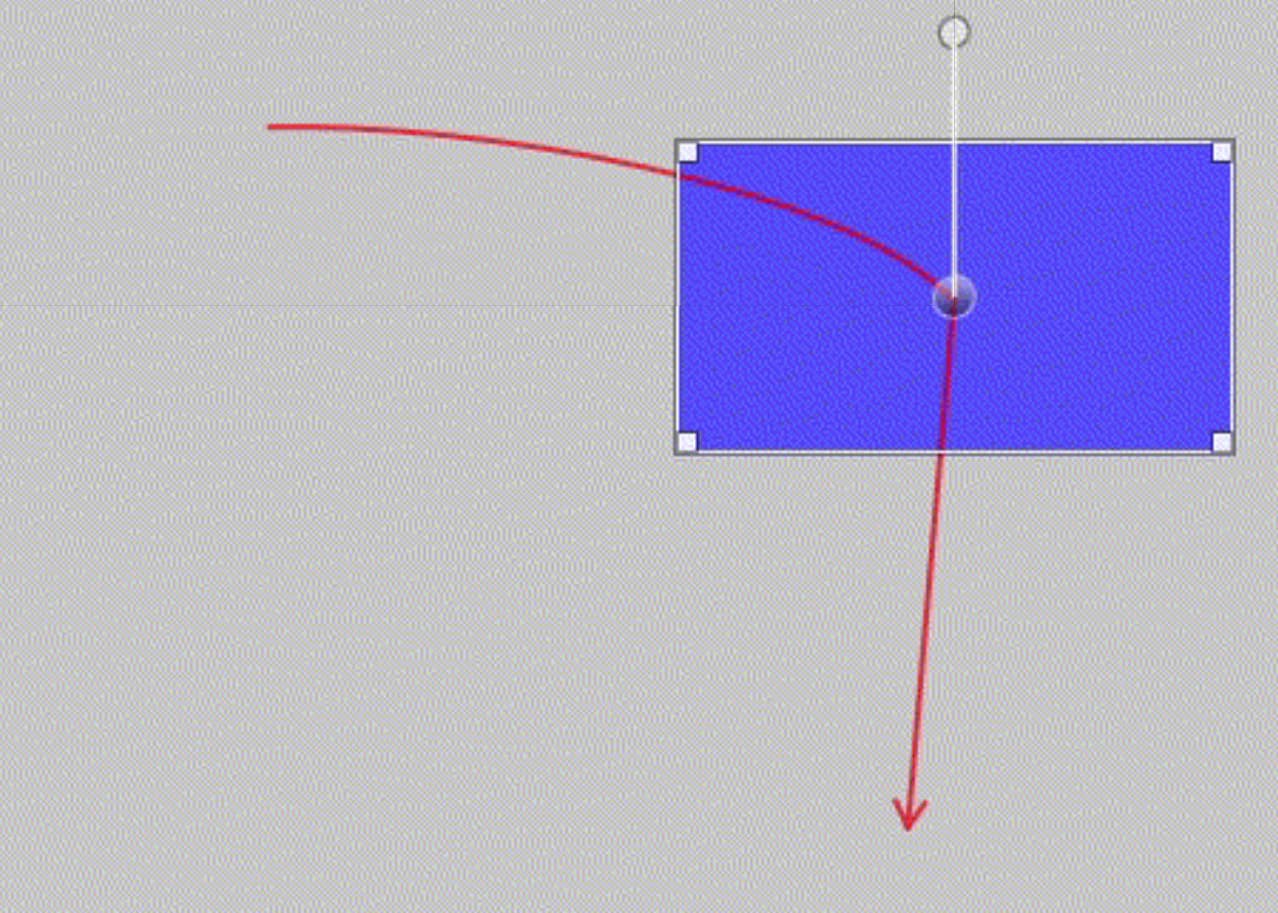
Add another arrow that indicates where the rectangle moves from if a keyframe is selected. Something like this:
Enhance visibility of the arrow by adding some shadows underneath in order to prevent it mixed into some red in the background.
Make it togglable with a button or through a menu. (This one requires setting up a compilation environment that I don’t have right now.)
There are some known bugs:
This doesn’t work too well if a filter start point is set by the user in the Keyframes dock.
This doesn’t work too well with a smooth keyframe. The line and the movement don’t match exactly.
An arrow doesn’t appear with a smooth keyframe. It’s just a curve.
Anyone who wants to test it can easily add this UI to your copy of Shotcut because all the code modifications are done in QMLs.
I do want to get some discussions on its viability before writing instructions on swapping QMLs, though.
I think you mean what I call filter trimming. If so, that is a not a big for first as I believe it is used rarely.
I suggest to limit that to the 4 major types and not include each type of easing. That keeps it understandable instead of trying to remember so many colors. Alternatively, start each line segment with the keyframe shape.
Thanks. I’ll most likely just add 3 additional basic colors to the line to see how it feels.
Here are the instructions on how to plug in my QMLs with your existing Shotcut installation for anyone who wants to volunteer to test it.
Start Explorer or the file manager of your OS.
Go to your Shocut installation folder and find the Shotcut/Controls folder.
It is located at: Program Files\Shotcut\share\shotcut\qml\modules\Shotcut\Controls
for Windows users.
I’m not familiar with MacOS and Linux, but from what I can gather from posts on this forum, these are the locations of the folder: Applications/Shotcut.app/Contents/Resources/shotcut/qml/modules/Shotcut/Controls
for MacOS users. Shotcut.app/share/shotcut/qml/modules/Shotcut/Controls
for Linux users.
Make a backup copy of qmldir.
Download the files below and store them in the Shotcut/Controls folder. qmldir.txt (1.0 KB) TraceLine.qml (9.7 KB)
Change the file name qmldir.txt to qmldir within the Shotcut/Controls folder.
find the filters/size_position folder.
For Windows: Program Files\Shotcut\share\shotcut\qml\filters\size_position
For MacOS: Applications/Shotcut.app/Contents/Resources/shotcut/qml/filters/size_position
For Linux: Shotcut.app/share/shotcut/qml/modules/Shotcut/Controls
Make a backup copy of SizePositionVUI.qml.
Download the file below and store it in the filters/size_position folder. SizePositionVUI.qml (11.5 KB)
Start Shotcut. Use some Size, Position & Rotate filter’s advanced keyframes to see how it goes.
Note that I’ve already implemented the second idea, but not the other 3:
So, there will be two lines showing up when you click on an advanced keyframe in the Keyframes dock.