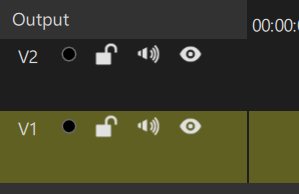
I’m making a video with 2 layers. One on top right of the video has a talking head cropped into a small square, and then another video layer under it.
The 2nd layer starts off a few minutes into the video. The top layer has a timer embedded in. I want to “move” the beginning of the 2nd layer video to match the embedded timer on the top layer.
How do I view the timeline on the 2nd layer so I can match the beginning of it to the embedded timer on the top layer?
Yes, the Timer video filter does this. Add it to the clip on your second track. When a Timer filter is applied to a clip, the counter it displays is relative to that clip, so while you scrub or drag the clip you can read its internal time and match it against the timer embedded in the talking-head video. If you need to align exactly, set the Format to a precise one, for example HH:MM:SS.SSS.
Two details worth knowing:
The filter has to be applied to the clip itself (or to the Output track for project-relative time) - on an empty video track nothing is rendered, because the Timer generates visible graphics and needs an image to draw onto.
Since it burns the counter into the image, remove or disable the filter again once the alignment is done, before you export.
That way you can visually match the start of the second layer to the embedded timer on the top layer.
Another straightforward option without adding a filter is to select the clip on the second track and open the Properties panel. It displays the clip’s exact In point and source timecode. You can also view the clip directly in the Source player (double-click the clip on the timeline) to see its independent playhead and timecode, which makes it easy to find the exact frame you want to align to the upper layer.