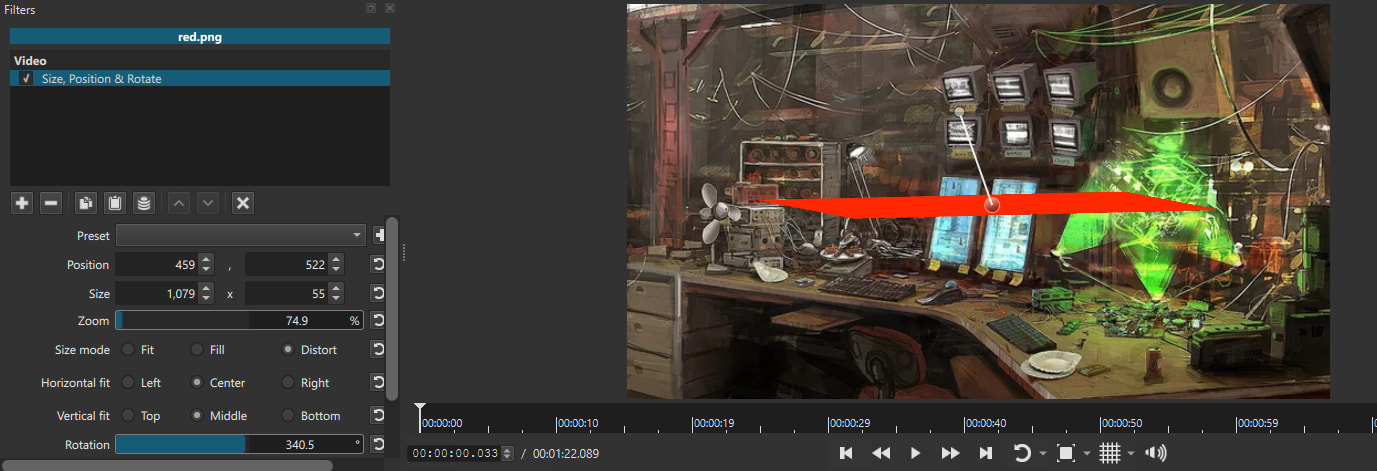
I am trying to add a diagonal red line to my video. I added a red box image to the playlist, added it to a video track, and then applied the filter “Size, Position & Rotate“. I then wanted to make the red box thinner vertically to turn it into a line. I discovered that you can do this by setting the size mode to distort. This brings up a knob that you can use to squeeze the box down into a line.
But now when I go to rotate it, the box becomes this weird shape. (pictured below)
How can I rotate an image that has had it’s dimensions changed in this way?
This certainly helps with the present issue. I can use this to make my diagonal red line, but there is a deeper problem that I am trying to address.
What if I had a complex image. Like an image of someone’s face and I wanted to rotate it to a certain angle. Not as a procedural animation, but as just a static rotated image that stays still on the screen?
In that case you wouldn’t need to use the Distort size mode.
Just leave the Size, Position & Rotate filter on the Fill mode. Then resize, reposition and rotate the image.
Forgive me, I forgot to mention that I did still want the image of a face to be distorted to a degree. But I would want it to maintain a rectangle shape and not turn into a rhombus like it did in my original post.
Hi @Golden_Gear - Here’s how I just did it - by distorting the image, putting a colour clip behind it (you can use any colour that isn’t a colour in the image itself) , and exporting the frame. Then I re-imported, and used the ChromaKey filter to remove the colour background. You can then rotate the image without it turning into a rhombus!
This demo is very quickly done. No audio. I hope you can follow what I was doing. Hope this helps!