How can I add a frame to an image? Thank you very much.
Hi @ANIE
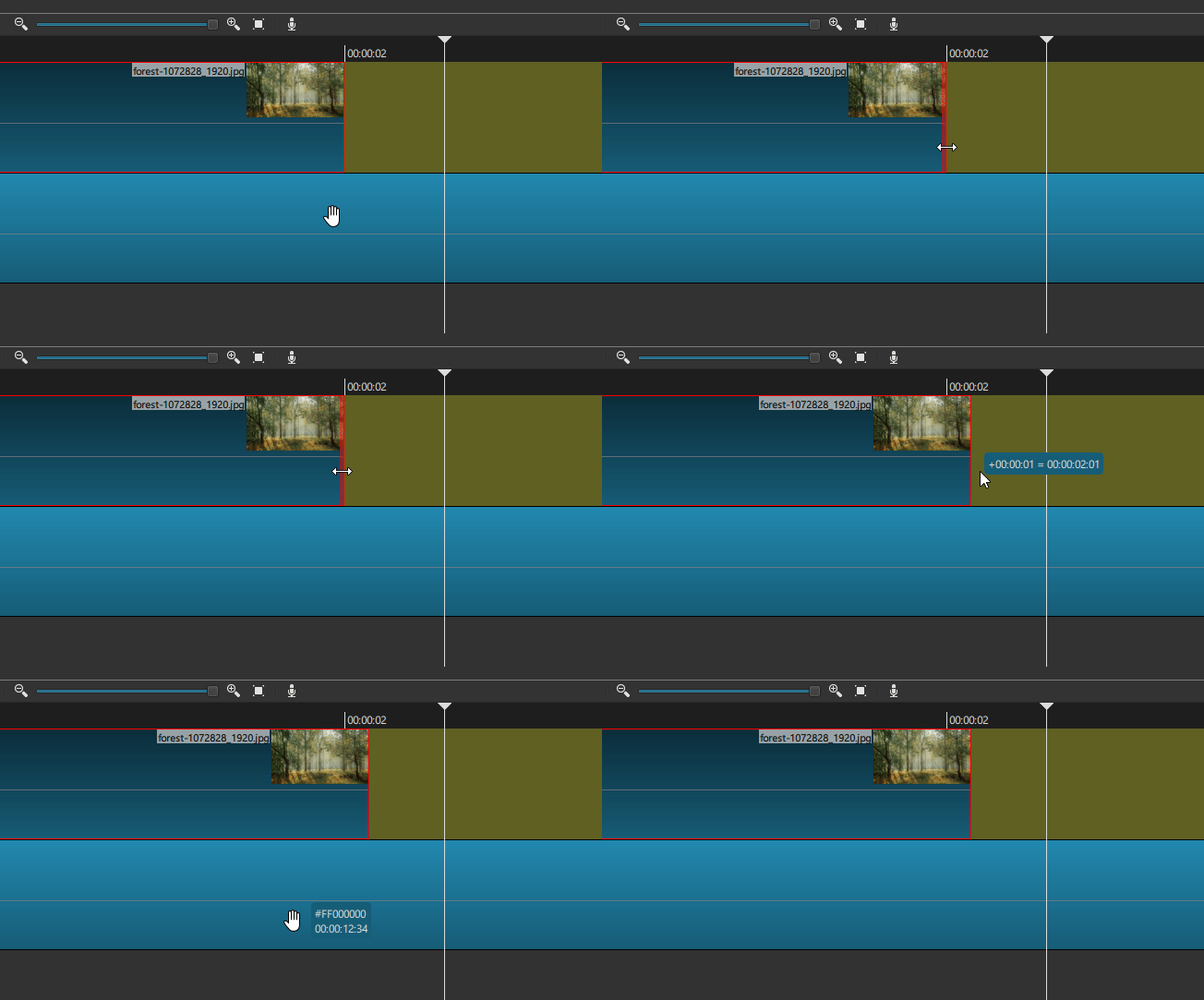
If you mean that you want to increase the Duration of an image clip by one frame, there are a few ways to do it.
But I think the easiest and most accurate way is to use the Properties panel.
- Open the Properties panel.
- In the Timeline, select your image clip.
- Go to the Properties panel.
- Add one frame to the Duration
- Press the Reload button OR press Enter on your keyboard.
Another way is to zoom the Timeline, grab the right end of the image clip and drag it 1 frame to the right.
No the request is about making a border. I do not recommend using the Outline filler for this due to its heaviness, but it is an option. I look forward to others’ suggestions (even though I could offer a few).
@ANIE Please better describe the frame you are seeking. A simple color border, Polaroid instant photo, wood, metal? Does the photo fill the video frame?
1 Like
Oops! Yes. That makes sense. I see now that @ANIE has been a member on the forum since 2019 and probably already know how to add a video frame to the duration of an image clip.
1 Like
Sorry, I think the problem is with the translator. I don’t speak English.
I want to create a simple colored border or a Polaroid photo effect. That’s all. I did it a while ago, but I don’t remember how.
I hope the translator is understandable now.
Thank you very much.
Well, honestly the simplest method would be to add a frame on your image (with Photoshop, Gimp, Canvas etc…) before importing it in Shotcut. But it is possible to do it with Shotcut. Here’s a quick tutorial:
- Track V1: A background image. Don’t use it if you intend to export the framed photo with a transparent background.
- Track V2: A color clip. It will be used to create the frame. Choose any color you want.
- Track V3: Your image clip.
- Add a Size, Position & Rotate filter to your image clip
- Also add a Crop: Rectangle filter
- Set the size of the cropped area and center the crop rectangle on the screen. Don’t forget to click the Transparent button to reveal the layers below.
- If needed you can use the Size, Position & Rotate filter to move the image inside the cropped area.
- Copy the Crop filter.
- Select the color clip and paste the crop filter.
- If you want the width of photo frame to be, for example, 20px, increase both Size values by 40px.
- To align the frame with the photo, decrease both Position values by 20px (half of 40).
7 Likes
Thank you. This is w needed. Great!
1 Like
@ANIE, @musicalbox’s tutorial is great. I have made another tutorial to show how it can be done with SPR (Size, Position, Rotate) filters. The method is quite similar but useful if you don’t actually want to CROP the image. Key steps:
- White colour clip on V1
- Image on V2
- Add SPR filter to image and resize if necessary
- Copy SPR filter to white colour block
- Select DISTORT (this is IMPORTANT, since it allows you to re-size the white clip freely without being restrained to a specific size ratio)
- Adjust the 4 size/position parameters of the white clip to achieve a desired border
- Export the image as a PNG
- Re-import the PNG image (which will have a transparent background)
- Position/resize/rotate the image on a background video or image as you want
- Repeat the process for further images
Here’s my tutorial video:
(PS @ANIE, it’s good to see your name on here again. You are from Portugal, right? Hope you are well) 
4 Likes
Thank you very much for the tutorial, Jonray. It’s working great for me too.
It’s been a while since I last visited the forum. By the way, I’m from Barcelona (Spain).
1 Like
My pleasure, @anie, I am glad you like my alternative solution to @musicalbox’s great tutorial. Ah, Barcelona, sorry, I got mixed up. Spain! Oh no, you are excellent at football and I want England to win the World Cup! Maybe we will see you in the final… 
1 Like
Hello, I would like to create subtitles for karaoke, but I don’t know how to do it.
Can anyone help me?
Thank you very much.
Hi,
- Go to “Subtitles”
- Click on that STT icon (Speech To Text), I only tried with English, but you can chose a language (there’s a lot..)
- A window opens, choose the language of the song, I recommend 25 to 30 characters (by default it’s 42 which is perfect for subtitle but not karaoke). that will be the numbers of characters shown at the same time ~ 5 words max
- DESELECT ALL TRACK except the one you want to transform in text
- Check the configuration (you might need to download some > Shotcut will download it for you if you select one)
- Let Shotcut works
- Subtitles will appear in that window (you can export the srt file, it’s faster to correct misspelling and errors)
- As you can see you don’t see the text when you play the video
- You need to Add a filter by clicking on the button with the letter A
- Play with the setting, size, color, outline, save them as preset like that when you’ll do next you don’t have to do it all again
- have fun
EDIT: Maybe a moderator or an admin could transfer this part to a new topic to ease the searches?
This topic was automatically closed after 90 days. New replies are no longer allowed.