With the release of version 26.6, Shotcut has introduced limited support for external audio and video plugins. This allows advanced users to expand their video and audio editing workflows with third-party visual effects and advanced audio processing tools. It is off by default, to enable it check the box at Settings > Allow External Plugins.
Important Note: This feature is currently experimental. There is an increased risk of crashes, visual bugs, or non-functional parameters. Use this feature with caution on production projects.
Supported Formats & Directory Paths
Shotcut automatically searches for plugins in your operating system’s standard directories. Ensure your plugins are installed in the exact folders listed below for your platform:
1. OpenFX (Video Effects)
OpenFX (OFX) is an open standard for visual effects plugins.
- To try this today, install NTSC-rs. Shotcut includes a UI for this plugin so you do not need to run with
--experimental. - Current Limitations: Shotcut does not support custom UIs embedded inside OFX plugins (it generates its own UI), plugins that operate temporally (relying on previous or subsequent frames), transitions, generators, or plugins requiring multiple video/image inputs. Only multi-threaded CPU processing is supported (no GPU-only OFX plugins).
| Operating System | User Install Path | System Install Path |
|---|---|---|
| Windows | C:\Program Files\Common Files\OFX\Plugins |
|
| macOS | ~/Library/OFX/Plugins |
/Library/OFX/Plugins |
| Linux | /usr/local/OFX/Plugins |
/usr/OFX/Plugins |
2. VST2 & LV2 (Audio Effects)
Popular formats for equalizers, compressors, limiters, delays, and reverbs.
- To try this today, install Valhalla Supermassive. Shotcut includes a UI for this plugin so you do not need to run with
--experimental. - Current Limitations: Custom vendor-specific graphical interfaces are not supported. Only audio effects (no instruments, synthesizers, or samplers) are supported.
VST2 Installation Directories
| Operating System | User Install Path | System Install Path |
|---|---|---|
| Windows | C:\Program Files\Common Files\VST2;C:\Program Files\VSTPlugins;C:\Program Files (x86)\Common Files\VST2;C:\Program Files (x86)\VSTPlugins |
|
| macOS | ~/Library/Audio/Plug-Ins/VST |
/Library/Audio/Plug-Ins/VST |
| Linux | /usr/local/lib/vst |
/usr/lib/vst:/usr/lib64/vst |
LV2 Installation Directories
| Operating System | User Install Path | System Install Path |
|---|---|---|
| Windows | %APPDATA%\LV2 |
%COMMONPROGRAMFILES%\LV2 |
| macOS | ~/Library/Audio/Plug-Ins/LV2 |
/Library/Audio/Plug-Ins/LV2 |
| Linux | ~/.lv2 |
/usr/lib/lv2 |
Experimental UI Generator
The UI generator is for external plugins as well effects included with the Shotcut engine but not shown in the Filters menu. To access it, you must launch Shotcut using the command-line flag --experimental.
-
Close Shotcut completely.
-
Open your system’s command-line interface (e.g., Command Prompt on Windows, Terminal on macOS or Linux).
-
Start Shotcut with the experimental parameter:
-
Windows:
"C:\Program Files\Shotcut\shotcut.exe" --experimental -
macOS:
open -a shotcut --args --experimental -
Linux:
shotcut --experimental
-
-
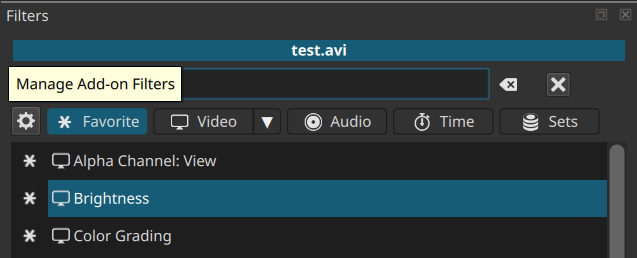
Once Shotcut loads, go to Filters and click the
 button:
 -
The Manage Add-on Filters dialog appears. It shows all effects in the engine including ones that already have a UI included in Shotcut. You can search for, register, and enable discovered plugins.
-
Enabled (checkbox) plugins will appear in the Filters menu after you click OK.

Safe Mode & Recovery
Third-party plugins can occasionally be unstable. To prevent crashes or loading loops:
-
If Shotcut crashes within 30 seconds of starting up or takes longer than 4 minutes to start, it will automatically restart into a safe mode.
-
Safe mode temporarily disables all external OpenFX, VST2, and LV2 plugins so you can troubleshoot, update, or remove the problematic plugin from your system folders.
-
Once you have removed the offending plugin, you can exit this state by choosing Settings > Allow External Plugins (Settings > Leave Safe Mode in version 26.8.1) from the top menu.
-
To manually put Shotcut 26.8.1 into safe mode on Windows, you can edit the registry at
HKEY_CURRENT_USER\Software\Meltytech\Shotcut\add or set the keysafeModeto the string valuetrue.That assumes you have not ever changed Settings > App Data Directory. In case you did and for other operating systems, see the Shotcut - Configuration Keys page on the Web site.
Community/Custom Plugin UIs
Advanced users can bypass the --experimental startup command if they manually supply a custom, hand-crafted user interface script for an external plugin.
- Custom user interfaces can be placed directly in your App Data Directory inside
extensions/filters. - The system looks for QML UI templates that target a dummy or no-op backend filter via
mlt_service: 'shape'inside themeta.qmlfile. This allows scripting features to load as local extensions until a formal scripting panel is introduced. - If you want to share a generated UI, possibly after editing it, enable the add-on and open its UI. Then, use View > Application Log and scroll to the end. There are
.qmltemporary file path names in the log. Copy the files before exiting Shotcut. A filter needs both ameta.qmland aui.qmlwithin a folder. The name of the folder is not important as long as it is unique; take into consideration that there can be multiple UIs for a single effect.