Use the Drawing/Animation Generator to open a simple drawing program included with Shotcut to draw something new on top of a video or a solid color background. The program is named Glaxnimate, and it creates a structured (vector) drawing rather than painting pixels. Structured means it consists of shapes and lines that you can adjust at any time. You can also animate them. This includes text, emojis, and raster images as well.
If you want to include a vector drawing or animation that you have downloaded you can import it like any other piece of media. In addition to its own rawr format, Glaxnimate also supports SVG, Lottie, Rive, and After Effects animations. However, these are limited and can have interoperability problems. Sometimes you can fix the issues in Glaxnimate.
Getting Started
You can trigger this from several places:
- The main menu at File > New > Drawing/Animation
- The main menu at File > Open Other…
- The 2nd icon in the main toolbar

- The 5th icon in the Timeline toolbar with the same icon
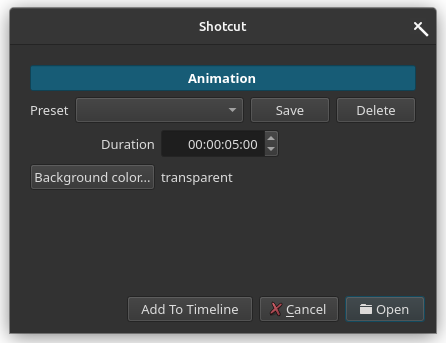
Preset is not very useful here but included because all of the generators have a preset system.
-
It is a good idea to set the Duration you want ahead of time, but you can change it later from Properties if you need to.
-
Click Add To Timeline to immediately add the text to the Timeline at the current playhead. If there is already a clip on the current track at this position it adds a new track holding the new text object. Otherwise, click Open to open the text clip in the Source player where you can preview it before adding it to the Playlist or Timeline.
NOTE: The Add to Timeline does not show when you choose to trigger this from the Timeline toolbar. Instead, OK appears and clicking it adds it to the Timeline.
-
If you did not use New Project > Start to start this project, a file save dialog opens for you to choose a location where to save the drawing/animation, which is a separate file that ends with the
.rawrfilename extension. Otherwise, when using a proper project folder, this file is generated automatically in your project folder. -
Glaxnimate opens. See the Glaxnimate Web site for more help with using it.
Properties
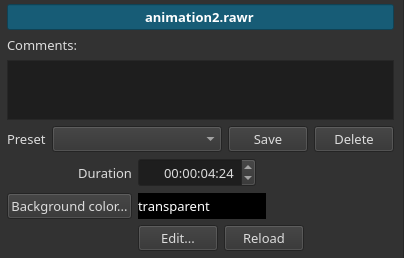
Click Edit to launch Glaxnimate to edit your animation. If your drawing is in the Timeline with an image or video clip on a track below a drawing with a transparent background then you will see a preview of the Shotcut video as the canvas background in Glaxnimate. Also, as long as this clip remains selected, any changes you save in Glaxnimate are automatically detected and updated in Shotcut. However, if you change selection or do something that affects it, then click Reload to manually refresh the appearance of the drawing inside Shotcut.
Also, like most clips, you can change the clip name in the header and enter comments.