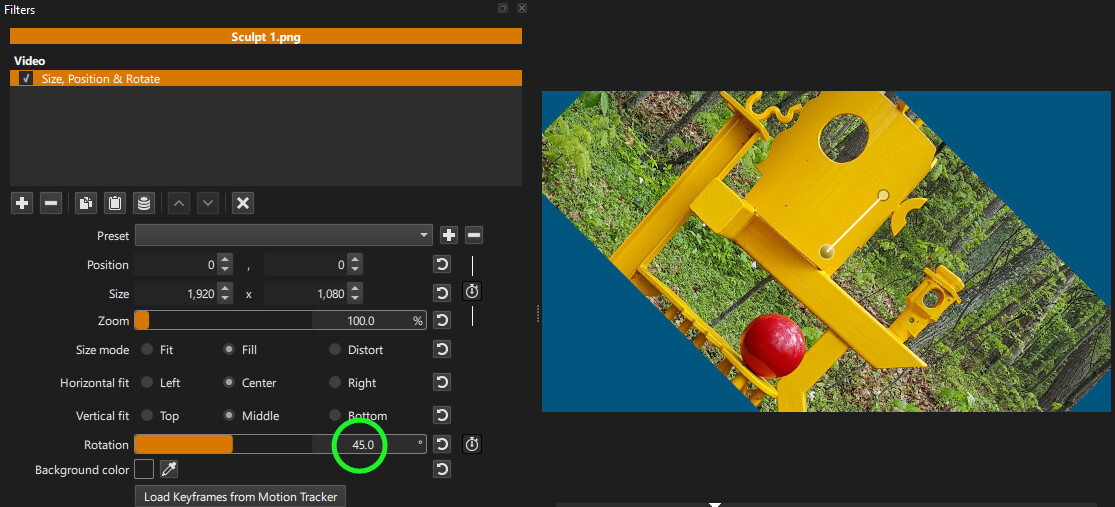
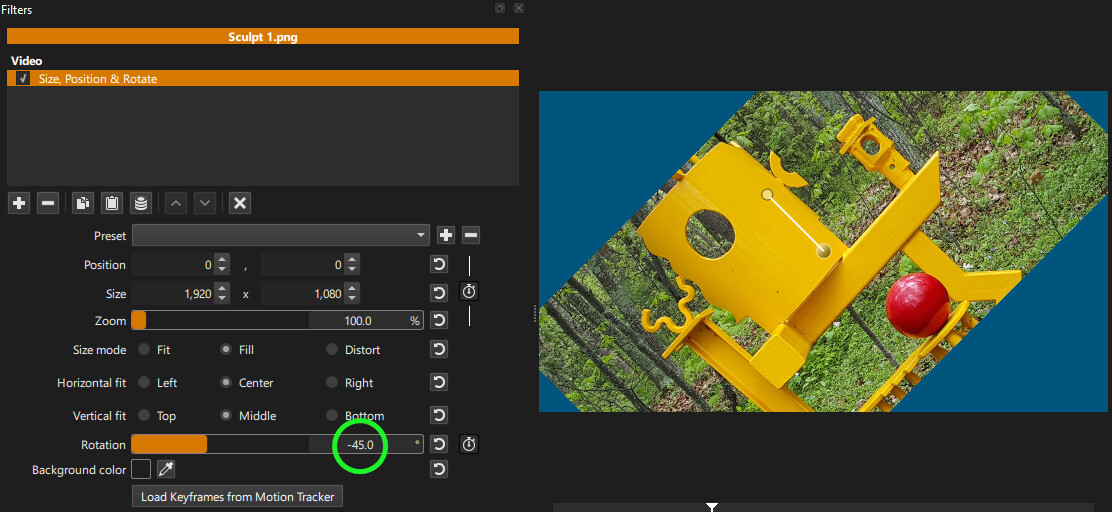
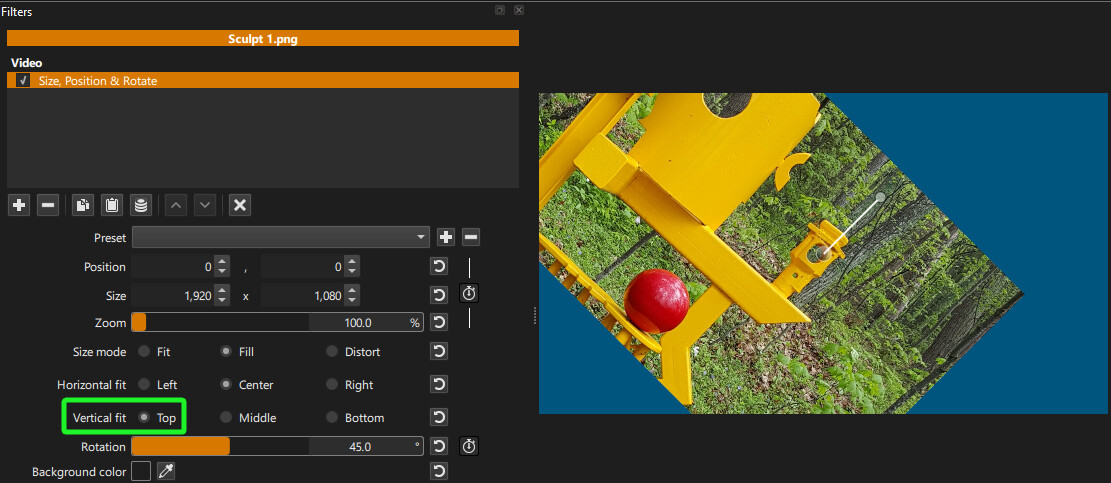
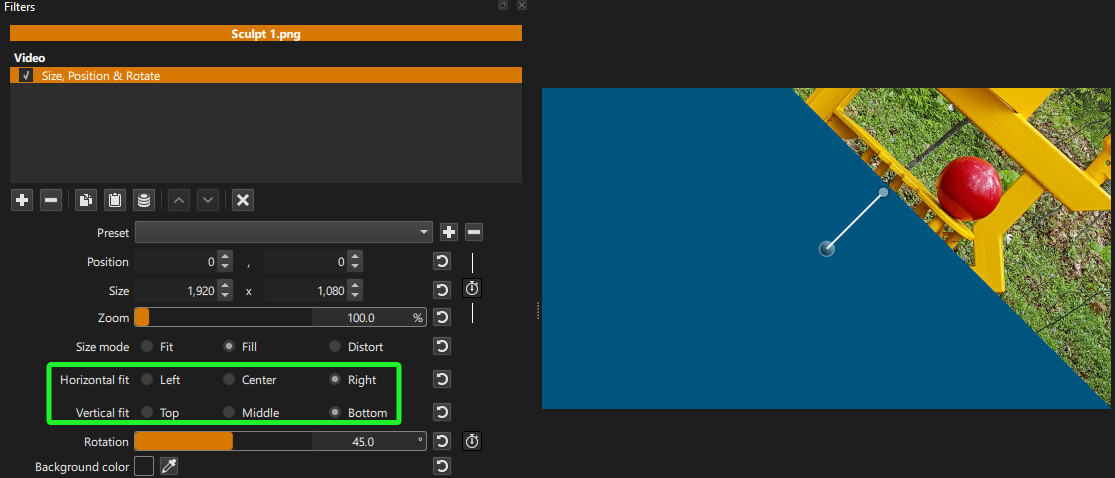
Can somebody give a quick “How to” when it comes to selecting the direction of rotation when using the “Size, Position & Rotate” filter on an image in the timeline? I cannot see how to do it. It seems completely arbitrary, which makes it kinda useless when I want to use it. OR I am missing something really obvious which one of you experts will be able to point me to!
Hope this helps. If it didn’t, could you explain a bit further, perhaps with a screenshot of your project (or a sample project) and what you’re wanting to accomplish?
Yeah, I get that (and thanks for your reply), but when you reach the end of 360° you have nowhere else to go. If you want something to rotate more than 360° what do you do? Like a spinning ball? Have I missed something in repeating a filter?
There is a bit of math involved here.
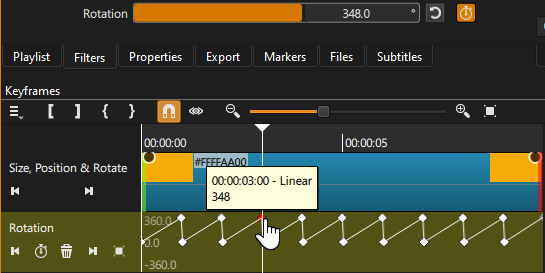
This example is with a 30FPS Video Mode.
360 degrees with 30 FPS requires 12 degrees of rotation for each frame.
In this example, I have the following keyframes (Linear) on Rotation:
00:00 = 0
01:00 = 348
01:01 = 0
02:00 = 348
02:01= 0
Thank you for this solution. It’s a lot of math but this would mean you don’t have to repeat the clip ad infinitum. You would of course have to repeat the keyframe setting ad infinitum. It strikes me that it would be easier to have a new “Repeat” function on a timeline clip with keyframes so that you could repeat the keyframes selected once, a set number of times or indefinitely. Just a thought.
If you want to use @Hudson555x’s method, you can replace the value 0 with -360.
This halves the number of keyframes by generating two rotations each time (-360 → 0 → +348), giving: