In Shotcut, a transition is a specialized object created when two clips on the same track overlap. While many video editors require you to drag an effect onto the junction of two clips, Shotcut uses a more intuitive overlap method to create cross-fades, wipes, and other visual transitions.
Drag and Drop
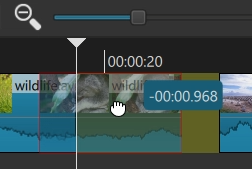
To create a transition such as a video dissolve with an audio cross-fade between two adjacent clips on the same track:
-
Position the Clips: Place two clips next to each other on a track.
-
Overlap: Drag the second clip toward the first clip so that it overlaps the end of the first clip.
While you are dragging, a popup appears with a time value to show you how much you moved the clip and thus the duration of the transition. -
The Transition Object: You will see a new rectangular object appear in the overlap area with a purple “X” shape inside it. This indicates a transition has been created.
-
Playback: When you play the timeline, the first clip will now smoothly fade into the second clip.
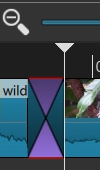
In the screenshot above, this created a gap in the track because Ripple is off. If you turn it on, there will be no gap and all of the clips following the clip you dragged are moved.

You can also drag the first clip to the right to make a transition; however, Ripple must be off for that. Otherwise, ripple drag to the right is used to push the clips on the track.
Trimming
Another way to make transitions if there is enough non-revealed footage before or after the clip (due to trimming creating so-called “handles”) is by trimming:
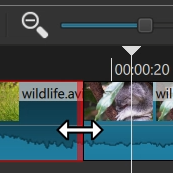
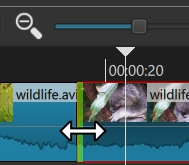
Drag the right edge of the first clip or the left edge of the second clip over the other clip.
Adjusting a Transition
-
Duration: To make the transition longer or shorter simply drag the edges of a neighbor clip or the transition object, or move the clips to change the amount of overlap.
-
Selection: Click the transition object to select it. When selected, it will have a red border, and its properties will be available in the Properties panel.
Removing a Transition
Immediately after making a transition, possibly by accident, you can simply Undo (Ctrl+Z, command+Z on macOS). Otherwise, there are two behaviors: Lift and Ripple Delete.
If you do not want clips to move choose Lift, the transition is removed, and each clip is automatically trimmed to fill the gap.
If you want to retain the full duration of the clips and not change their trimming, clips must move because two things were occupying the same space-time. Use Ripple Delete for that.