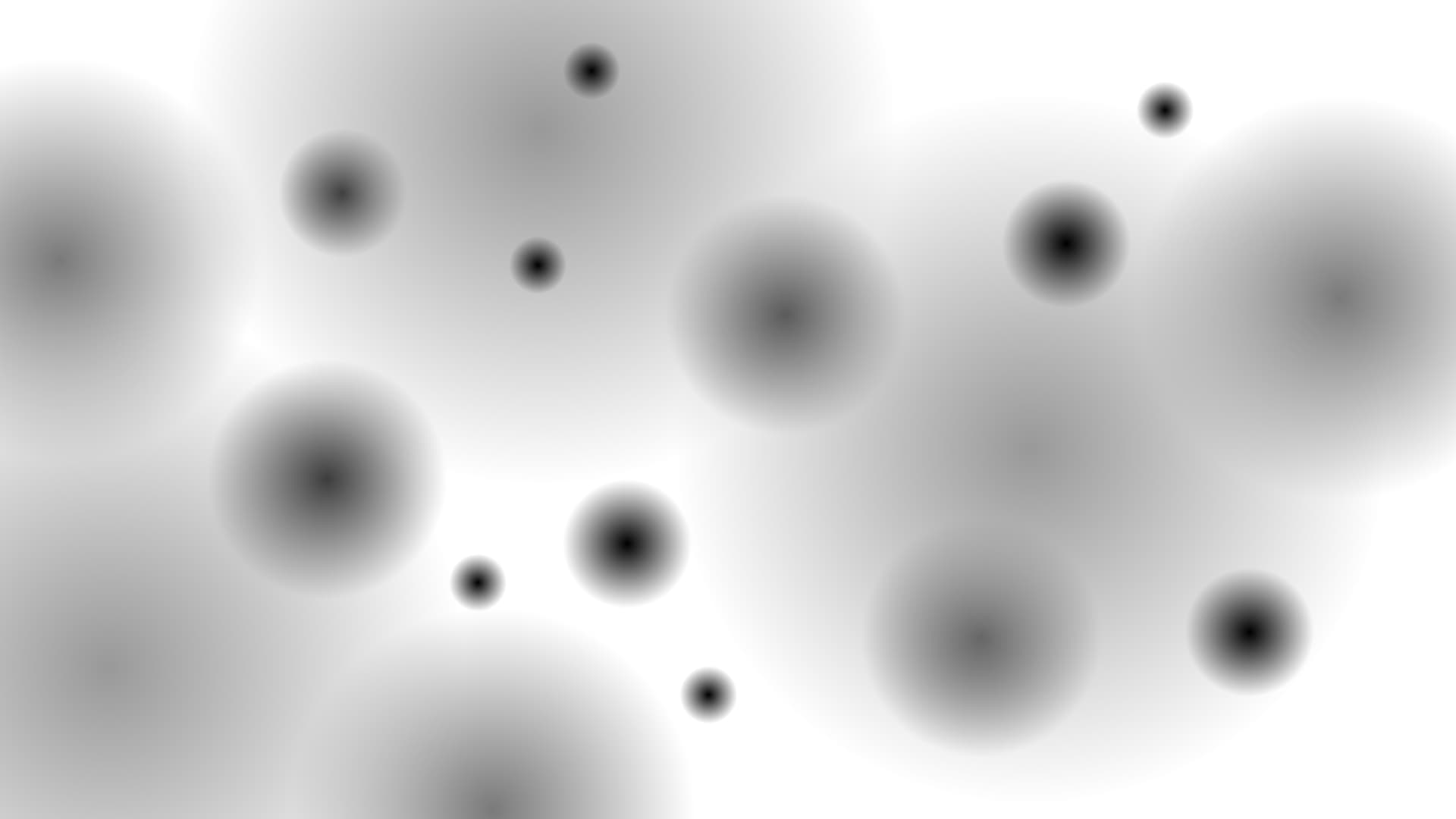
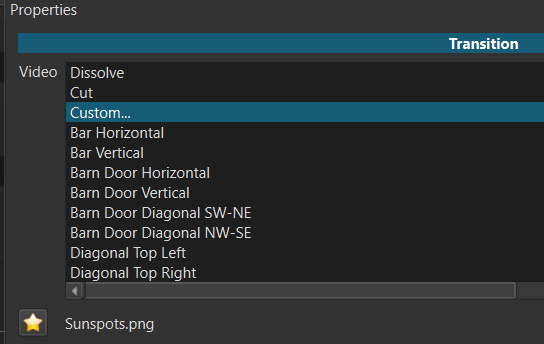
In the Properties panel, you can select Custom… from the Video list-box. This allows you to load any grayscale image or video file to use as a transition map (wipe pattern).
-
White areas of the image appear first. Black areas appear last. For example,
Subspots.png: -
The duration of a video wipe is not automatically adjusted to the same duration as the transition. It is better to use one that is similar duration or adjust the duration of the transition, but often close is good enough.
-
The file you choose is displayed below the list-box.
-
Click the favorite button (star icon) to save this custom file as a favorite that will appear at the bottom of list-box for future transitions. This copies the file to your App Data Directory so you will not need to keep the current file in the future.
Hint: To make the current transition use the custom file in App Data, un-select the transition, re-select it, and choose it at the bottom of the Video list box. -
You can download many custom wipes from Shotcut - Resources.