Displays a real-time visual representation of audio amplitude as animated bars or segmented meters over a video frame.
The visualization reacts to the audio signal associated with the clip and renders directly into the video output.
This filter is intended for visual feedback, not audio analysis or correction.
Important requirement (mandatory)
The audio source must be on a video track; audio-only tracks are not supported.
- The filter reads audio only from the clip it is applied to.
- A video clip with embedded audio works as expected.
- Audio-only clips on audio tracks cannot drive this filter.
If no usable audio is present on the video clip, the visualization will not animate.
Parameters
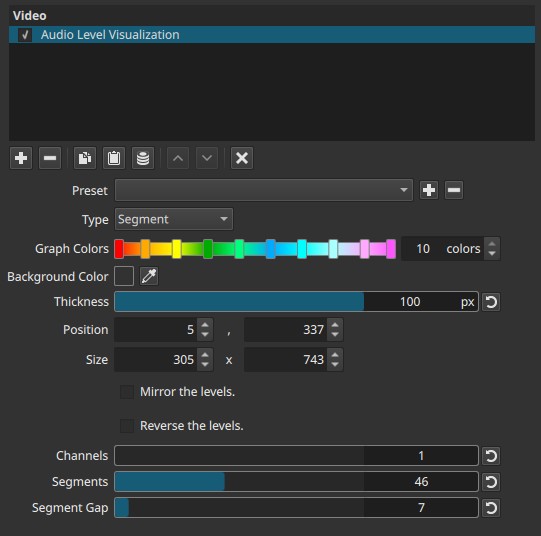
Type (Bar | Segment)
Selects the visual style of the level meters.
-
Bar
Continuous bars that grow and shrink smoothly with the audio level. -
Segment
Bars divided into discrete segments, similar to LED or broadcast meters.
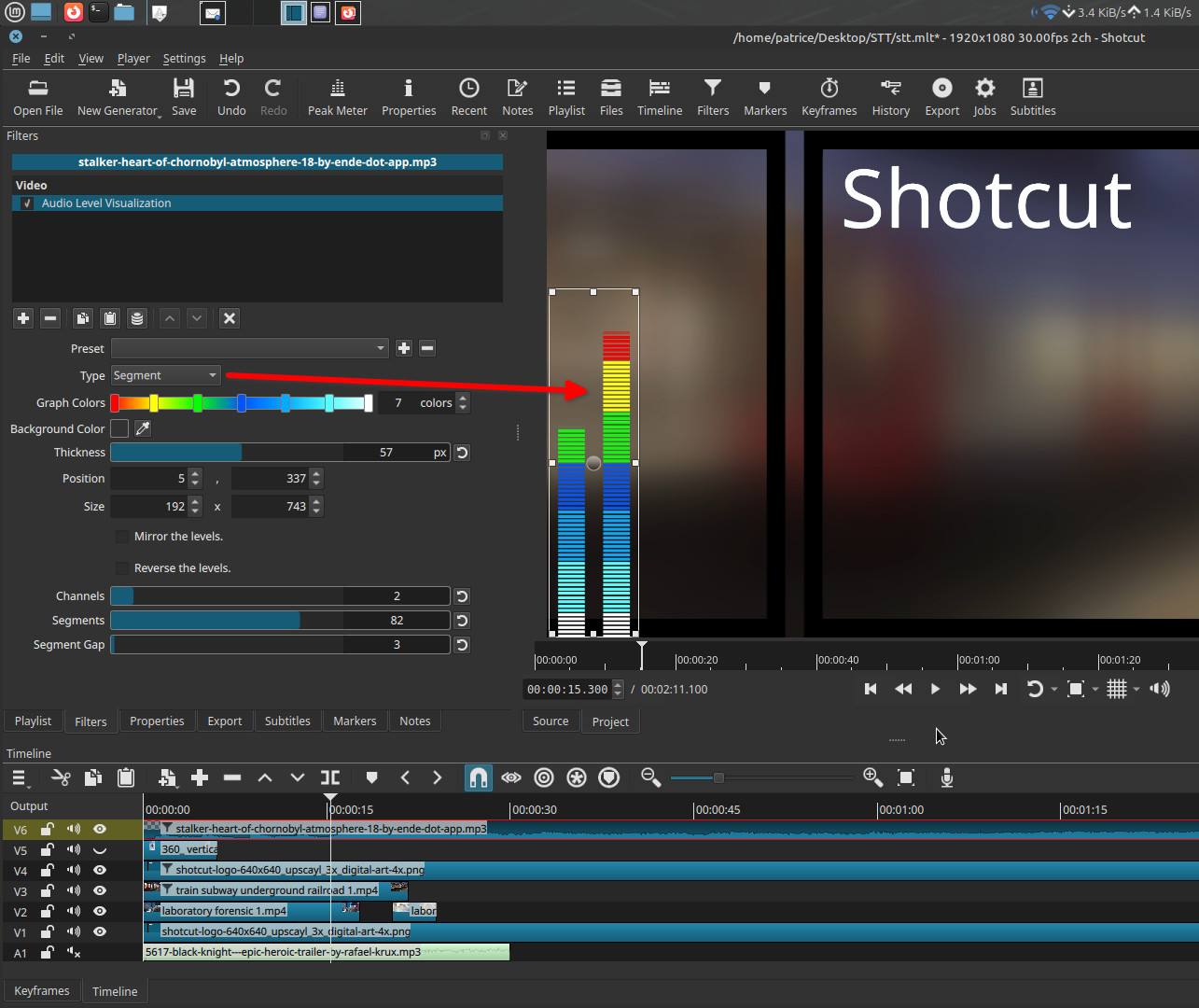
Graph Colors (1 - 10)
Defines the color ramp used for the levels.
-
You must explicitly set the number of colors (1 to 10).
-
Colors are interpolated across the meter.
-
Click directly on the horizontal color bar to:
- Set individual colors
- Adjust intermediate color stops
Important behavior
- With only one color, the entire meter uses that color.
- Multiple colors create a gradient that follows level intensity.
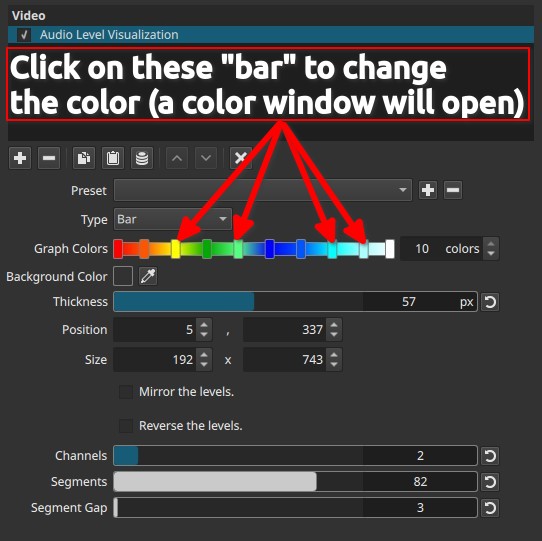
Background Color
Sets the background behind the visualization.
- Default is transparent
- Can be changed using the color picker or by clicking the color control
Note:
The background is rendered as part of the video image. Timeline track compositing works normally; alpha transparency in the exported file is relevant only if transparency is required and the export format supports an alpha channel.
Thickness (0 - 100 px)
Controls the thickness of each bar or segment.
- Affects visual weight, not sensitivity
- Larger values produce bolder meters
Position (X, Y)
Defines the on-screen position of the visualization.
- Can be adjusted numerically
- Can be moved directly in the preview window
Size (Width, Height)
Defines the overall bounding box of the visualization.
- Can be resized numerically
- Can be resized interactively in the preview
Note:
Size controls the drawing area; Thickness controls the bar width inside it.
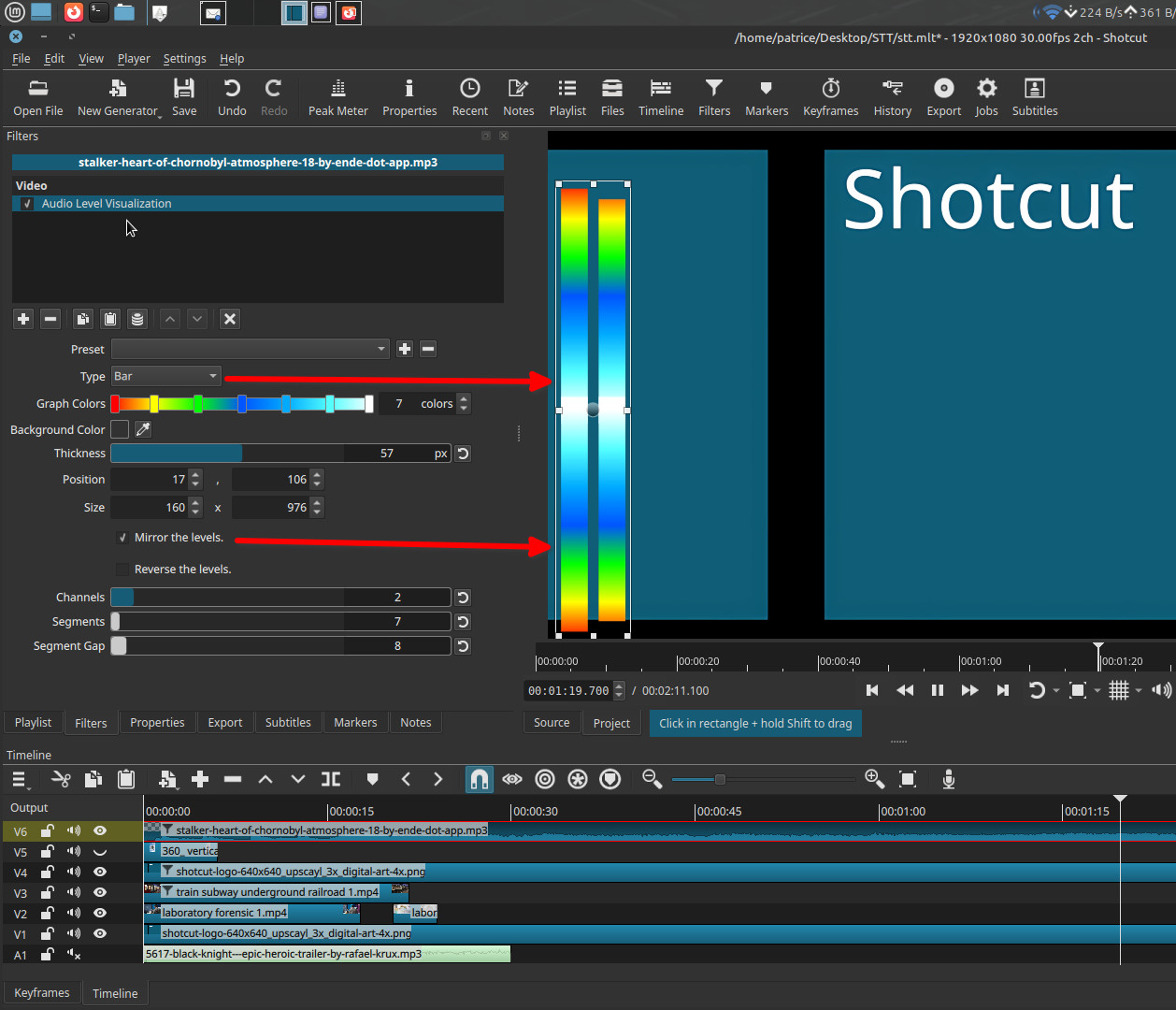
Mirror the Levels (checkbox)
Mirrors the meters around a central axis.
- When enabled, levels expand symmetrically up and down from the center.
- When disabled, levels grow in a single direction.
This is a visual-only option.
Reverse the Levels (checkbox)
Reverses the horizontal direction of the visualization.
- Left becomes right
- Right becomes left
Useful for layout or compositional symmetry.
Channels (1 - 10)
Controls the number of audio channels visualized.
- Each channel is displayed as a separate bar or segment column.
- This does not create or mix audio channels.
- If the source audio has fewer channels, remaining meters may duplicate or remain inactive depending on the source.
Important clarification:
This represents audio channels being visualized, not physical speakers.
Segments (1 - 100)
(Segment mode only)
Controls how many discrete segments each bar is divided into.
- Low values → coarse, blocky meters
- High values → fine-grained segmentation
Segment Gap (0 - 100)
(Segment mode only)
Controls the spacing between segments.
- Low values → thin gaps, visually thicker segments
- High values → wide gaps, thinner-looking segments
Note:
Increasing the gap reduces the visible segment thickness.
Keyframes
This filter does not support keyframes.
All animation is driven entirely by the audio signal.
Visual characteristics
- Real-time response to audio amplitude
- Vertical meters following music, speech, or sound effects
- Deterministic and repeatable for the same audio
- Rendered directly into the video output
Recommended use cases
- Music visualizers
- Podcast or voice-over videos
- Educational or technical demonstrations
- Audio-reactive overlays without scripting
Limitations
- Requires audio on a video track
- No control over frequency bands (not a spectrum analyzer)
- No peak hold or RMS/peak mode selection