Applies a directional blur and blending treatment to the top and/or bottom regions of a 360° equirectangular image.
The filter is designed to soften, hide, or visually integrate the polar areas (zenith and nadir) of 360° equirectangular video, which often contain strong projection distortion, stitching artifacts, or visible parts of the camera mounting (such as tripods or rigs).
Important Note:
This filter does not change the projection of the image; it only modifies the polar regions and is typically used in combination with other 360° projection or reframing filters.
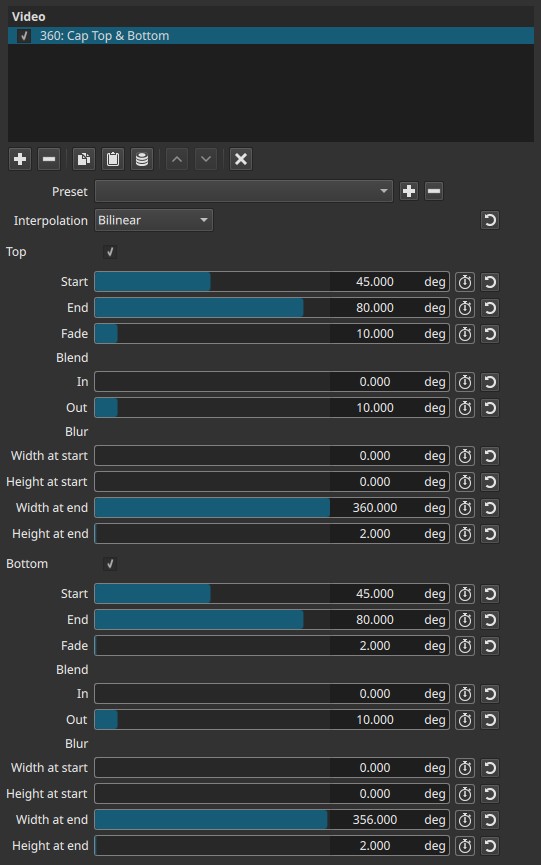
This is a 360°-specific filter. All controls operate in angular space (degrees), not pixels.
General behavior (important)
- The filter operates on angular bands at the top and/or bottom of the frame.
- Effects are applied progressively between defined angular limits.
- The blur is directional and animated relative to motion, not a static matte.
- The effect must be evaluated during playback; a still frame can be misleading.
Note:
This filter is meant to be seen in motion. On a still frame, the result can look incorrect or overly aggressive.
Parameters
Interpolation
Defines how pixels are resampled when the image is warped and blurred.
-
Bilinear
Smooth interpolation using neighboring pixels.
Produces softer transitions and is the preferred mode for natural footage. -
Nearest-neighbor
Uses the closest pixel without smoothing.
Produces hard edges and visible stepping; mainly useful for debugging or stylized results.
Top (enable checkbox)
Enables processing of the top (zenith) region of the 360° image.
If disabled, all Top-related parameters are ignored.
Start (0.000 - 90.000°)
Defines the angle from the top pole where the effect begins.
- Lower values affect a smaller cap near the pole.
- Higher values extend the effect further into the image.
End (0.000 - 90.000°)
Defines the angle where the effect reaches full strength.
- The region between Start and End is progressively affected.
- End values closer to 90° push the effect deeper toward the equator.
Fade (0.000 - 90.000°)
Controls how gradually the effect fades between Start and End.
-
0°
Hard transition. -
Higher values
Softer, more progressive blending.
Blend
Controls how the processed region blends with the unmodified image.
In (0.000 - 90.000°)
Out (0.000 - 90.000°)
- In controls the blend entering the affected region.
- Out controls the blend leaving it.
These parameters soften the visual boundary and help avoid visible seams.
Blur
Controls the directional blur envelope applied to the cap.
Width at start (0.000 - 360.000°)
Height at start (0.000 - 90.000°)
Defines the blur extent at the beginning of the affected region.
- Width corresponds to horizontal angular spread.
- Height corresponds to vertical angular spread.
Width at end (0.000 - 360.000°)
Height at end (0.000 - 90.000°)
Defines the blur extent at the end of the affected region.
This allows the blur to expand, contract, or change shape across the cap.
Important behavior
- Blur is not uniform; it is interpolated between start and end values.
- Very small Height values can still produce strong perceptual blur due to angular compression near the poles.
Bottom (enable checkbox)
Mirrors all Top controls, but applies them to the bottom (nadir) region of the image.
All parameters behave identically, but relative to the bottom pole.
Keyframes
All parameters are keyframeable.
This enables:
- Dynamic hiding or revealing of poles
- Motion-reactive visual effects
- Stylized transitions tied to camera or subject movement
Visual characteristics
- Strong directional blur near poles
- Angular stretching and smearing
- Seamless blending when tuned correctly
- Effect intensity increases with motion
On static frames, the image may appear distorted or unpleasant; during playback, motion integrates the blur perceptually.
Recommended use cases
- Hiding tripods or camera rigs in 360° footage
- Masking stitching or pole artifacts
- Stylized motion effects in VR environments
- Making polar regions less visually distracting
Important!
Typical filter chains (Common 360° workflows)
- Equirectangular → Stereographic
→ then Cap Top & Bottom
(hide stretched poles after projection)- 360° Reframe / Viewpoint change
→ then Cap Top & Bottom
(soften polar distortion introduced by reframing)- Raw 360° footage
→ Cap Top & Bottom
(hide tripod or stitching before further processing)
What not to expect
Using Cap Top & Bottom alone will never:
- Turn flat footage into a planet
- Change perspective
- Animate the scene
It is not a generator, only a polar modifier.
Limitations
- Only meaningful for equirectangular 360° video
- Difficult to judge on still frames
- Aggressive settings can look incorrect when paused
- Not intended for conventional (non-360°) footage, except for deliberate stylistic use.