Adjusts audio/video playback alignment in the Shotcut player to compensate for synchronization differences during preview.
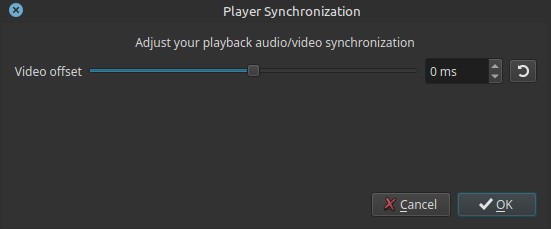
This setting affects player playback only. It does not modify clips, the timeline, or exported files.
What synchronization means
Audio/video synchronization (often called lip-sync) describes how accurately sound and image are aligned in time.
When synchronization is off, viewers may notice:
- Speech not matching mouth movement
- Sounds occurring slightly before or after visual events
Such offsets can be caused by:
- Audio hardware latency
- Video decoding delay
- Driver or system timing differences
Parameter
Video Offset (-250 ms to +250 ms)
Shifts the video playback timing relative to the audio during preview.
-
0 ms
Audio and video play as decoded, with no adjustment. -
Negative values (-)
Video is displayed earlier relative to audio.
Use when video appears late. -
Positive values (+)
Video is displayed later relative to audio.
Use when audio appears late.
Important note:
The adjustment is expressed in milliseconds (ms).
How to use this setting
- Play a clip with clear audio cues (speech, claps, impacts).
- Observe whether sound or image leads.
- Adjust Video offset until audio and visual events align naturally.
This is especially useful when monitoring on systems with known latency.
Scope and behavior
This setting affects player preview only.
It does not:
- Alter clip timing
- Shift audio or video on the timeline
- Affect exports or renders
- Correct sync issues in the source media
Any adjustment made here is temporary and non-destructive.
Recommended usage
- Correcting preview sync issues caused by audio interfaces
- Compensating for Bluetooth or external audio device latency
- Improving lip-sync accuracy during editing
If sync problems persist in exported files, they must be addressed on the timeline or during export, not here.
Limitations
- Preview-only adjustment
- Global setting (not per clip)
- Does not fix incorrectly synced source media
- Not a replacement for proper timeline alignment
See also: Audio/Video Properties to learn how to adjust a sync problem with a clip