Shotcut can record from your webcam or other audio and video inputs on your system.
This only appears on Windows and macOS. See Open Other > Video4Linux on Linux.
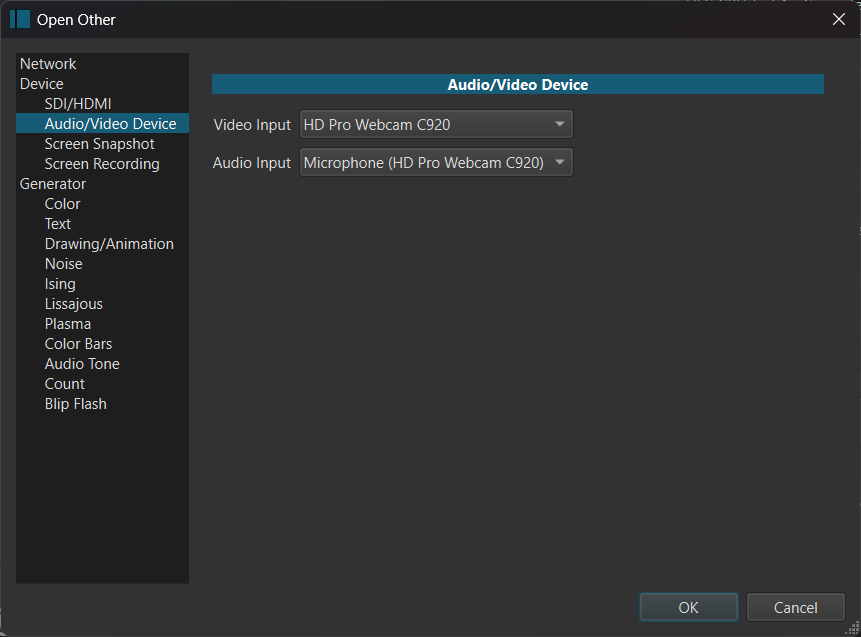
- Choose your input devices. You can also choose None for one if you want an audio- or video-only capture.
- Click Open to start playing these device inputs in the Source player. Shotcut is not yet recording to a file!
- Use Properties to make more input changes if needed. It simply shows the Video input and Audio input drop-downs.
- Adjust your camera framing, lighting, and audio/video levels at this point where these make sense.
- To start recording to a file, use the Export panel, choose an appropriate preset, click Capture File, and enter a name in the file save dialog that opens.
- When you are done recording, click Stop Capture in Export. (This button replaces Capture File while a recording is in progress.)
- The captured file opens now in the Source player and is added to the Recent panel.
NOTE: This is not the recommended way to record audio to the timeline because it is not so convenient. Use Timeline > Record Audio for that. However, you can use this function (without file capture) to verify your audio device selection is working OK in Shotcut.