When an image is selected, the Properties panel shows information and options.
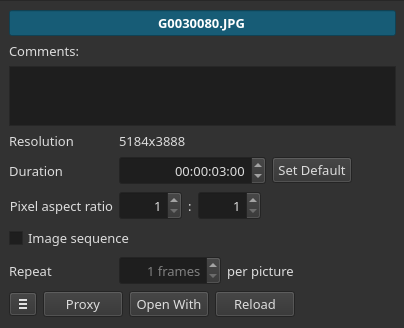
Fields
- The heading shows the title of the clip. The default is the file name, but you can click into it or press
F2to rename the clip. Renaming here only affects how it appears in the current project. It does not change the file name or its name in other or future projects. There is a tooltip for this field that shows the full path and name of the file. - Comments: is where you can add your own description, keywords, or tags. These are searchable in the Playlist panel for playlist clips only. Remember, in Shotcut, Playlist and Timeline are separate containers for clips. So, you need to open (double-click) a playlist item to see that clip object’s comments that are searchable.
- Resolution shows the source image dimensions.
- Duration shows the amount of time this image will appear in either the Playlist or Timeline. You can only edit the duration of the image in the Source viewer—whether a playlist item or not. You can also adjust the duration by changing the out point in the Source viewer. The only way to change the duration of an image on the Timeline is by dragging its right edge (trimming). The format of the time value is controlled by Settings > Time Format.
- When you open an image or drop one into Playlist or Timeline, it gets a default duration. The default is 4 seconds. Click Set Default to make the current duration displayed become the new default. That does not change the duration of any images that are already in the Playlist or Timeline—only newly added ones.
- Pixel aspect ratio lets you change the aspect ratio in case your image was exported directly from a video or tool such that it is not square pixels. Images normally default to assume 1:1, meaning square pixels.
- Click the Image sequence checkbox if this image is a member of an image sequence and you want to make Shotcut play the sequence instead of the single image for many frames. An image sequence is a collection of image files that represent frames of video saved with a counter number in the file name.
- The frame rate of an image sequence normally follows the current Video Mode. However, you can increase Repeat to make it slower in integer multiples by repeating each image in the sequence. If you need something slower or more precision, you need to convert the image sequence to a video. You can easily do that in Shotcut. Simply open the image in the Source player, check Image sequence if not already, and choose Export > From > Source. You might want to use an
intermediateorlosslessexport preset for that to preserve the most quality.
Button Bar

Menu
The first button in the Properties button bar is a menu button:
- Show In Files opens the integrated Shotcut Files panel to the file’s folder and selects the file.
- Show In Folder opens your system’s default file manager to the file’s folder and—on Windows and macOS only—also selects the file.
- Copy Full File Path copies the full path and file name to the system clipboard.
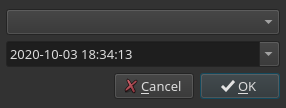
- Set Creation Time opens a dialog that shows the detected capture date and time, if found, or the file’s creation time where you can change it. This is useful in the Playlist where you can re-order items by date.
- Reset reverts any changes you have made to aspect ratio or image sequence.
Proxy
This opens a menu:
- Make Proxy
- Delete Proxy
- Disable Proxy
- Copy Hash Code
See Settings > Proxy Editing for more information.
Open With and Reload
- Open With shows a menu of other tools with which you can open this video or audio-only file.
- Choose System Default to let the operating system decide which tool to use–the same as if you double-clicked the file in its file manager.
- Choose Other to add an application that is on your computer.
- Choose Remove to remove something you added with Other.
- You can think of this as “Edit With”.
- There is a file watcher upon opening with another tool as long as selection (Properties) does not change. If it does, you can use Reload. This does not yet reload—whether manual or automatic—every clip object based on this file.
- This is not available in the Linux Flatpak.
- This was added in Shotcut version 25.10