I am a new shotcut user and need to enlarge the text font size in the program UI because I cannot read the display. I reviewed the FAQ suggestions given for this topic, applied the suggestions, and do not see anychange in display readability. I’ve tried shotcut shortcut compatibility properties set to override for application, system, and system enhanced. I’ve tried command line terminal execution arguments as well without success.
Since the compatibility override didn’t change anything, two other things to try on Windows 11: (1) Raise Windows display scaling (Settings > System > Display > Scale, e.g. 125% or 150%), then restart Shotcut. (2) Set a Qt scale variable: search for “Edit the system environment variables”, add a user variable QT_SCALE_FACTOR with a value like 1.25 or 1.5, then fully close and reopen Shotcu
This worked for me:
Thanks for the suggestions, but when I type C:\Program Files\Shotcut\shotcut.exe --QT_SCALE_FACTOR 2 in Powershell or the command shell, I get a CommandNotFoundException in Windows 11. When I enclose the command in quotes, it simply echos to the terminal window. I haven’t tried changing the display scaling settings yet.
I would prefer not to force a global system-wide scaling increase because it would probably screw up other applications which currently render appropriately.
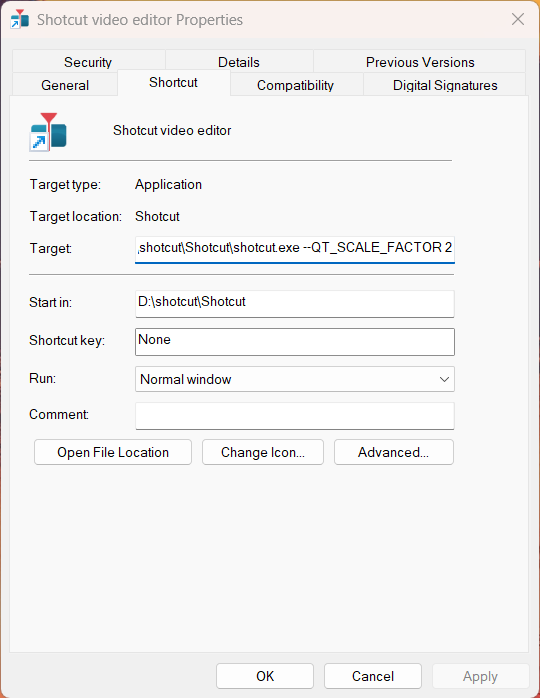
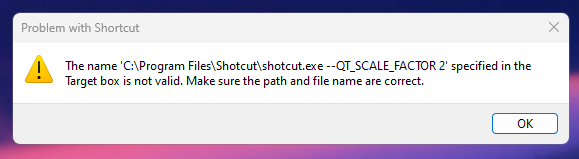
You might need wuotes around the program path, try:
“C:\Program Files\Shotcut\shotcut.exe” --QT_SCALE_FACTOR 2
Thanks, daniel47. Putting quotes only around the file path worked perfectly. I had the quotes surrounding both the file path and arguments, and that did not work. Thanks to shotcut too. While a scale factor of 2 was too large, with a scale factor of 1.5 I can now see the screen text much better.