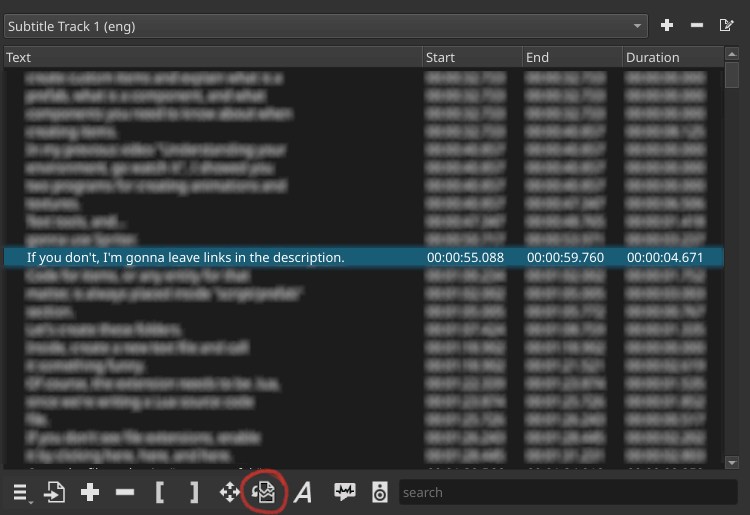
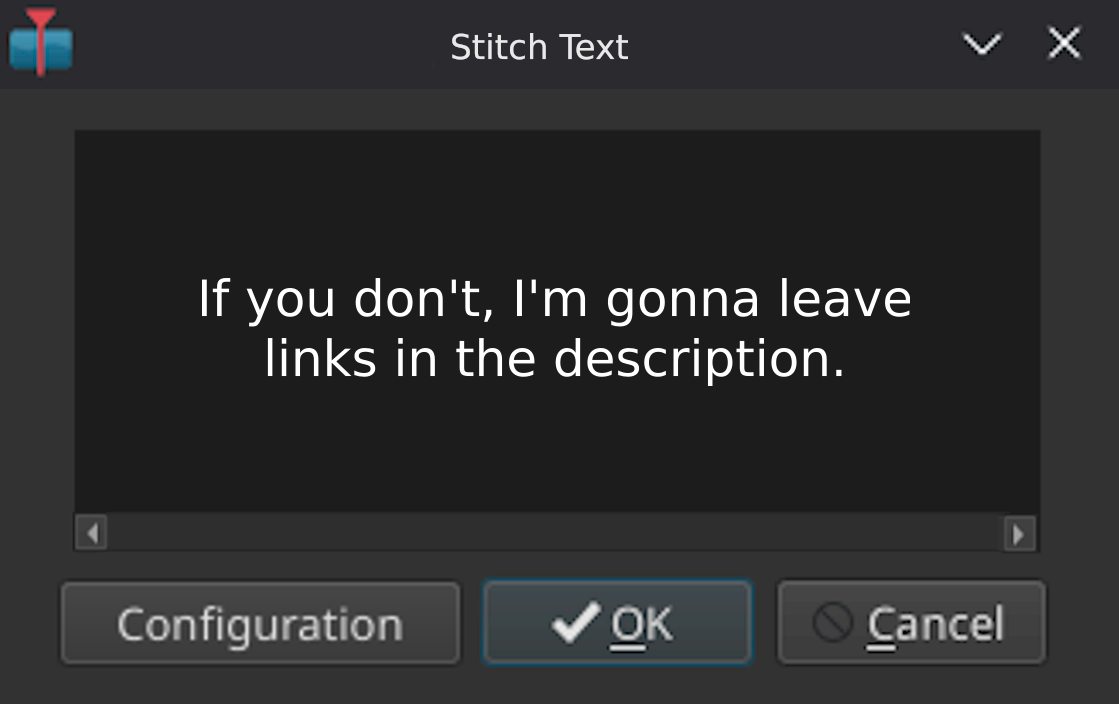
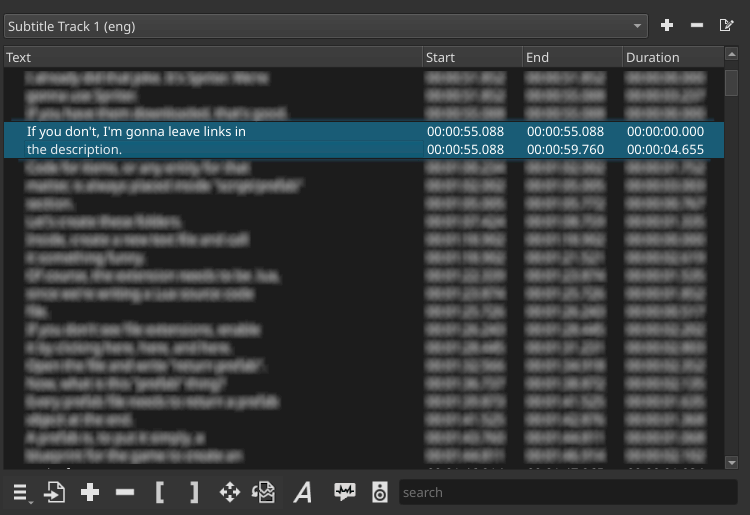
Default behavior of the command would be start time from earliest selected subtitle to end time of latest selected title subtitle, and text of subtitles are combined into one subtitle, separated by spaces. Useful for merging broken auto-generated subtitles or correcting subtitles that are too small.
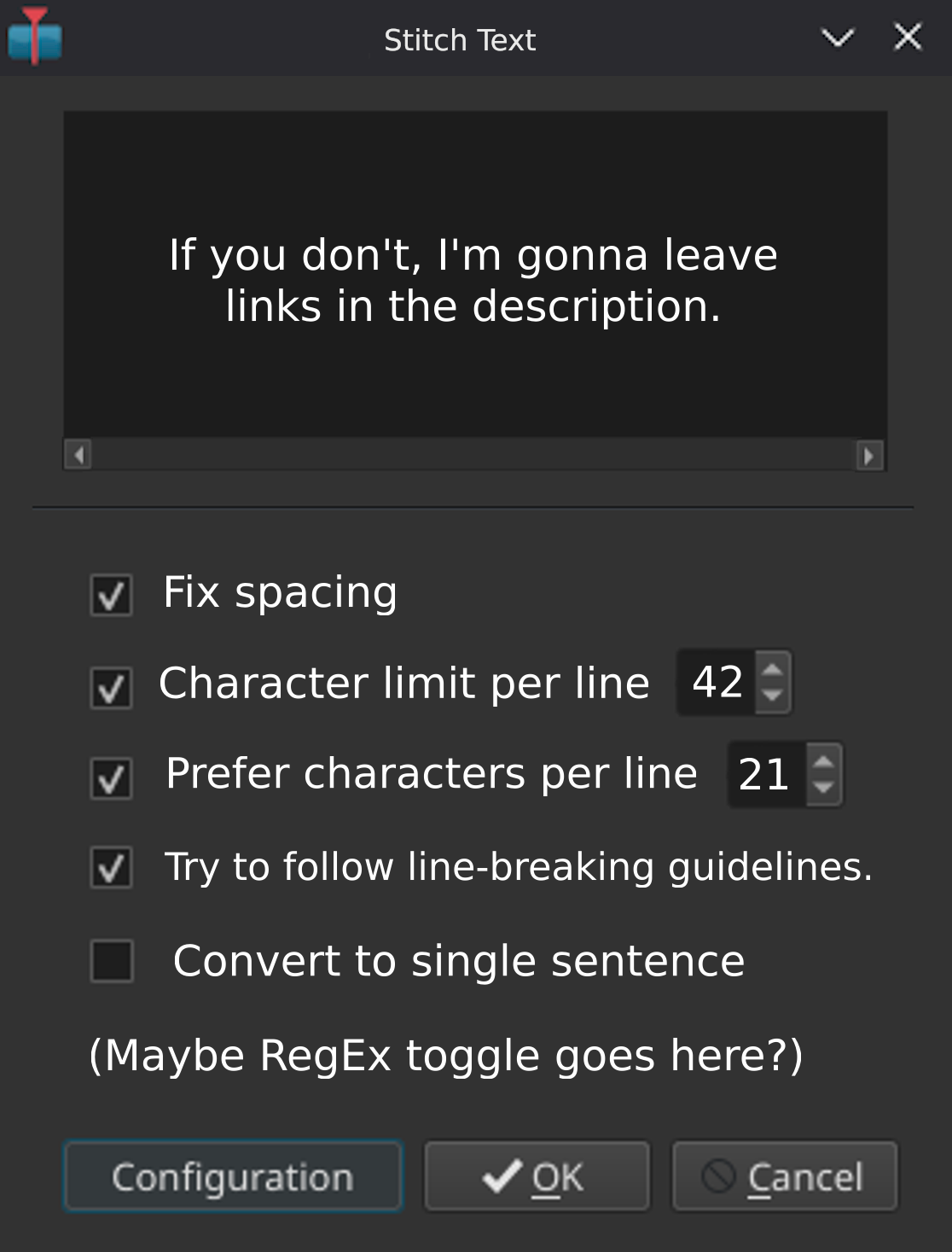
A pop-up window will determine the logic of subtitle stitching using regex (likely used to correct spacing/punctuation) and certain parameters.

Start Time a selection between [earliest subtitle (#1)] (earliest subtitle will always be subtitle #1), [subtitle #?] (any other subtitle, ascending), [playhead], [custom]. (start/end will obviously be grayed out when not applicable)
End Time a selection between [latest subtitle (#2)], [subtitle #?] (any other subtitle, descending), [playhead], [custom]
Find The default value will be “(.*?)\R(.*?)” which replaces any new lines; The different subtitles will be treated as new lines. When this value is deleted, for example, the merged lines will be treated like new lines.
"If you don’t, I’m gonna leave links in
the description" with F:(.*?)\R(.*?) becomes
“If you don’t, I’m gonna leave links inthe description.”
Replace With the default value will be “\x20” which is a clearer way to write the space key (" ").
"If you don’t, I’m gonna leave links in
the description." w/ F:(.*?)\R(.*?) RW:\x20 becomes
“If you don’t, I’m gonna leave links in the description.”
The pop-up window will have to be scrolling in case a stitch with with a lot of subtitles is needed.
Show this window when using hotkey When you use the hotkey for this command (Shift + TBD I guess), this notification window will pop up. The way to access this window otherwise would be using the button.
Preview Shows a preview after the regex, which you can edit, if desired (maybe tweaking the new lines). Changing the regex will reset this box.
I guess you can also make this work with single subtitle selections so regex can also be used for that.
Result: