I am a new shotcut user and just finished digitizing 70+ reels of 8mm home movies with a Wolverine film scanner. I am trying to create a title slide template for each mp4 file which will include film ID, year, mp4 filename, location filmed, short description, and persons included. This information would be filled in for each video and overlaid on a chosen jpg background exported from the video. After reviewing the various how-to FAQs and YouTube videos, I’ve resorted to using Paint.net layering to make a static jpg for the front end of each video. If someone could please outline how to do this internally in shotcut, I would sure appreciate. Thanks.
Welcome! You can do this inside Shotcut without Paint.net. Here is one way that should work: (1) Put your background JPG on a video track and set its duration (Properties > Duration) to how long the title should show. (2) With that clip selected, open Filters, click + and add “Text: Rich” (or “Text: Simple”). Type your lines (film ID, year, filename, location, description, people), then set font, size, color and position. (3) Save that project as your template (Fil
@fred_abila This is the second message of yours where it cuts off unexpectedly. This in addition to responding to nearly every thread with new activity makes me suspicious that you are a bot.
Thanks for the help. I created 2 files 127_Title.jpg from a frame export and then added rich text on top of the jpg background and saved that as Test_Title_Template.mlt. I think that is a filter, but the text enhanced jpg does not show up on the timeline yet. Only the jpg without the text. The text and jpg background remains displayed in the upper editing area, but not on the timeline.
Getting more familiar with the Shotcut UI, I designed the following title slide for my first digitized home movie, and was hoping this template could be recalled and edited for each of the remaining 70+ digitized 8mm videos I want to produce. I am also hoping I have not painted myself into a corner by placing the Shotcut rich text filter on top of a .jpg background and saving as a .mlt file.
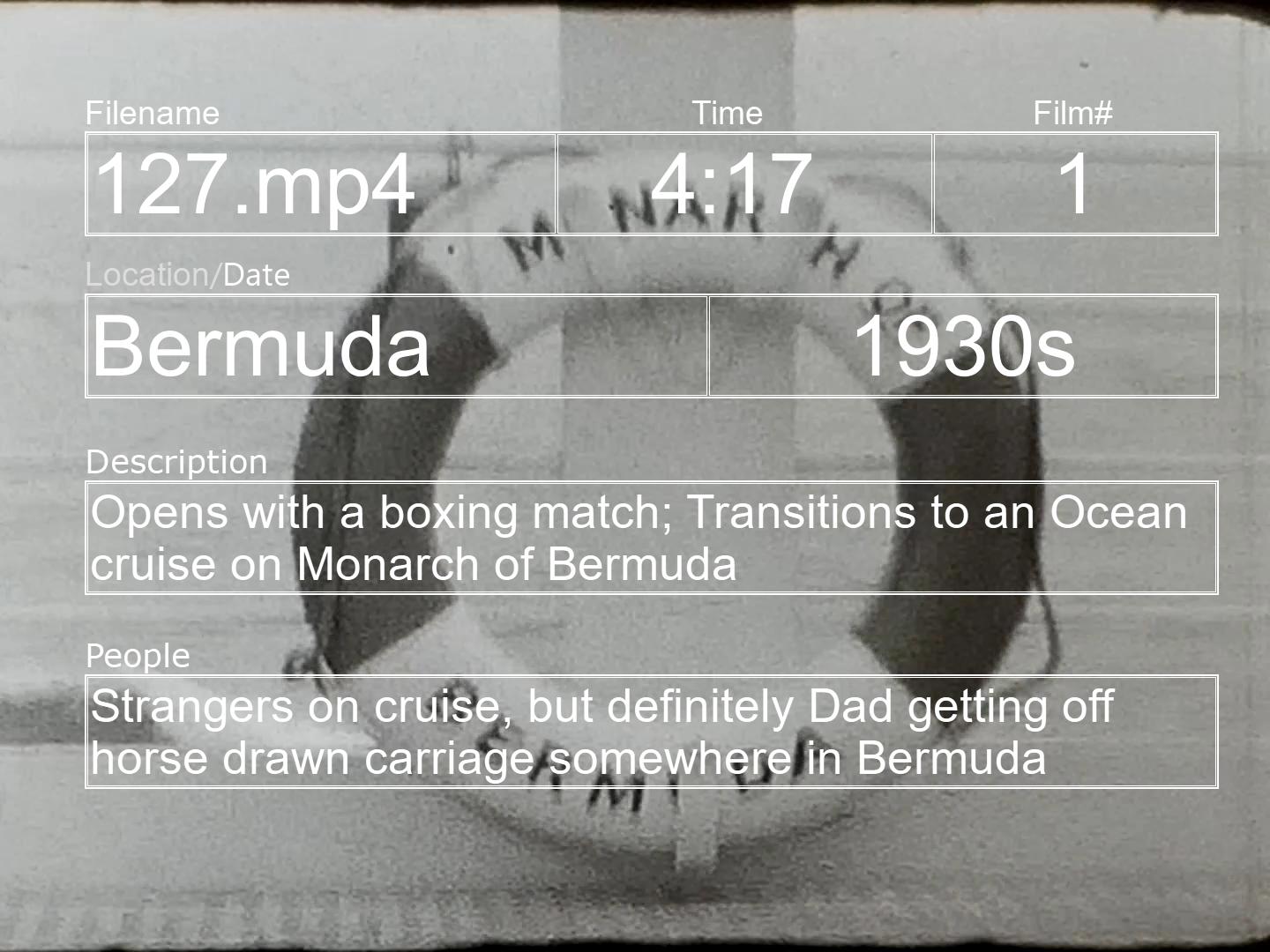
Is there a way to save just the rich text portion of this filter so it can be inserted and edited over a new .jpg background exported from selected frames of the other 8mm videos? Thanks.
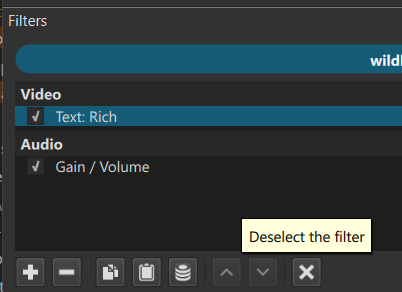
Make sure you preview this properly by de-selecting the filter; otherwise you are in for a surprise when exporting. The editor is only what-you-see-is-what-you-might-get. Click X
Rich text is not really designed for this kind of absolute positioning. It is not the right tool for this job, but you might find it works good enough for your needs. A better tool for this job is Glaxnimate or something like Powerpoint, but Glaxnimate (a separate install) is better integrated into Shotcut. For example, File > New > Drawing/Animation. You can choose whether to include the JPEG into the Glaxnimate drawing or Shotcut.
The rich text editor has a menu button at the far left of its toolbar. In there is what you are looking for: File > Save and File > Open
When you open your MLT file (Template), you can easily change the JPG image on the bottom track.
From the Playlist or a folder, drag a new image in the Player/Source panel
Right-click your JPG in the timeline and choose Replace
Any filters or settings applied to the original image will be preserved.
Thank you shotcut and musicalbox. Selecting the title clip template on the timeline, right-clicking, and selecting ‘R’ to replace worked just fine. I was worried because I did not remember using separate tracks for the .jpg and rich text filter. Was I supposed to put the filter on a separate track? Is it too late to do that now?
No, you weren’t supposed to, and it isn’t too late. A filter is attached to the clip itself rather than to a track, which is exactly why Replace kept your text when you swapped in the new JPG. Keeping the Text: Rich filter on the image clip is a perfectly fine way to build these title slides. You’d only want the text on its own track above the image if you wanted to time or animate it separately from the background, and in that case you could add a video track, put a transparent color clip on it (Open Other > Color with the alpha set to 0), and copy the filter over to that clip from the Filters panel.
Thanks, nataliagrace. Great explanation.
The R-Replace solution worked on one project, but when I tried it on another digitized 8mm film project, the rich text filter does not show up. What am I doing wrong?
- I drop my Default_TitleSlide.mlt into the new project playlist.
- Double-click Default_TitleSilde.mlt in the playlist and it shows up in the player panel, showing the background .jpg image and foreground rich text from a previous project.
- But no filters show up as Video filters an I can’t edit any of the rich text in the player panel.
- If I click “+” in the Filters panel, I am presented with a rectangle in the Player panel to enter new rich text, but can’t access the rich text that the Default_TitleSilde.mlt shows over the .jpg background.
- If I drag Default_TitleSilde.mlt from the playlist into the timeline, have a new .jpg displayed in the player, select the Default_TitleSilde.mlt clip on the timeline and right-click the clip on the timeline, and select R-Replace from the context menu, I end up with the new .jpg on the timeline, but without any rich text foreground.
Any idea what I’m doing wrong? I thought it worked before. Is there a way to export or save just a working title clip from the timeline of another project clip so it can be used as a template?
Thanks.
When you insert an MLT file in a project as a clip, it can’t be edited IN that project.
You need to open your Default_TitleSilde.mlt in a separate Shotcut instance to edit it.
After saving your changes, they will be applied when you re-open your main project.
Thanks again for the detailed response that explains why I am constantly getting my imported .mlt template flattened. I apologize for the time it is taking for me to get accustomed to how content is handled in shotcut, but in addition to the responses provided in the forum, I have also been consulting ChatGPT for step-by-step instructions, which in this case sounds like they may be wrong:
AI Prompt: Having created and saved this reusable Title_Template.mlt file, and after loading the file in the playlist of a new project, what are the steps to replace the background .jpg image with a new .jpg image from a frame in the new video?
Because you imported the template as a
.mltfile into a new project, Shotcut treats it as a single, flattened container. You cannot directly swap components inside it from your main timeline. To replace the background with a specific video frame, you need to use Shotcut’s Open As Clip feature to temporarily look “inside” the template. Here is the exact step-by-step workflow:Step 1: Export the Video Frame
- Scrub through your main timeline in the new project and select the exact frame you want to use as your background.
- Go to the top menu and select File > Export > Frame…
- Save this new image to your computer as a
.jpgor.png.Step 2: Open the Template Internally
- Look at your Playlist panel where your
Title_Template.mltis loaded.- Right-click on the
Title_Template.mltitem in the Playlist.- Select Open As Clip from the context menu.
(Note: Your timeline will change, temporarily showing the inside layers of your template project instead of your main video).Step 3: Replace the Background Image
- Drag your newly exported frame image from Step 1 into Shotcut’s Playlist or Source player.
- On the temporary template timeline, select the old background JPG clip.
- Right-click the old image clip and select Replace (or press
Ron your keyboard) using the new image clip from your Source player.- The text filter will remain perfectly intact on top of the new background.
Step 4: Return to Your Main Video
- Look at the top of your Timeline panel. You will see tabs or a dropdown switching between your projects.
- Click back over to your Main Project timeline tab.
- Drag the updated
Title_Template.mltfrom your playlist onto your video track.
So if I understand your latest advice, in addition to keeping an obviously separate repository folder for the template master, I should treat the derivative customized title clips as a separate .mlt file and only import the derivative clip to the new video timeline after the rich text customization and .jpg replacement has been made?
Also, it seems to me that ChatGPT’s comment that shotcut’s Shotcut’s Open As Clip feature to temporarily look “inside” the template is incorrect and instead really “flattens” the clip’s filter and .jpg components?
Thanks again.
I don’t recall ever seeing a “Open as clip” option. But I could be mistaken. I’m getting old and forget things 
There was a feature to open the timeline content as a clip in the Source. That was used to export only a portion of the Project. But it became obsolete when Markers were added to Shotcut.
You could have one master template that you would edit for, say, file 127.mp4.
Then save it as Title-template_video-127.mlt for example.
And do the same for each of the video you work on. I’d create a sub-folder for these templates.
You’ll end up with a template for each of you 70 reals. That’s a lot of files, but MLT files are very small. Having them will make things easier in case you need to re-edit one of your videos in the future. You won’t need to re-write all the text.
“Open MLT XML As clip” is in the 4th drop down option under File in the Main menu.
In your video example, I see multiple tracks in the Timeline (Transparent, Description Grid.png, and Nature20.png). My Timeline display shows only 1 video track. Is that causing the “flattening” of my .jpg and rich text components?