

Slideshow Generator makes it easy to add more than one image or clip to the timeline and automatically:
- fill the frame,
- make a smooth zoom animation for still images, and
- add a transition between each item.
Steps to Follow
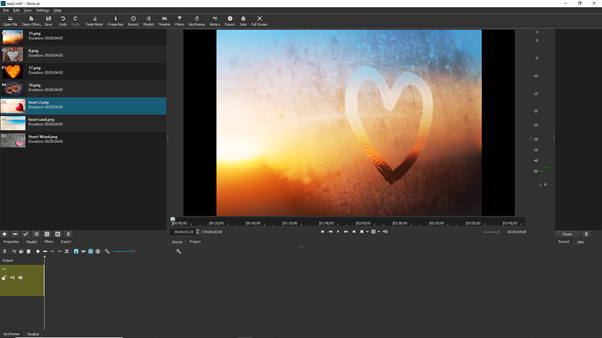
- Open the Playlist panel
- Add your selected images
- Drag within Playlist (or use sort in its menu) to the desired order
- Select the images or videos to add to the slideshow: hold Shift to select a range or Control (Command on macOS) to select individually
- Click the menu button at the bottom of the Playlist panel

- Choose Add selected to Slideshow
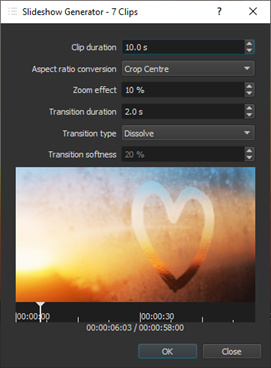
- The Slideshow Generator dialog opens
- Adjust the settings and click OK
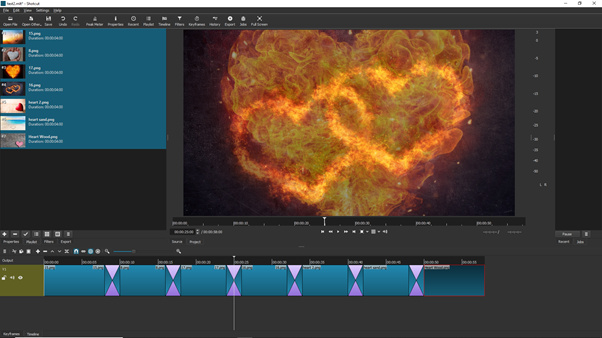
- Your images are added to the current track on the Timeline (a video track is added automatically if it was empty)
Suggestions
- Image duration only applies to still images and Audio/Video duration applies to everything else. Audio/Video duration defaults to 4 hours until you change it. Shotcut remembers the last value you used and defaults to that next time.
- Audio/Video duration still respects the source duration and its in & out points; duration here is a maximum.
- After it creates use the usual timeline editing methods to adjust the images and durations as required.
- If trying to fit a number of slides to an existing audio track:
Estimate the slide duration (Length of track / number of slides) and use this in the add dialog. If its too short or long, undo and repeat with a modified timing. Adjust the duration of the first or last clips for small adjustments. - Set Zoom effect to 0 to turn it off. This is advised if most of the clips are videos or music.
Ideas
- Show off holiday or travel photos.
- Create a video montage.
- Make a video loop for an information screen.
- Use music files and set Audio/Duration duration very high to make a music bed track that cross-fades between each song.